
Pictures and graphics
QR Codes
Put a code customers can scan for your website, phone number, Wi-Fi or location on a menu or flyer, made right on your device.
A QR code is the square pattern that a phone camera reads to open a website, call a number or join a Wi-Fi network. Liwan Studio makes the code on your iPad or Mac, with no internet connection, and can keep the codes you use often so you can add them to any design.
How to add a QR code
Tap QR Code on the tool rail. Its icon is a small QR code, just under the Image button. The rail runs down the left edge of the editor; when Liwan Studio is in Arabic, it is on the right edge.
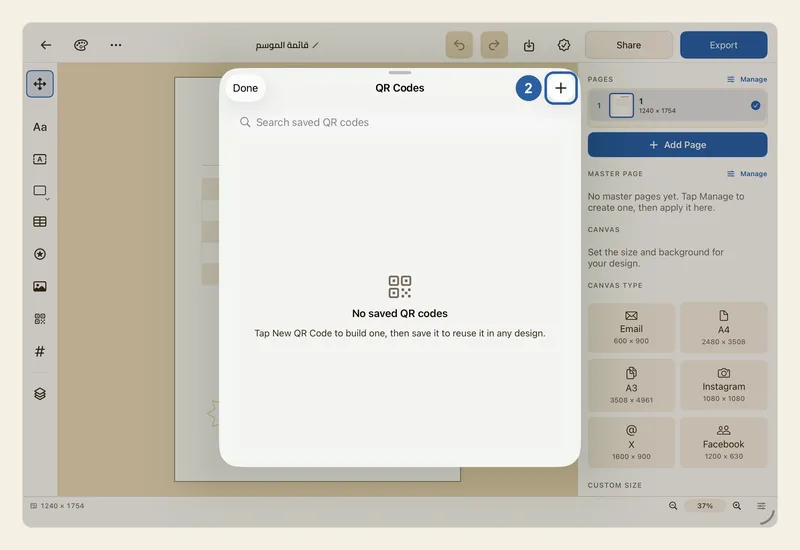
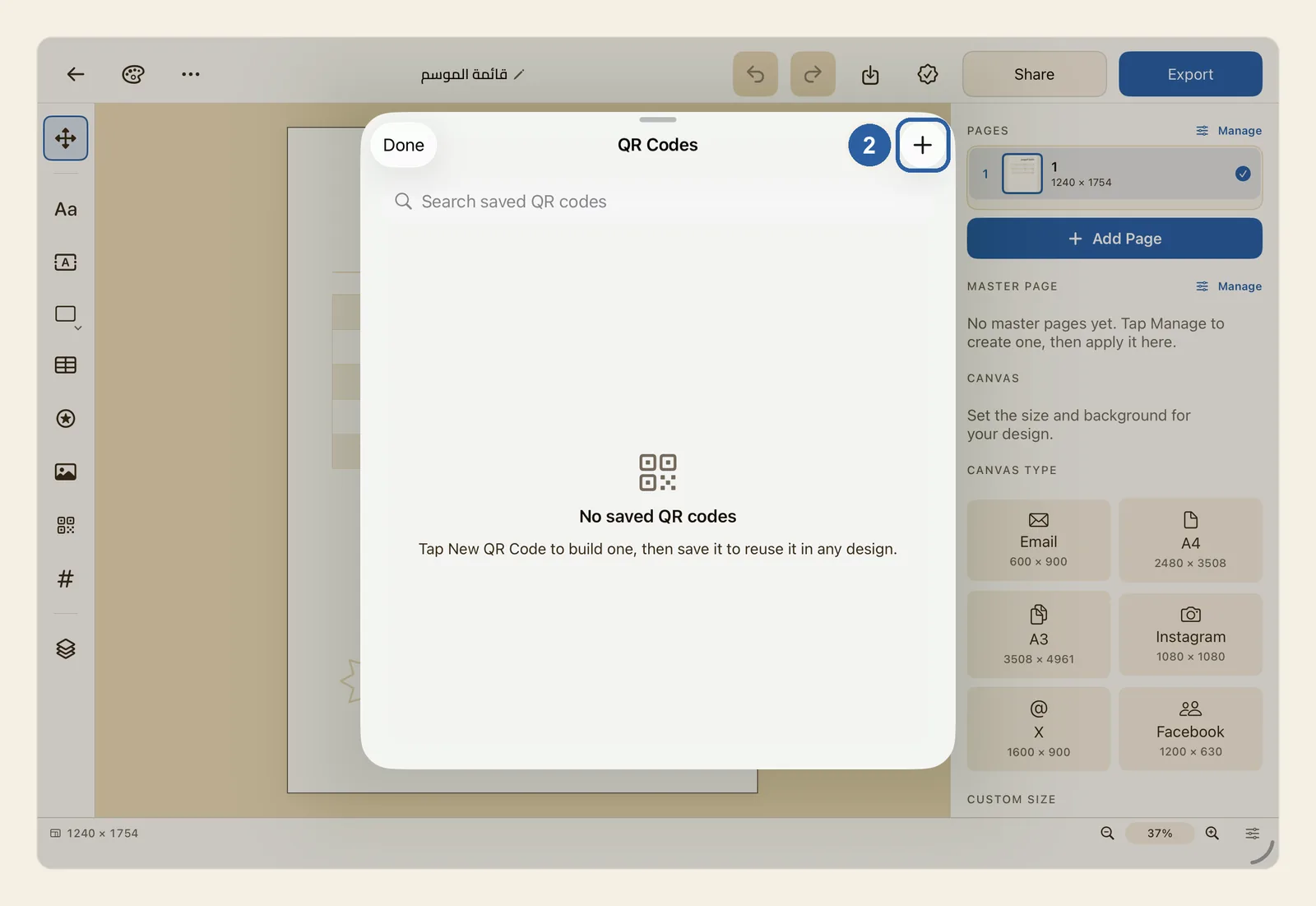
The QR Codes window opens over the page. It lists the codes you have saved. The first time, it is empty and shows No saved QR codes.
Tap New QR Code, the + button at the top right of the window, marked 2 in the picture.
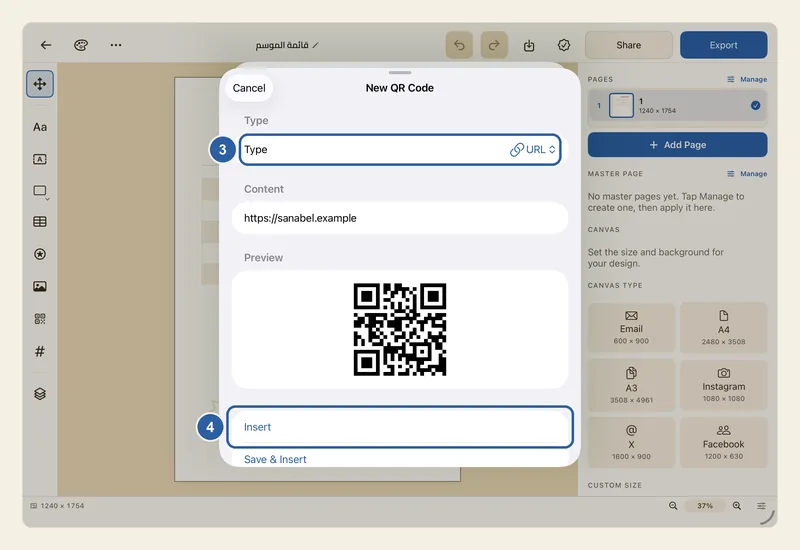
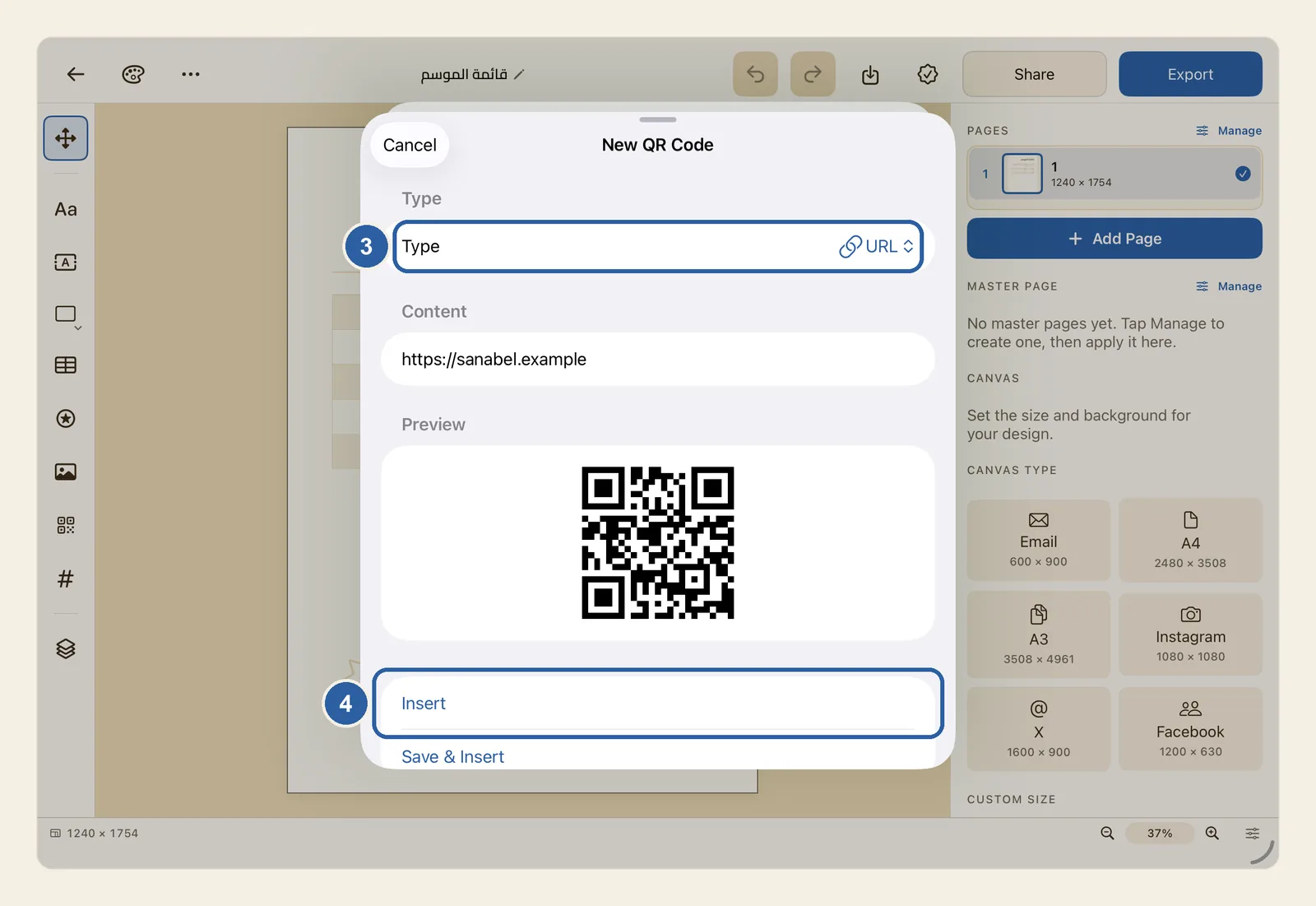
The New QR Code form opens. Tap the Type menu, marked 3 in the picture, and choose what the code holds. It starts on URL.
Then fill in the fields under Content:
- URL: a web address. Type all of it, including the https:// at the start.
- Phone: a phone number. Include the country code.
- Email: an email address.
- Wi-Fi: your network, so guests can join without typing the password. Type the Network name (SSID) and the Password, then choose the Security: WPA/WPA2, WEP, or None for a network with no password. Turn on Hidden network only if your network does not show up in the list of networks.
- Location: a place on the map, as two numbers, Latitude and Longitude, for example 24.7136 and 46.6753. Write them with the digits 0–9 and a decimal point, not a comma.
- Text: any short text.
Preview, under the fields, shows the code as you type. While the content is missing, it says Enter content to preview and the buttons below it stay grey. For Wi-Fi, the network name is enough; for Location, both numbers are needed.
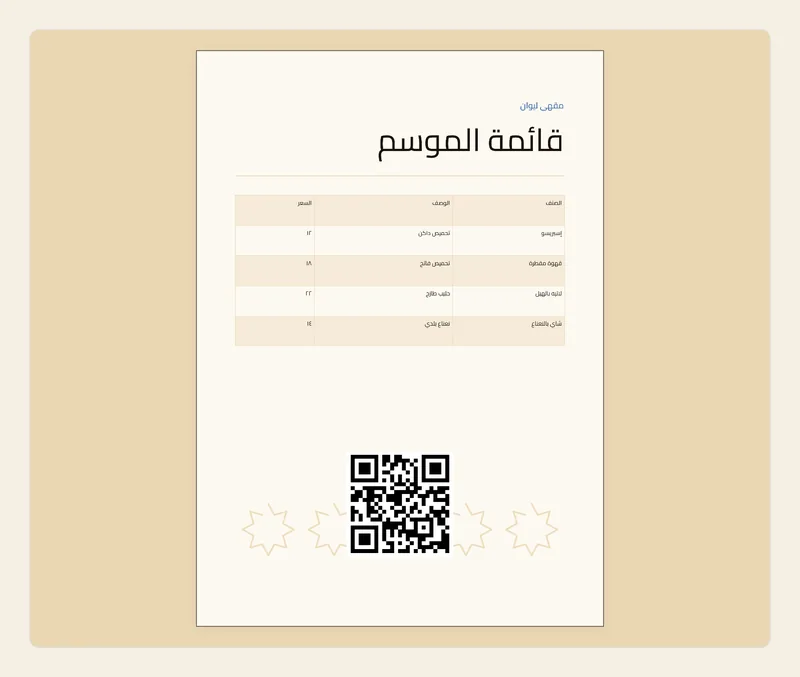
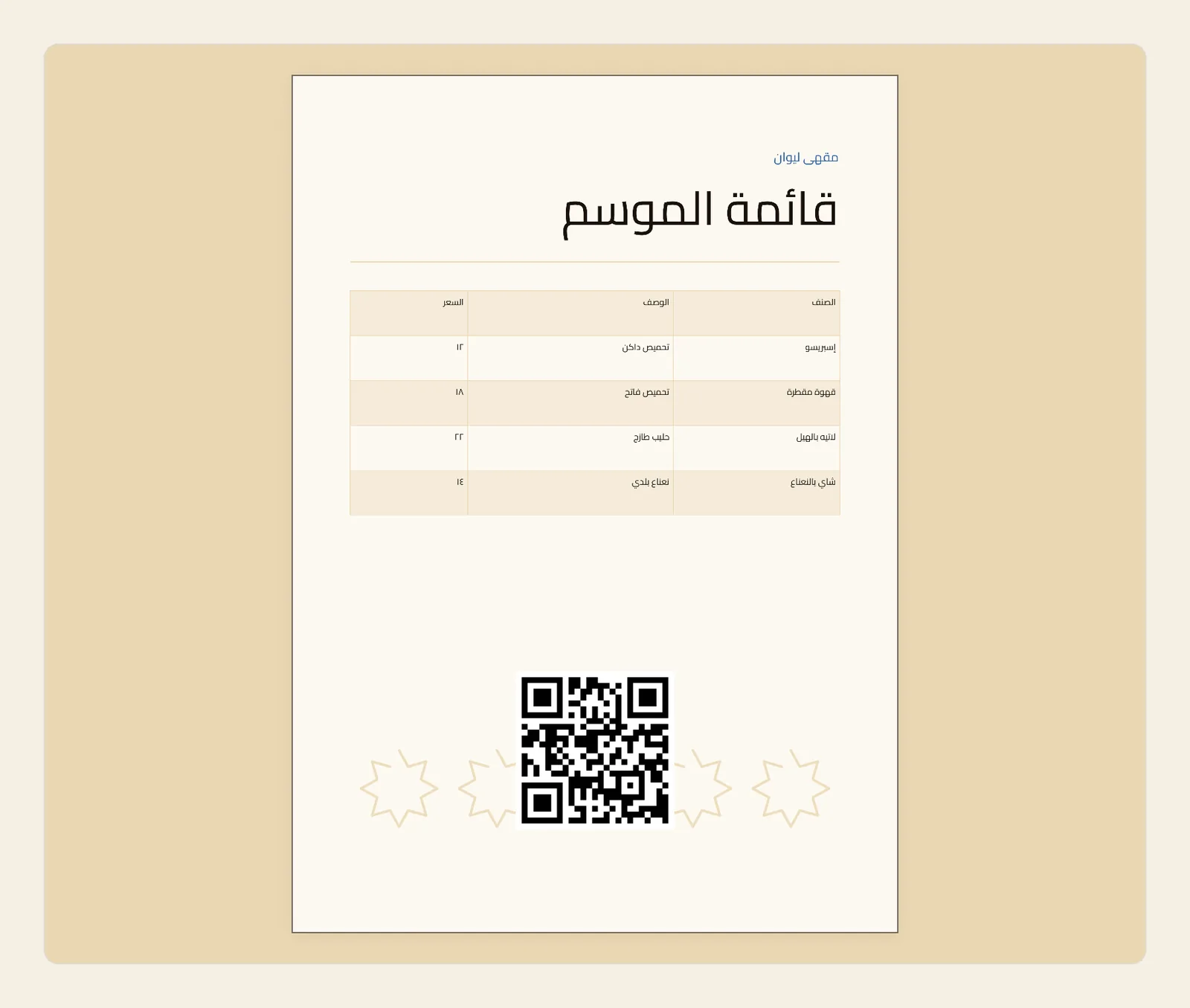
Tap Insert, marked 4 in the picture in step 3. The window closes, and the code appears in the middle of the part of the page you can see, already selected. Drag it into place, and drag a corner handle to make it bigger or smaller — see Resize and rotate objects.
To keep the code for later designs, tap Save & Insert instead. Liwan Studio asks you to Name this QR code: type a name, such as "Café Wi-Fi", and tap Save & Insert. The code goes on the page and into the QR Codes window.
Tips
- To use a saved code, tap QR Code on the tool rail, then tap the code. Saved codes are kept on the iPad or Mac you saved them on, and they are there in every design you open.
- Once you have saved codes, Search saved QR codes at the top of the window finds a code by its name or by what it holds, such as part of a web address or a network name. The buttons under it, from URL to Text, show one type of code at a time, and All shows every type again.
- If you leave the name empty when you save, the code is named after its type, such as URL.
- To change or remove a saved code, press and hold it in the QR Codes window (right-click on a Mac). Edit opens Edit QR Code: make your changes and tap Save Changes. Delete asks you to confirm first. Either way, the codes already placed in your designs stay as they were.
- To change a code that is already on the page, select it and tap QR at the top of the properties panel, or press Q on a keyboard. Under QR Code, choose the Type, change the Content and tap Generate. The new code takes the place and size of the old one. This works for every QR code made in Liwan Studio, saved or not.
- A Wi-Fi code holds your password, so anyone who scans it can join the network. If your router has a separate guest network, put that one in the code.
- The code is always black on a white square: you can't change its colours or add a logo. Place it on a light, plain part of the design, and don't let other objects cover it.
- Keep the code big enough to scan easily, and scan a printed proof with your phone before you print many copies. Liwan Studio does not check that a code scans.
- To close the window without adding a code, tap Cancel in the form, then Done. Added a code by mistake? Undo removes it.