
Text and fonts
Lists, tab stops and paragraph lines
Make bulleted or numbered lists, line up prices with a row of dots, and put a line above or below a heading, all from a paragraph style.
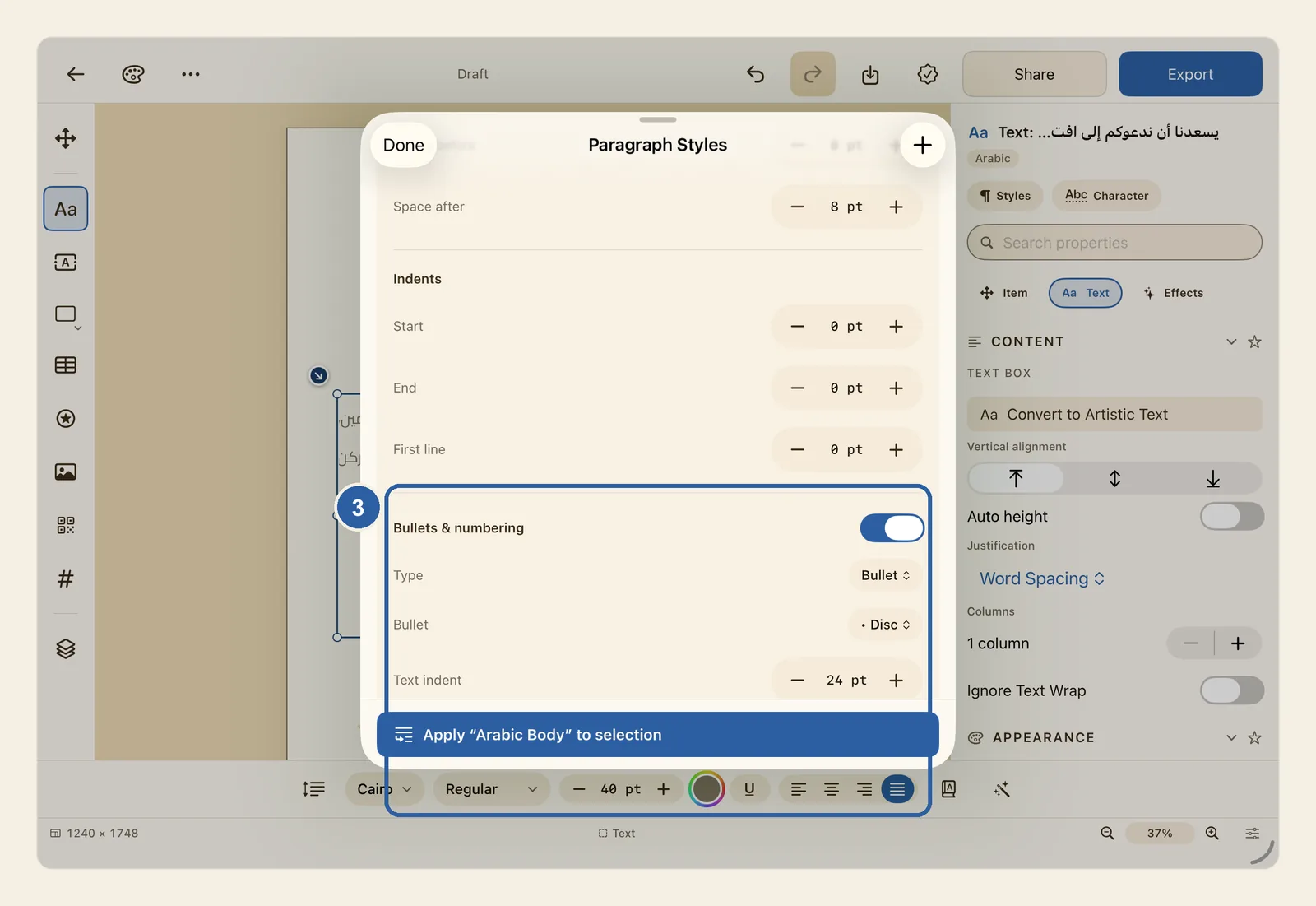
Lists, tab stops and paragraph lines are settings of a paragraph style. You set them once, and every paragraph that uses the style follows. A tab stop is a fixed point on the line that the Tab key jumps to, which is how a menu lines up its prices. A leader is the row of dots or dashes that fills the gap before the price. A rule is a line drawn above or below a paragraph. All three show in paragraph boxes, the kind you make with Paragraph Text in the tool rail.
How to make a list, a price list or a heading line
Select the paragraphs you want to change. Tap into the paragraph box, then select from the first paragraph of your list to the last. If you only tap into one paragraph, the style goes to that paragraph. To style the whole box, tap Item (Box), the four-arrows button at the top of the tool rail, so the box is selected and you are not typing.
In the panel beside the page, tap Text at the top. Under Appearance, tap the Paragraph Style row, then choose Edit Paragraph Styles… at the bottom of the menu. The Paragraph Styles panel opens.
The Styles button near the top of the panel opens it too. On iPad, you can also tap the text box with two fingers and choose Paragraph Styles.
The list at the top of the panel shows the styles in your design. The one you are editing has a check mark. Tap the style you want to change, such as Arabic Body, or tap the + button at the top of the panel to make a new one.
Don't use Default Paragraph, the style marked Base. Settings you make there are only the starting point for new styles and do not change the text on the page. A note in the panel says so, and the Bullets & numbering and Rules & shading sections repeat it.
A style changes every paragraph that uses it. If other paragraphs already use Arabic Body and should stay as they are, give your list a style of its own. Tap +, or press and hold a style and choose Duplicate.
Scroll down past Indents to Bullets & numbering, marked 3 in the picture at the top of this page, and turn on its switch. More settings appear below it:
- Type: Bullet puts the same mark before each paragraph, and Numbered counts them.
- For a bulleted list, Bullet sets the mark: • Disc, ◦ Circle, ▪ Square, – Dash or Star (★).
- For a numbered list, Number style sets the kind of numbers, such as Decimal (1, 2, 3) or Arabic-Indic (١, ٢, ٣), and Start at sets the first number.
- Text indent is how far the text starts from the edge of the line. It is 24 pt until you change it. The mark sits in this space, so a line that wraps stays lined up under the text, not under the mark.
- Marker offset moves the mark in from the edge of the line, inside that same space.
The mark goes at the start of each paragraph: on the right for Arabic text, and on the left for English.
Under Tab stops, further down the same panel, tap Add. Until a style has a stop, the section shows the note No tab stops — tabs advance to the default interval. A tab still jumps forward then, but only to evenly spaced points.
Each stop has its own row with three settings and a red − button that removes it:
- Its position, measured from the start of the line, which is the right edge for Arabic text. Tap − or + to move it 4 pt at a time. A new stop is placed 48 pt beyond the last one.
- How the text after the tab lines up at the stop: Left, Center, Right or Decimal. Decimal lines prices up on their decimal point, using the decimal separator of your iPad or Mac's region.
- The leader that fills the gap: None, Dots · · ·, Middots •, Dashes – – or Line.
Then, in your text, type the name of a dish, press Tab, and type its price. The price jumps to the stop, and the leader fills the space in between.
Rules & shading comes after Tab stops. A line under a heading is the usual use. The line belongs to the style selected in the list, so for a heading, first tap your heading style in the list at the top of the panel.
- Turn on Rule above or Rule below. Four rows appear, named after the rule, such as Rule below color. Choose its colour: Ink, Ink soft, Lapis, Sand or Sand pale. Its weight is how thick it is. Its offset is the distance from the text, and a negative offset pulls the line back towards the text, or through it. Its width is Column for the full width of the column, or Text for only as wide as the text.
- Turn on Shading for a band of colour behind the paragraph. Shade color sets its colour, and Shade padding sets how far it reaches above and below the text.
When the style is ready, tap the button at the bottom of the panel. It names the style selected in the list, such as Apply “Arabic Body” to selection, and gives that style to the paragraphs you selected in step 1. If you moved on to your heading style, tap your list style in the list again first. A heading that already uses its style needs nothing more, because paragraphs that use a style change as you edit it. Tap Done to close the panel.
Tips
- Liwan Studio draws the bullets and numbers; they are not part of your text. Don't type your own, and expect only the words when you copy a list item.
- Numbering carries on across columns and into linked boxes. A paragraph between two items that is not in the numbered list, or a bulleted one, starts the count again at Start at.
- Restart numbering here makes every paragraph with this style start again at Start at. Leave it off for an ordinary list.
- Lines and shading do not push the text apart. If a line comes too close to the next paragraph, raise Space before or Space after in the same style.
- A headline made with Artistic Text does not show lists, tab stops or lines. Select it, and in the Text panel under Text Box, tap Convert to Paragraph Frame.
- On iPad, a hardware keyboard is the easiest way to type a tab. In a table cell, Tab moves to the next cell instead, so for a price list with several columns, a table can be simpler.
- Bullets, tab stops, lines and shading are set only in a paragraph style. There is no button for them in the text style bar.
- You can undo every change you make in the panel. See Undo and redo.