
Canvas and layout
Copy, paste and duplicate
Reuse a styled price tag or photo frame as often as you like, on any page or in another design, and remove what you no longer need.
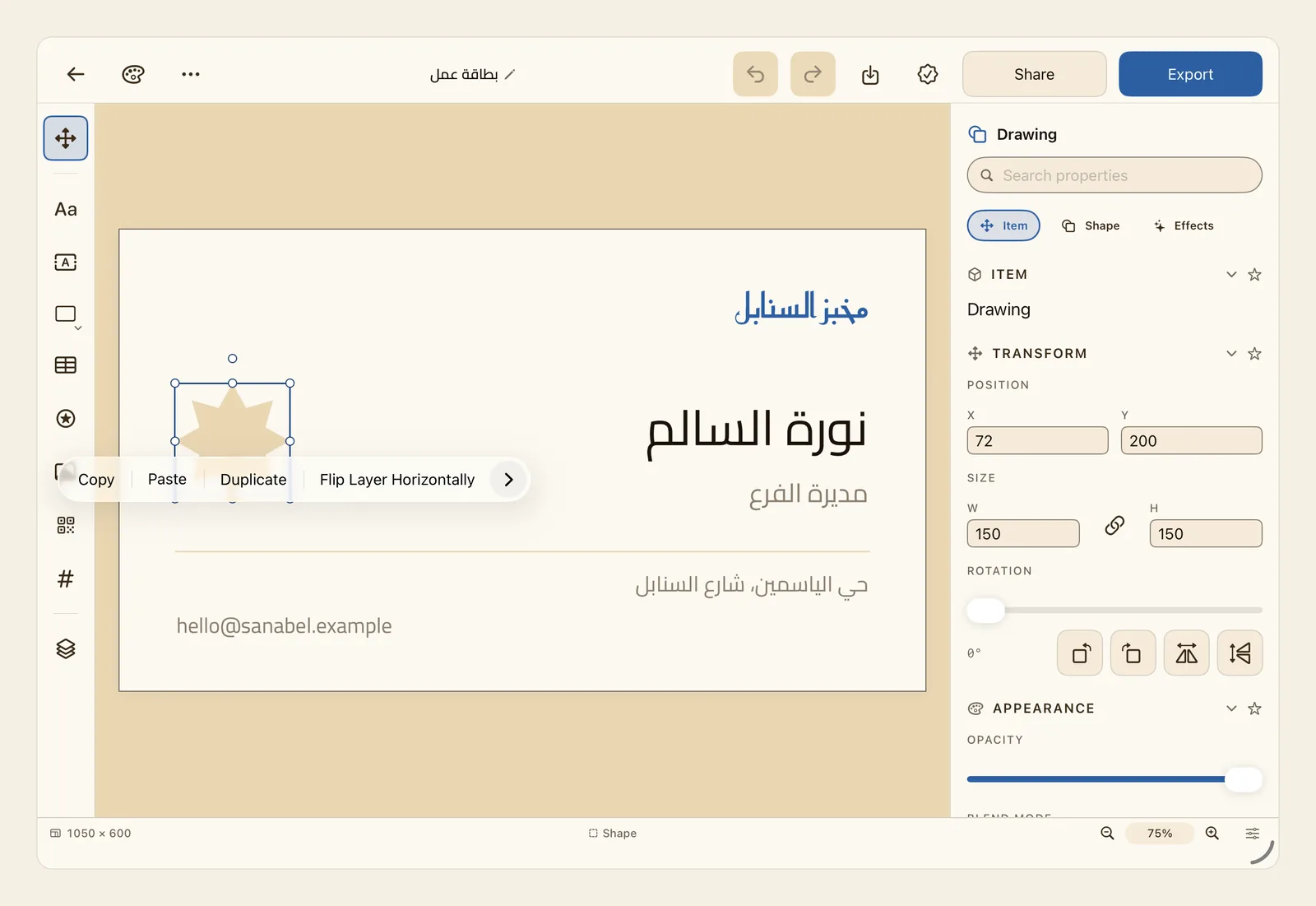
Every object on the page has a small menu of commands. Copy keeps the object so you can paste it later, Duplicate adds a copy straight away, and Delete removes the object.
How to copy, paste and duplicate an object
Press and hold the object, then lift your finger. This works on a picture, shape, sticker, table or QR code. The object is selected and a row of commands appears where you pressed, like the one on the business card in the picture at the top of this page.
Or tap the object with two fingers at once. The same menu opens. This works on every object, including text boxes and shapes with text in them — pressing and holding one of those starts editing its text instead of opening the menu.
On a Mac, right-click the object instead.
Choose Copy. Nothing changes on the page: Liwan Studio keeps the object, with all its styling, ready to paste.
Or choose Duplicate to add a copy straight away, or Delete to remove the object. The row shows a few commands at a time: tap the arrow at its end to see the others, such as Delete.
The copy from Duplicate appears a little below and to the right of the original, in front of everything else. It is selected, so you can drag it into place at once.
To add the object you copied, open the menu again on any object and choose Paste. You can do this on the same page, on another page, or in another design. Paste is in the menu only once you have copied something.
The copy lands a little below and to the right of where the original was when you copied it, in front of everything else, and it is selected.
Tips
- The menu shows only what you can do. Bring Forward and Send Backward appear only when the object can move that way — see Order, lock and hide objects. Some objects add their own commands, such as Crop for a picture or Paragraph Styles for text.
- Every Paste puts its copy in the same spot, so a second paste lands exactly on top of the first. Drag each copy into place before you paste the next one.
- Duplicate in this menu replaces what you copied earlier: the next Paste adds another copy of the object you duplicated.
- On an empty page, press and hold an empty part of it, or tap it with two fingers: a menu with Paste opens. The Layers panel also has Paste at the bottom, and pressing and holding an object's row there gives you Copy, Duplicate and Delete.
- To move an object to another page, choose Copy, then Delete, then go to the other page and paste. With a keyboard, Cut does the first two in one go.
- What you copy stays available while Liwan Studio is open. It cannot be pasted into other apps, and it is gone once Liwan Studio quits.
- The menu works on one object: opening it selects just that object. To copy, duplicate or delete several objects together, select them first — see Work with several objects at once — then use the keyboard shortcuts on this page, or the Delete key to delete them.
- Other ways to delete: press the Delete key on a keyboard, or tap Delete layer at the end of the Advanced section in the Item tab of the properties panel. Deleted the wrong thing? Undo brings it back.
- While the cursor is in a text box, the menu and the keyboard copy and paste text, not the box. To copy the whole box, first tap Item (Box), the four-arrows button at the top of the tool rail. Text copied inside Liwan Studio keeps its fonts and colours; text copied from another app arrives as plain text.
- Deleting one box of a linked text keeps the text flowing through the boxes that are left — see Frame Link.
- To copy a whole page or a whole design, see Pages and Rename, duplicate and delete designs.
Keyboard shortcuts
- ⌘C Copy
- ⌘X Cut
- ⌘V Paste
- ⌘D Duplicate