
Canvas and layout
Undo and redo
Take back a mistake one step at a time, or bring a change back, so you can try an idea on your design without worrying about losing it.
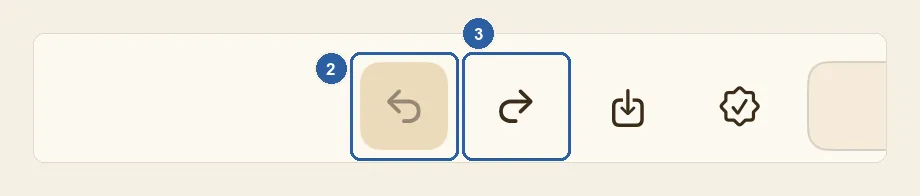
Each change you make in the editor is one step. Undo takes back the last step, and Redo brings it back again.
How to undo and redo a change
Make a change to your design. For example, drag your name to another spot on your business card, or change the colour of a shape.
Tap Undo, the arrow that curves to the left in the top bar. It is marked 2 in the picture at the top of this page. You find it on the right side of the bar, in the same group as Share and Export; when Liwan Studio is in Arabic, the bar is mirrored and it is on the left side.
Your last change is taken back. Tap Undo again to go back one more step each time. When there is nothing left to undo, the button turns grey: in the picture, the change has just been undone, so Undo is grey and Redo is ready.
Changed your mind? Tap Redo (3), the arrow that curves to the right, just after Undo. It brings back the change you undid. Tap it again for each step you want back.
Redo has something to bring back only after you use Undo. If you undo a few steps and then make a new change, the steps you undid can no longer be brought back.
Tips
- To see which change a button will act on, press and hold Undo or Redo on iPad; on a Mac, point at it. Its name appears, for example Undo Move layer. On a Mac, the Edit menu in the menu bar shows the same Undo and Redo commands with the name of the change.
- One step is one whole action: a whole drag, or everything you type in a text box before you leave it. Applying a Brand Kit or resizing the canvas is one step too, so you can try it and undo it if you don't like the result — see Apply a Brand Kit to a design and Resize canvas.
- Selecting objects, zooming in and out and moving to another page are not changes, so Undo skips over them.
- Undo works on every page of the design, not only the one on screen, and it can switch the page you are looking at. If you can't see what changed, check your other pages.
- You can go back up to 99 steps. Older steps are dropped.
- The steps start again from nothing each time you open a design, so once you leave the editor you can no longer undo what you did before. Before a big change you may want to reverse later, duplicate the design on Home — see Rename, duplicate and delete designs.
- Undo also works on changes Liwan Studio has already saved. The design is saved again as it is after the undo.
- Undo works only inside the editor. Deleting a design from Home happens at once and cannot be undone.
- In a narrow window, such as Split View on iPad, the top bar may not show every button. Swipe along the bar to bring Undo and Redo into view.
Keyboard shortcuts
- ⌘Z Undo
- ⇧⌘Z Redo