
Templates
Generate social sizes
Turn one post into ready-to-edit versions for Instagram, TikTok, Facebook and YouTube in one step.
Generate social sizes makes a new design from yours for each platform size you choose, and arranges your content to suit each new shape. Your original design stays exactly as it is.
How to generate social sizes
Open the design you want to share, for example a square 1080 × 1080 post. Finish its text and pictures first: the copies are made from the design as it is at that moment.
Tap the … button (Document) in the top bar. It is at the left end of the bar, after the back arrow and the Brand Kit palette button. When Liwan Studio is in Arabic, the bar is mirrored and the button is at the right end.
The Document list opens.
Tap Generate social sizes, below Export as Liwan Studio Document (.ldf).
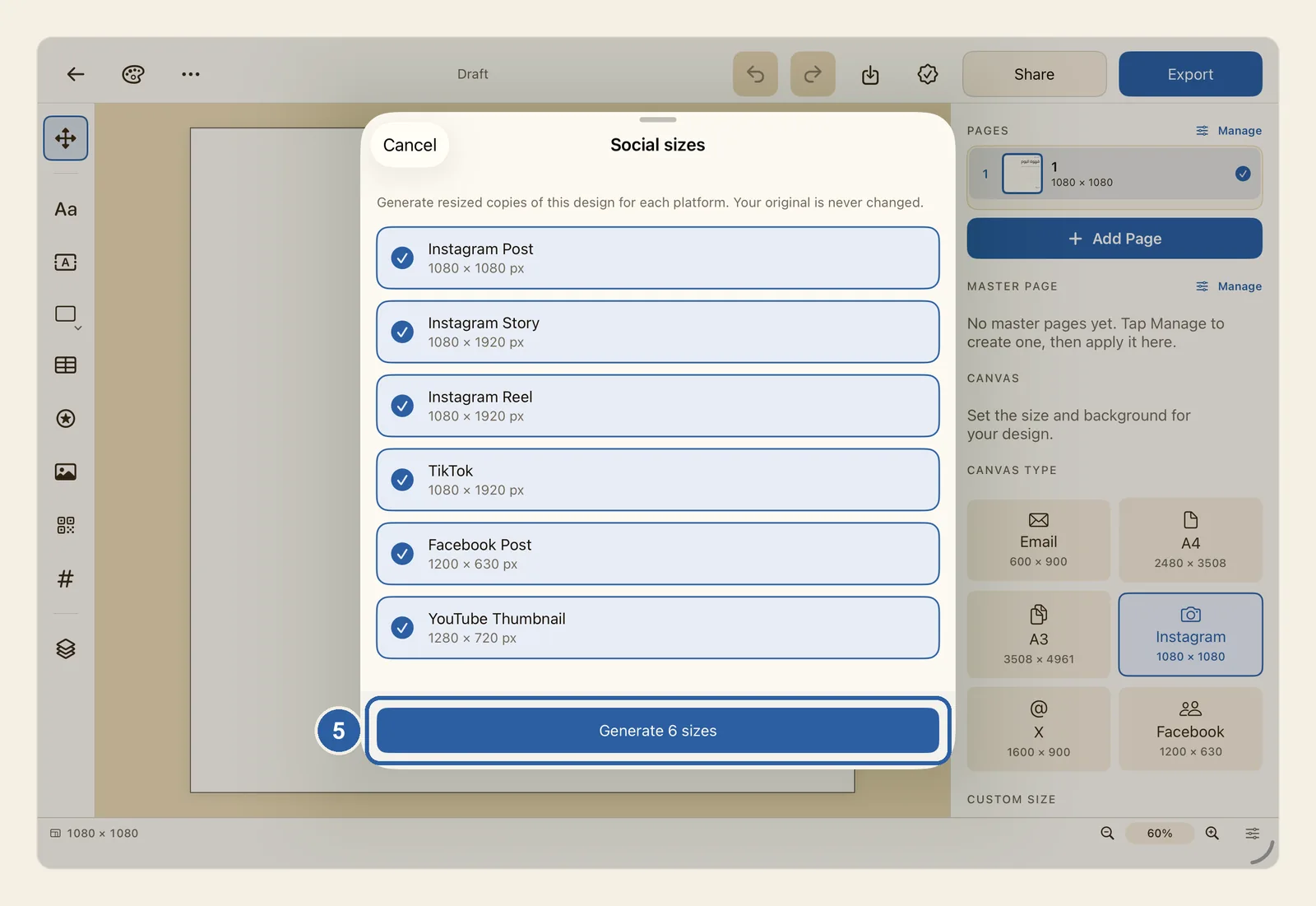
The Social sizes window opens. The line at its top reminds you that your original is never changed.
Choose the sizes you want. All six are ticked when the window opens:
- Instagram Post: 1080 × 1080 px
- Instagram Story: 1080 × 1920 px
- Instagram Reel: 1080 × 1920 px
- TikTok: 1080 × 1920 px
- Facebook Post: 1200 × 630 px
- YouTube Thumbnail: 1280 × 720 px
Tap a size to untick it: its check mark turns into an empty circle. Tap it again to tick it. The button at the bottom of the window shows how many sizes are ticked: Generate 6 sizes, Generate 3 sizes, or Generate 1 size for one. With no size ticked, the button is grey.
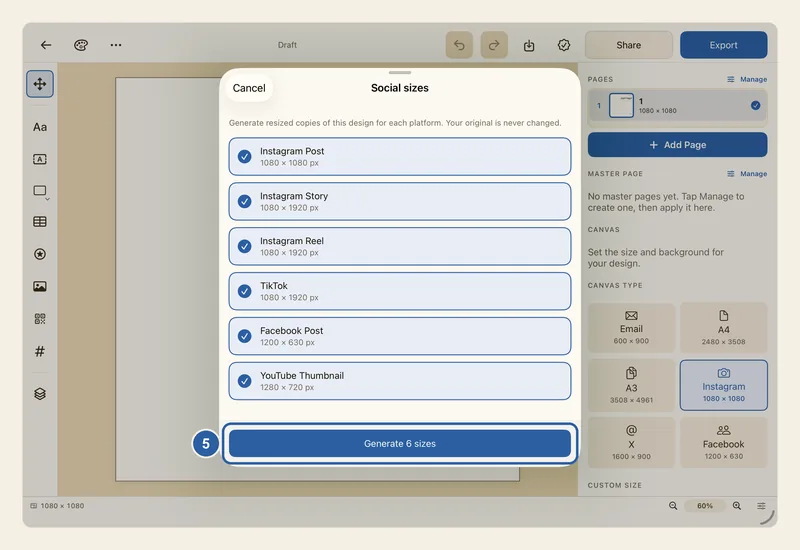
Tap Generate 6 sizes, marked 5 in the picture above, or the button with the number you chose. The window then shows Added 6 sizes to your library, with the list of the new sizes below it. Tap Done to go back to your design.
The new designs are among your latest designs at the top of Home. Tap See all next to Recent designs to see all of them in All designs. Each one is named after your design and its size, for example "Summer offer — Instagram Story". Open each one to check it, then export it as a picture.
Tips
- Each new design is separate from the original. Changes you make to the original later do not reach the copies, and changes to a copy do not reach the original. If you change the original, generate the sizes again and delete the old copies. See Rename, duplicate and delete designs.
- Instagram Story, Instagram Reel and TikTok are all 1080 × 1920. With all three ticked, you get three copies of the same size, so untick the ones you do not need.
- Each object keeps its place on the page: something near a top corner of your design stays near that corner in the copy. Nothing is stretched: pictures, shapes and stickers keep their proportions, and an object that would hang over an edge is moved back onto the page. Paragraphs re-wrap to fit their new box.
- On the tall sizes (Instagram Story, Instagram Reel, TikTok), the objects of a 1080 × 1080 post keep their size and spread out from top to bottom, so the gaps between them grow. On the wide sizes (Facebook Post, YouTube Thumbnail), everything is made smaller to fit the lower height. Open each copy and move or resize things where needed.
- Only the page you are on is copied, so each new design has one page. For a design with several pages, go to another page and generate again. Objects that come from a master page are not copied. See Pages and Master Pages.
- The copies are designs you can edit, not picture files. To post one, open it, tap Export and save it as a PNG or JPEG. See Export.
- To change the size of the design itself instead of making copies, use Resize canvas… in the same Document list. See Resize canvas.
- To close the window without making anything, tap Cancel at its top left (top right when Liwan Studio is in Arabic).
- On a Mac, Social sizes opens as a window you can move by dragging its title. Finish with it before you go back to your design. Press Esc to close it.