
Brand Kit (Beta)
Apply a Brand Kit to a design
Restyle an open design with your brand's fonts and colours in one step, and undo it if you change your mind.
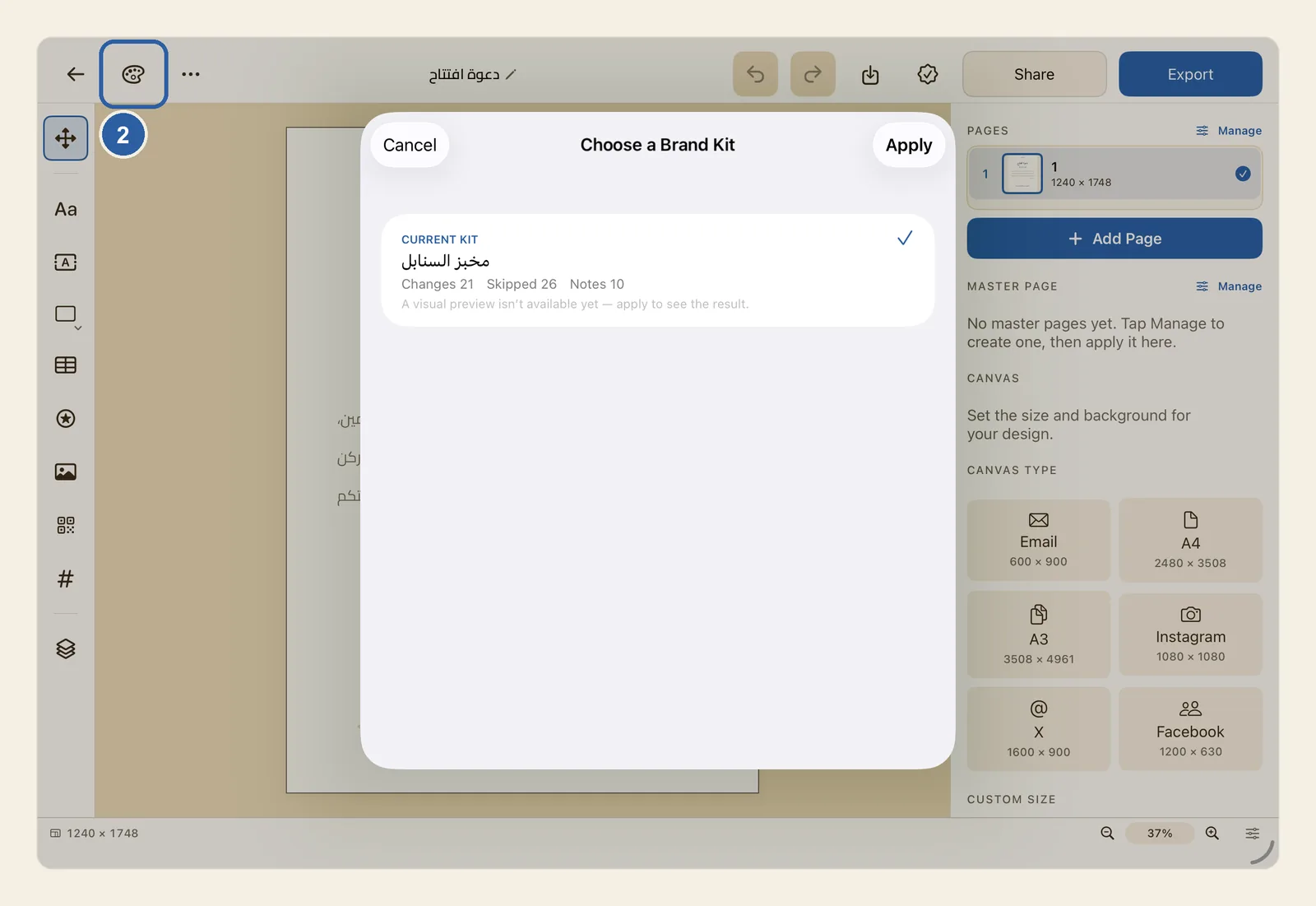
Applying a Brand Kit gives the text in your design your brand's fonts, and its shapes your brand's colours. Your words, pictures and layout stay as they are. Brand Kit is still marked Beta in Liwan Studio, and Apply has to guess what each piece of text is: on each page, the largest text is taken as the heading and everything else as body text.
How to apply a Brand Kit
Open the design you want to restyle. You need at least one Brand Kit with your fonts and colours in it. If you don't have one yet, leave the design with Back and make one in the Brand Kit (Beta) tab first — see Brand Kit (Beta).
Tap Brand Kit, the palette button near the left end of the top bar, just after the back arrow. It is marked 2 in the picture at the top of this page. When Liwan Studio is in Arabic, the bar is mirrored and the button is near the right end.
The Choose a Brand Kit window opens over your design and lists your kits.
Tap the kit you want. A tick appears beside it, and under its name you see what applying it would do: Changes, Skipped and Notes, each followed by a number. Apply stays grey until a kit is selected.
If you have a current kit, it is at the top of the list, marked Current kit, and already selected, as in the picture.
There is no preview of the result, as the line A visual preview isn’t available yet — apply to see the result. tells you. If you see This Brand Kit would not change this design., it may be that the kit has none of the fonts or colours that Apply uses, or that the design has no text or shapes for them.
Tap Apply, at the top of the window opposite Cancel. The window closes and every page of the design changes at once:
- Text. On each page, the largest text takes the kit's Heading font and the rest takes its Body font. Text that contains Arabic letters takes the Arabic heading font or the Arabic body font instead. Bold and Italic are switched off on that text, so it shows exactly the font in your kit. Its words, size and colour do not change.
- Shapes. Shapes take the kit's Primary, Secondary and Accent colours in turn, so a design with several shapes shows more than one brand colour. The colour goes on the shape's fill and on any outline or border it already has; Apply does not add an outline to a shape that has none.
The palette button in the top bar now appears filled, which shows that a kit has been applied to this design.
Read what changed. Nearly every time, the Apply complete window opens next. At the top it counts the Changes applied, the Items skipped and the Diagnostics. Below, the skipped items are grouped by reason, such as Wrong kind of value or Missing brand value, each with where it is, such as Page 1 · Layer 3.
Tap Done, then look over your pages. The design has already changed: Done only closes the window. If you don't like the result, tap Undo once. The whole Apply is one step, named Undo Apply Brand Kit when you press and hold Undo on iPad or point at it on a Mac — see Undo and redo.
Tips
- A long list of skipped items is normal. Each text box and shape has several things a kit could change, such as its words, colour and font, and Apply changes only some of them, so the rest are listed as Wrong kind of value. Names such as brand.headingFont, and the Warnings written in technical English, are there for troubleshooting; you don't need to act on them.
- Missing brand value means that slot of the kit is empty, for example it has no Arabic heading font. That text or shape keeps what it had. Fill the slot in the kit and apply it again.
- Unavailable font means the kit names a font that is not on this device. Nothing is put in its place: the text keeps its own font.
- Apply never adds anything to the page. It does not place your logos, business name, tagline or contact details on the design, and it leaves pictures, stickers, tables and page backgrounds alone. Of the kit's colours, only Primary, Secondary and Accent are used, and the Caption font is not used.
- Text typed inside a shape takes the same colour as the shape, so it can disappear into it. After an Apply, check any shapes with words in them, and change the text colour or tap Undo.
- Heading or body is decided page by page from the text size. If all the text on a page is the same size, all of it takes the body font. In a bilingual design, keep Arabic and English in separate text boxes: a box with even one Arabic letter takes the Arabic font.
- A new font can take more room than the old one. If the end of a paragraph disappears after an Apply, make its box taller — see Troubleshooting.
- Locked objects are restyled too, and so are the objects on your Master Pages.
- To change which kit is offered first, open the Brand Kit (Beta) tab, tap the round ⋯ button in the corner of a kit's card, choose Make current kit, then confirm with Make current. Designs you have already made do not change.
- If you edit a kit after applying it, a small orange dot appears on the Brand Kit button when you open the design again. Tap the button: the window says Branded with an older version, and Reapply Brand Kit brings the design up to date, again as a single Undo step. If the kit has been deleted, or the design came from another device, the window shows Brand Kit unavailable instead; you can still apply another kit.
- When you start from one of the ready-made templates in the Templates tab, you can turn on the switch in the Brand Kit section of its details, so the new design opens already in your brand — see Start from a template.