
Getting started
A tour of the editor
Find your way around the editor: the top bar, the tool rail, the page, the properties panel and the status bar, and what each one is for.
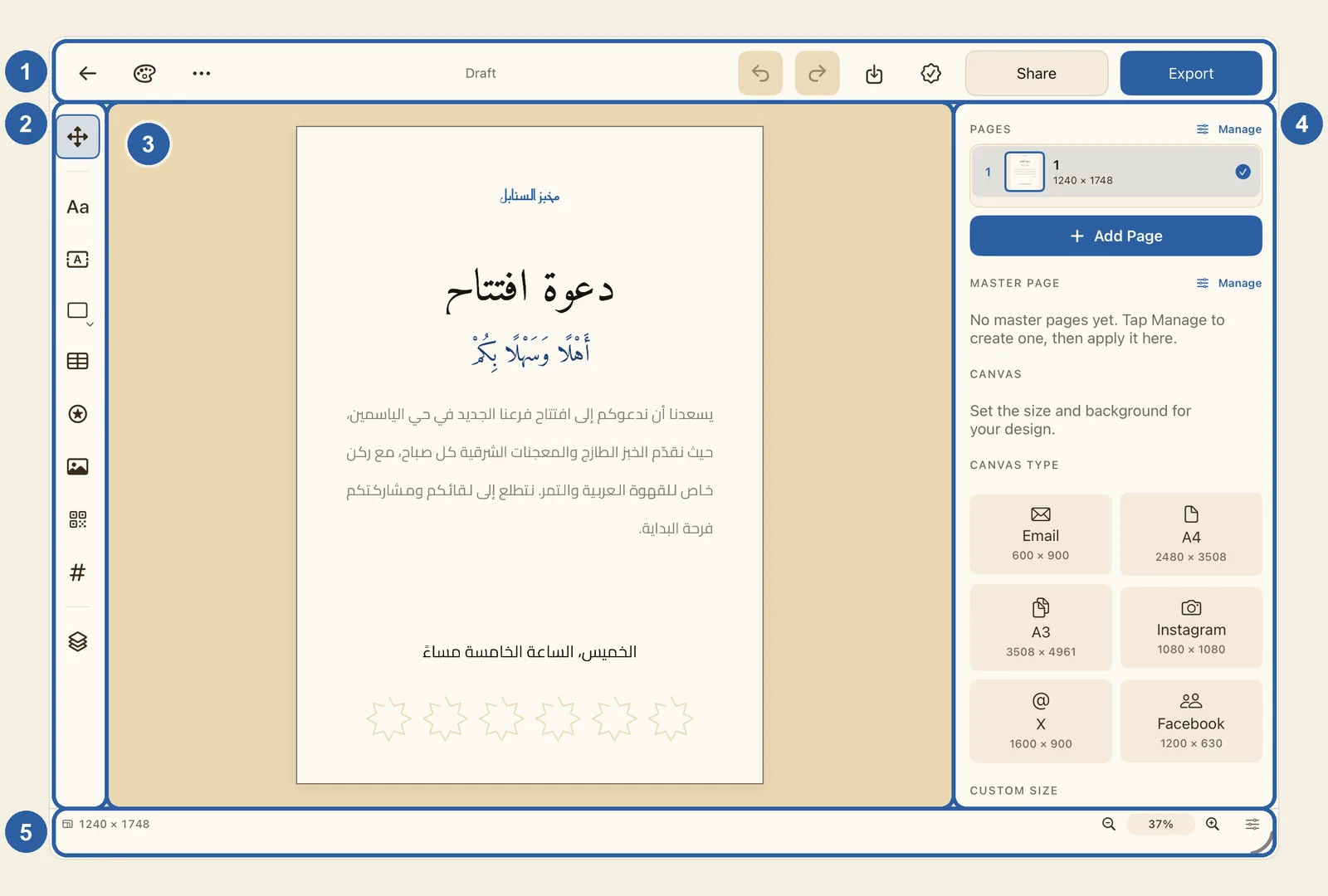
The editor is where you make your design. The picture at the top of this page numbers its five areas: the top bar (1), the tool rail (2), the page (3), the properties panel (4) and the status bar (5). The steps below go through them in order, starting with the buttons of the top bar.
How to find your way around the editor
Open a design from Home, or start one with New design — see New design. The editor fills the screen, with the top bar running across the top.
At the start of the top bar (top left; top right when Liwan Studio is in Arabic) are three buttons:
- Back, the arrow, closes the design and takes you back to Home. There is no Save button for your designs: Liwan Studio saves your work as you go, and again as you leave. See How your work is saved.
- Brand Kit, the palette, gives the design the fonts and colours of one of your Brand Kits. Brand Kit is marked Beta in Liwan Studio. See Apply a Brand Kit to a design.
- The … button, named Document, opens a list of commands for the whole design, such as Canvas size, Duplicate document, Export and Delete.
The word Draft in the middle of the bar never changes. It does not mean that your design is unsaved.
After Draft come two curved arrows: Undo and Redo. Undo takes back your last change, one step for each tap. Redo brings back a change you undid. A button turns grey when it has nothing to act on. See Undo and redo.
Next come two buttons that deal with the design as a whole:
- Save as template, the arrow pointing down into a box, keeps the design as one of your own templates, so you can start the next one from it. You don't need it to save your work. See My Templates.
- Preflight, the seal with a check mark, checks the design before you print or post it: for fonts that are missing, photos whose resolution is too low, and objects that are off the page. It lists what it finds and never changes your design. See Preflight.
The last two buttons turn your design into a file:
Down the left edge of the editor runs the tool rail (the right edge when Liwan Studio is in Arabic). Its buttons add things to the page: Artistic Text (Aa) for a headline, Paragraph Text for longer text, the shape button for shapes, then Table, Sticker, Image, QR Code and Page Number. See Add text, shapes, pictures and more.
Two buttons on the rail add nothing. Item (Box), the four arrows at the very top, shows the selected object's position and size in the properties panel. Layers, at the bottom under a short line, lists everything on the page. See Layers.
Your page sits in the middle, with some room around it. Tap an object on the page to select it, and tap an empty part of the page to clear the selection — see Select and move objects. Pinch with two fingers to zoom in or out, and drag with two fingers to move around the page.
On the other side of the page is the properties panel: on the right, or on the left when Liwan Studio is in Arabic. What it shows depends on what you have selected:
- With nothing selected, it holds the settings of the page, as in the picture at the top of this page: Pages, Master page, Canvas type, Custom size, Background and Print & bleed. See Pages and Canvas size.
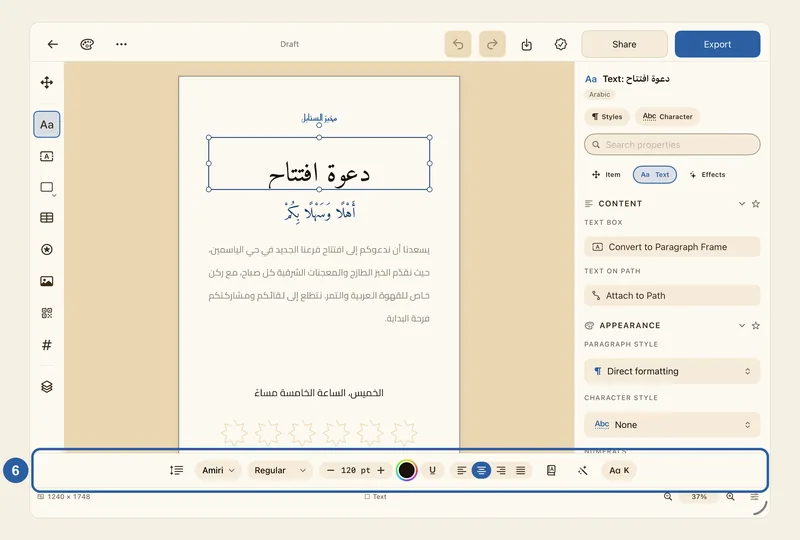
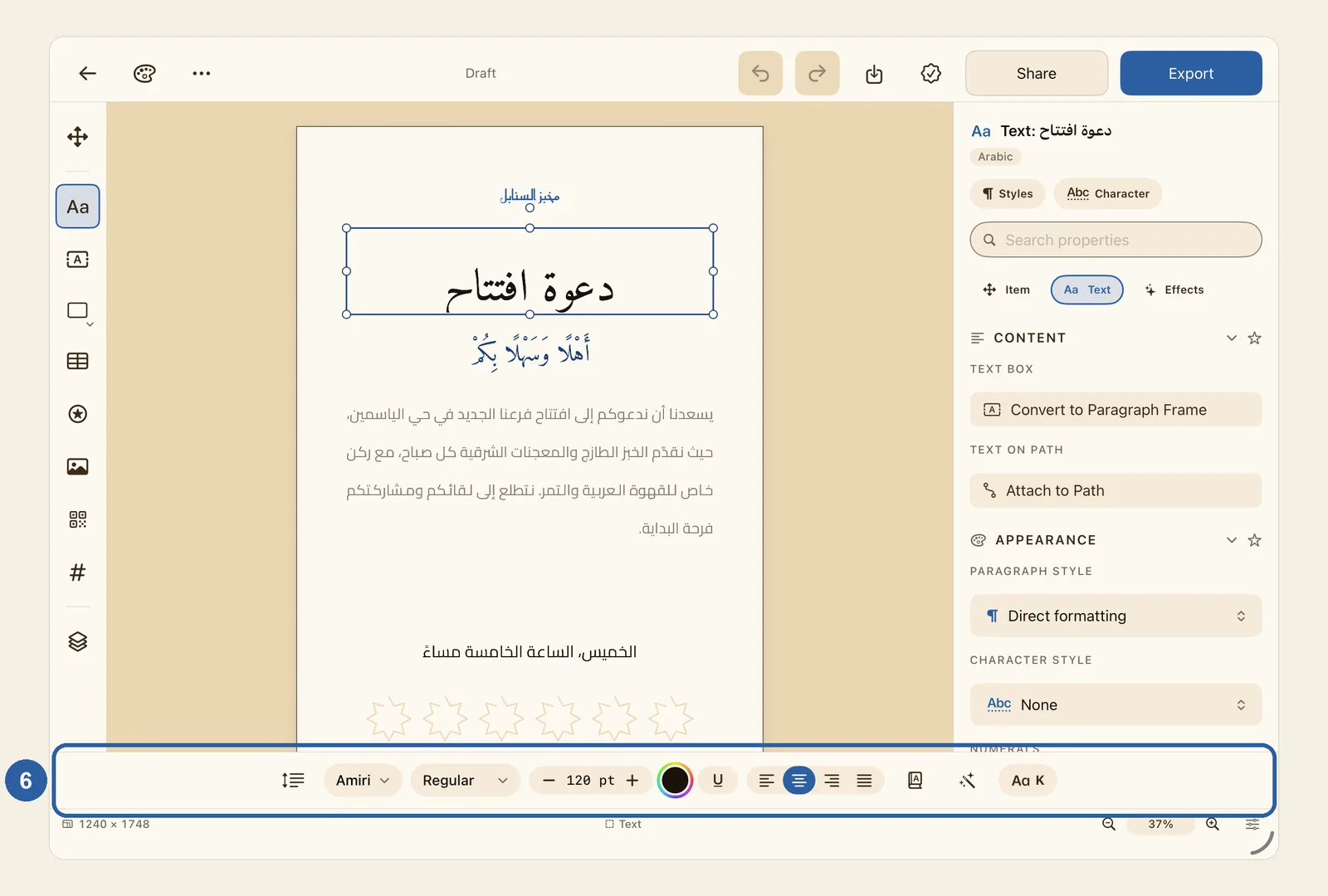
- With an object selected, it holds that object's settings, as in the picture in step 6, where a text is selected. The tabs near the top, such as Item, Text and Effects, sort them into groups. To find a setting by its name, type it in Search properties, for example "shadow".
The thin strip along the bottom of the editor is the status bar. It shows the size of your page, such as 1240 × 1748, and what is selected, such as Text. In a design with more than one page, it also shows which page you are on, for example "Page 2 of 8".
The zoom controls sit at its end (the left end when Liwan Studio is in Arabic). Tap the magnifiers to zoom out or in, or tap the percentage between them for more choices, such as Fit Page. The sliders button at the very end chooses what the bar shows. See Zoom.
Tap a text box, and the text style bar (6) slides up along the bottom of the editor, just above the status bar, or above the on-screen keyboard when it is showing. It holds the font, style, size, colour and alignment of the text. See Text style bar.
Tips
- Not sure what a button does? On iPad, press and hold it to see its name; on a Mac, point at it.
- When Liwan Studio is in Arabic, the whole editor is mirrored: the tool rail is on the right, the properties panel on the left, and the buttons of the top bar swap ends. Your page itself is never mirrored.
- When the Liwan Studio window on iPad is narrow, which can happen in Split View or Stage Manager, the properties panel is not shown beside the page. Tap Item (Box) to open it over the page. If the top bar does not fit either, swipe along it to reach the rest of its buttons.
- With a keyboard, many of these commands have shortcuts. See Keyboard shortcuts.