
Getting started
Your first design in five minutes
Pick a ready-made template, put your own words in it, and save it as a picture, PDF or video to post, send or print.
Liwan Studio comes with over a thousand ready-made templates: Ramadan and Eid greetings, birthday and wedding designs, posters, flyers, logos and more. When you start from one, the layout, fonts and colours are already in place. You change the words, and your design is ready to export.
How to make your first design
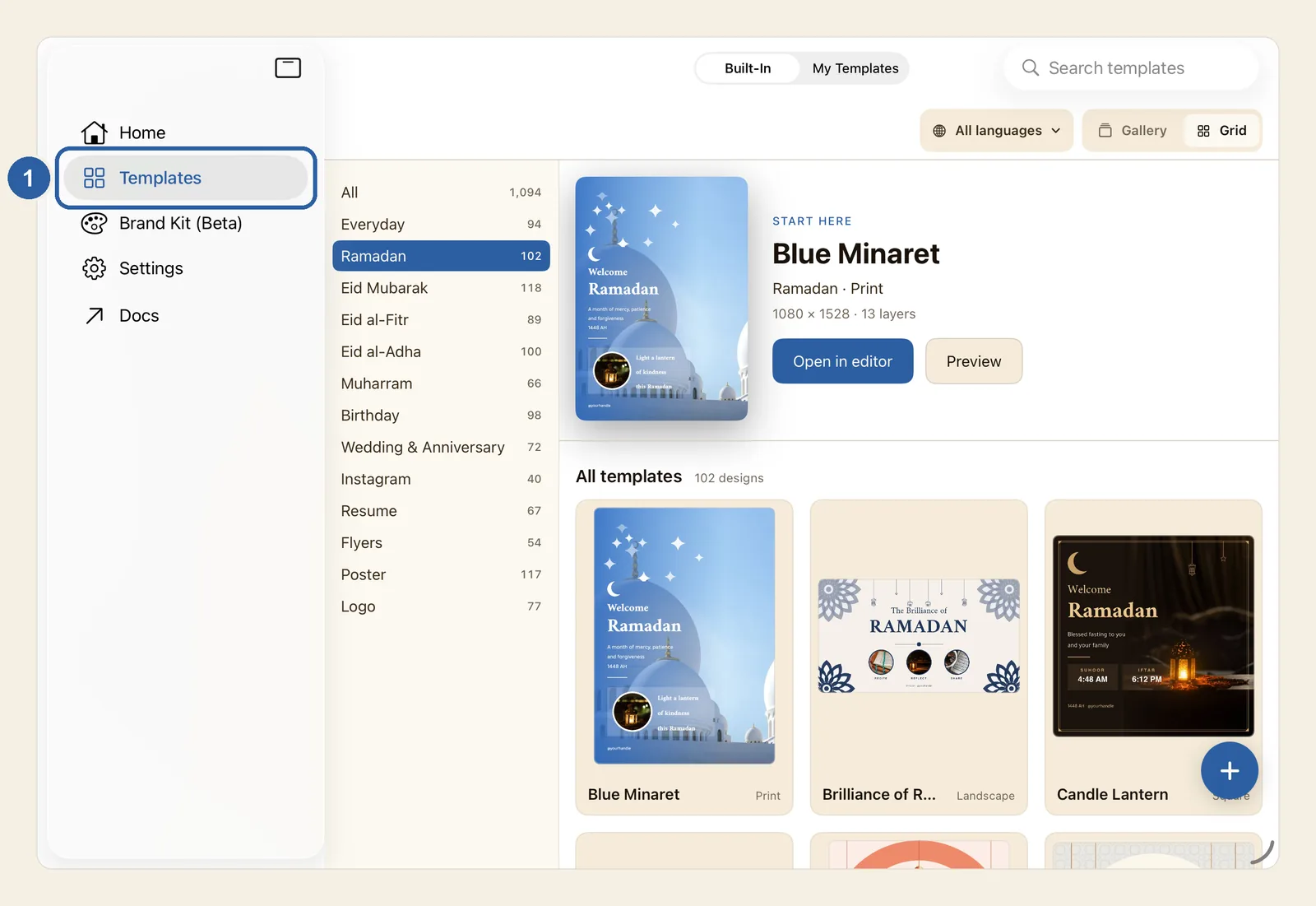
Tap Templates in the sidebar, or in the tab bar if your screen shows the tabs as a bar. It is marked 1 in the picture below. At the top of the screen, make sure Built-In is selected.
The templates appear in a grid. At the top, Start here shows one template with its category and shape (such as Portrait or Print), its size in pixels, and Open in editor. Below it, each card shows a template's name and shape.
To narrow the choice, tap a category in the list beside the templates, such as Ramadan or Poster. All brings every template back.
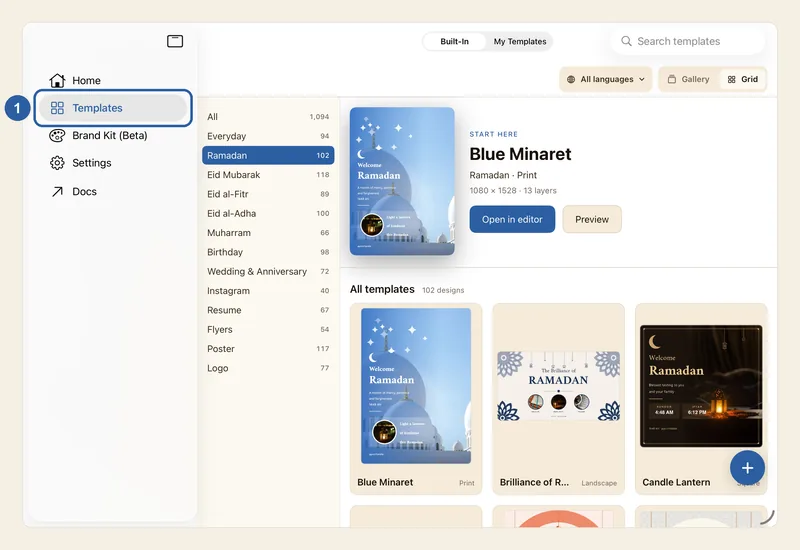
Tap the template you want to see it bigger, then tap Open in editor at the bottom of the preview. For the template in Start here, you can tap Open in editor straight away. The editor opens with a new design named after the template. If the template needs a moment to get ready, Preparing canvas… shows first.
The template itself does not change. You are working on your own copy, and you can start from the same template again whenever you like.
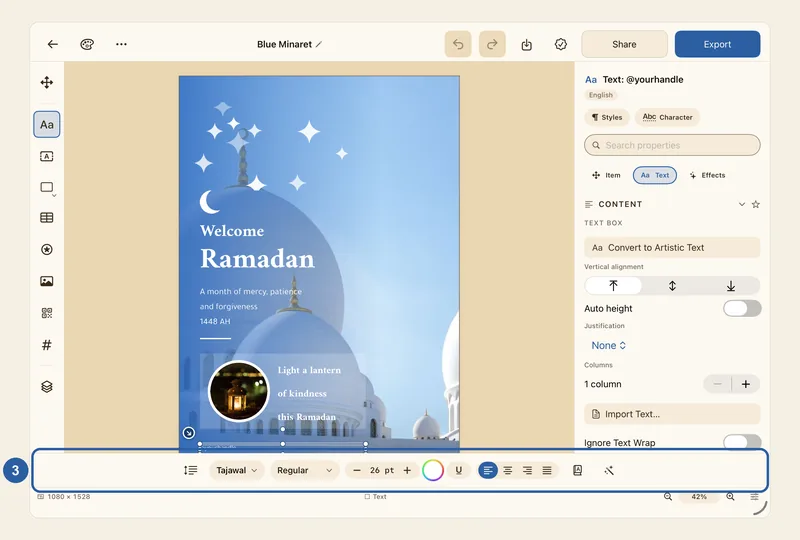
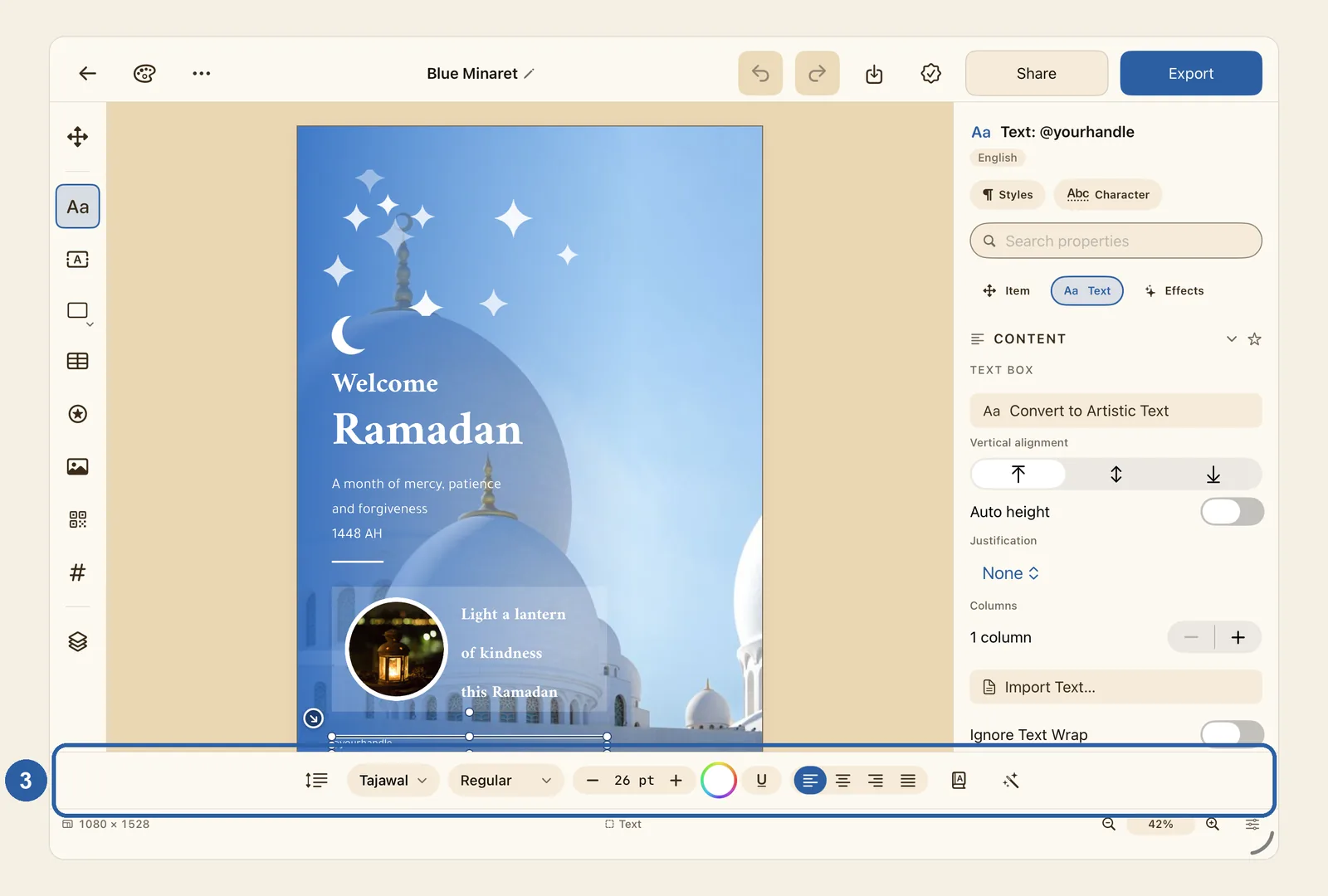
Tap a text on the page. A cursor appears where you tapped, and the text style bar, marked 3, appears along the bottom of the editor. On an iPad with no keyboard attached, the on-screen keyboard opens too.
Now select the words you want to replace, and type your own: double-tap to select one word, or triple-tap to select a whole paragraph. To replace everything in the box, tap the cursor again and choose Select All. If you want a different font, size or colour, use the text style bar. See Text style bar.
Change the other texts in the same way. When you have finished, tap outside the text.
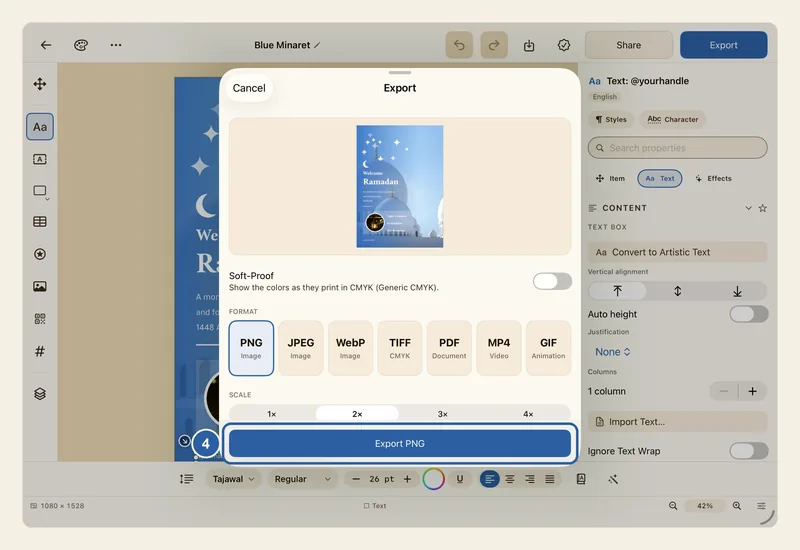
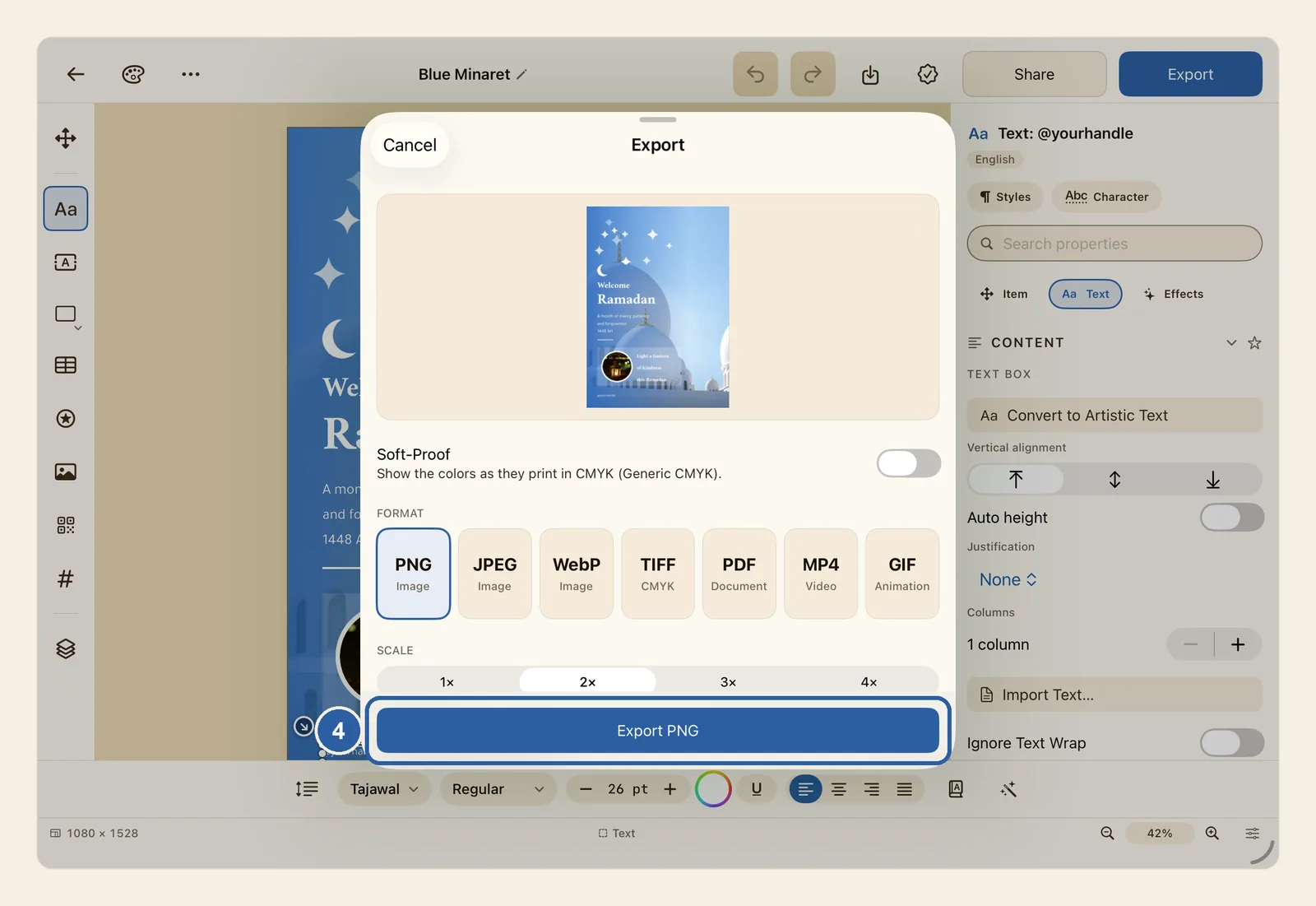
Tap Export, the last button in the top bar (top right; top left when Liwan Studio is in Arabic). The Export window opens with a picture of your design as it will come out.
Under Format, choose the kind of file, such as PNG or JPEG for a picture, PDF for printing, or MP4 for a short video. The window opens on PNG unless you have chosen another format in Settings. Then tap the button at the bottom of the window, marked 4. Its name follows the format, such as Export PNG.
When the file is ready, the Share window opens. Tap Save to Files to keep the file in a folder you choose, or More options to send it with Messages, Mail, AirDrop or another app. The Export page explains every option.
Tips
- The preview shows the template bigger, with its size and the texts you can change. To open it for the template in Start here, tap Preview beside Open in editor. See Start from a template.
- To find a template by its name, type in Search templates at the top of the screen. To turn through the templates one large card at a time, tap Gallery, next to Grid.
- Template names and texts are as their designer wrote them, so some are in English and some in Arabic, whatever language Liwan Studio is in. Replace them with words in your own language.
- When you type Arabic in place of English, or English in place of Arabic, the text box changes direction by itself, and text that sat against one side may move to the other. Tap the alignment you want in the text style bar. See Arabic and English in one design.
- If part of a text disappears after you type, your words no longer fit in the box. Make the box taller or the text smaller. See Troubleshooting.
- To use your own photo in place of one in the template, select the photo and tap Replace Image under Content in the Image panel. See Add and adjust pictures.
- Changed something by mistake? Take it back with undo. See Undo and redo.
- There is no Save button. Your design is saved by itself while you work, and it waits for you on Home, under Pick up where you left off. If you leave without changing anything, nothing is added to Home. See How your work is saved.
- A file made in the Export window can't be edited again. To make a change later, open the design from Home, change it and export again.
- Share, the button just before Export, makes a file in one tap with the format and quality chosen in Settings, and opens the Share window straight away. See Share.