
Settings and help
Help & FAQ
Find answers inside Liwan Studio, even without an internet connection, and write to the support team from your own mail app.
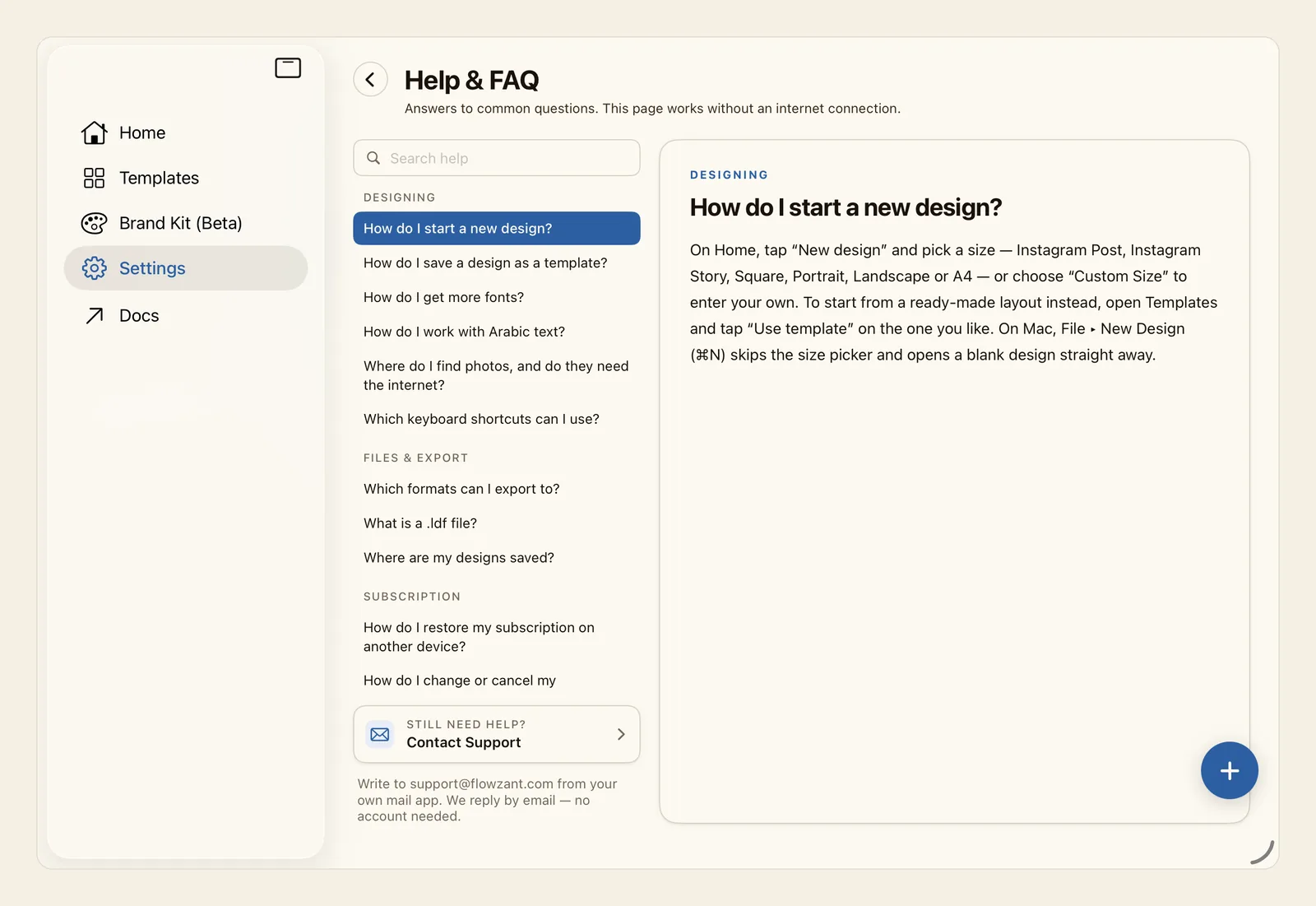
Help & FAQ answers common questions about designing, files and export, and your subscription. When it does not have your answer, Contact Support prepares an email to the support team that you send from your own mail app. There is no account to create.
How to find an answer or contact support
If a design is open, go back to Home. Then tap Settings in the sidebar, or in the tab bar if your screen shows the tabs as a bar.
Under Help & Support, tap Help & FAQ.
The questions are listed down one side, grouped under Designing, Files & Export and Subscription. Further down the list, User Guide and More Questions hold the topics of Liwan Studio's complete user guide. Tap a question: it is highlighted, and its answer appears beside the list. With a keyboard, the up and down arrow keys move to the previous or next question.
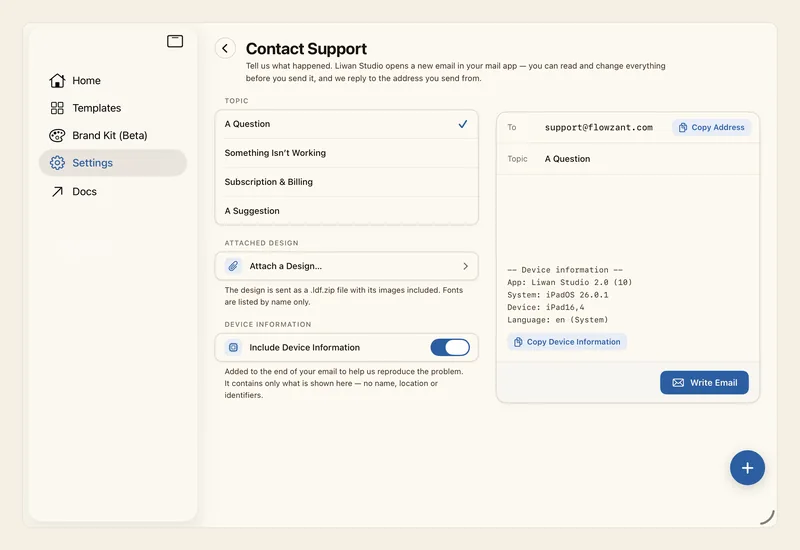
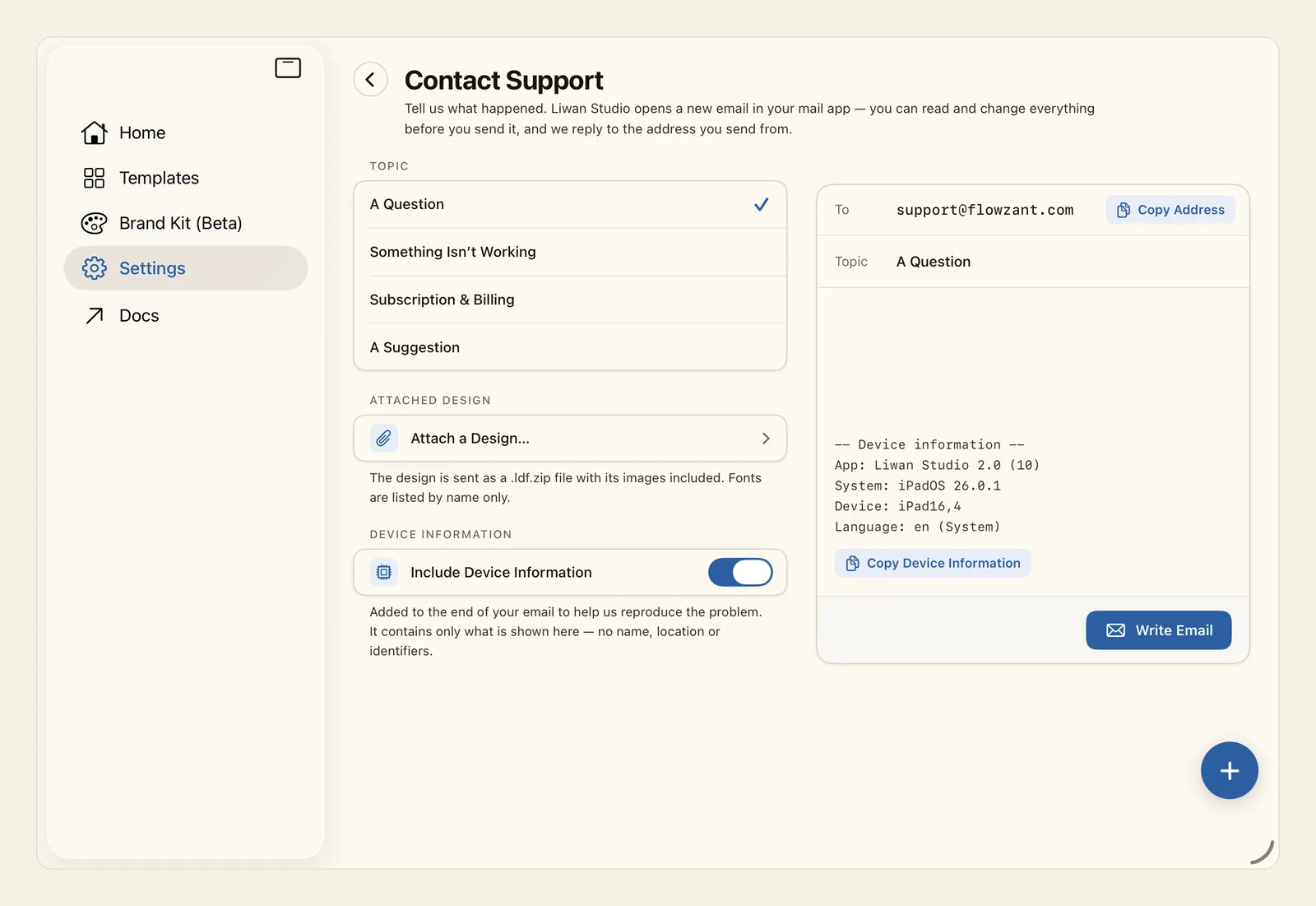
If you did not find your answer, tap Contact Support under Still Need Help?, at the bottom of the list. Under Topic, choose A Question, Something Isn’t Working, Subscription & Billing or A Suggestion. If your message is about one of your designs, tap Attach a Design… and choose it.
The preview shows what the email will contain. Tap Write Email: your mail app opens a new email to support@flowzant.com, with the topic in the subject line — for example, Liwan Studio – A Question. Write what happened and send it. The reply comes to the address you send from.
Tips
- Help & FAQ is built into Liwan Studio, so it works without an internet connection. It is shown in the language Liwan Studio is set to, Arabic or English; the User Guide topics are in English.
- To find an answer quickly, type a few words in Search help, at the top of the list. It looks through the answers and the User Guide topics as you type.
- Web and email addresses in an answer are links: tap one to open it. You can also select the text of an answer and copy it.
- In a narrow window, for example when Liwan Studio shares the screen with another app, or with a large text size, the questions are shown as a single list. Tap a question to open its answer below it, and tap it again to close it.
- To go back to Settings, tap the back button next to the page title. Contact Support is also in Settings, just below Help & FAQ.
- Include Device Information is on at first. It adds a short block to the end of your email with the app version, the system version, the device model and the language — no name, location or identifiers. The preview shows the block exactly as it will be sent, and dims it when you switch it off.
- An attached design is sent as a .ldf.zip file with its images. Fonts are listed by name only. Choose a Design lists your saved designs, the most recently changed first. To send the email without the design, tap Remove.
- If the attached design is larger than 20 MB, you see This Design Is Large, because some mail services refuse files that big. Choose Send Anyway, Send Without Design or Cancel.
- Liwan Studio never sends anything by itself. You can read and change the whole email in your mail app before you send it.
- If no mail account is set up on your device, Write Email opens your default mail app, or the share sheet when a design is attached. In the share sheet, choose your mail app and add support@flowzant.com as the recipient yourself. Copy Address, on the To line of the preview, copies the address, and Copy Device Information copies the block; each shows Copied for a moment. You can then write from any email app, webmail included.
- Without an active subscription you cannot reach Settings, but Contact Support is at the bottom of the subscription screen. See Liwan Studio Subscription.
- On a Mac, the Help menu in the menu bar has Liwan Studio Help and Contact Support…. They open the same pages in a window over whatever you are doing, even over the subscription screen. Close it with the close button (×).
- Common problems, such as text that disappears from its box, are answered on the Troubleshooting page.
Keyboard shortcuts
- ⌘? Liwan Studio Help