
Text and fonts
Character Styles
Save the look of a few words, such as a highlighted price, as a style, and give other words in your design the same look.
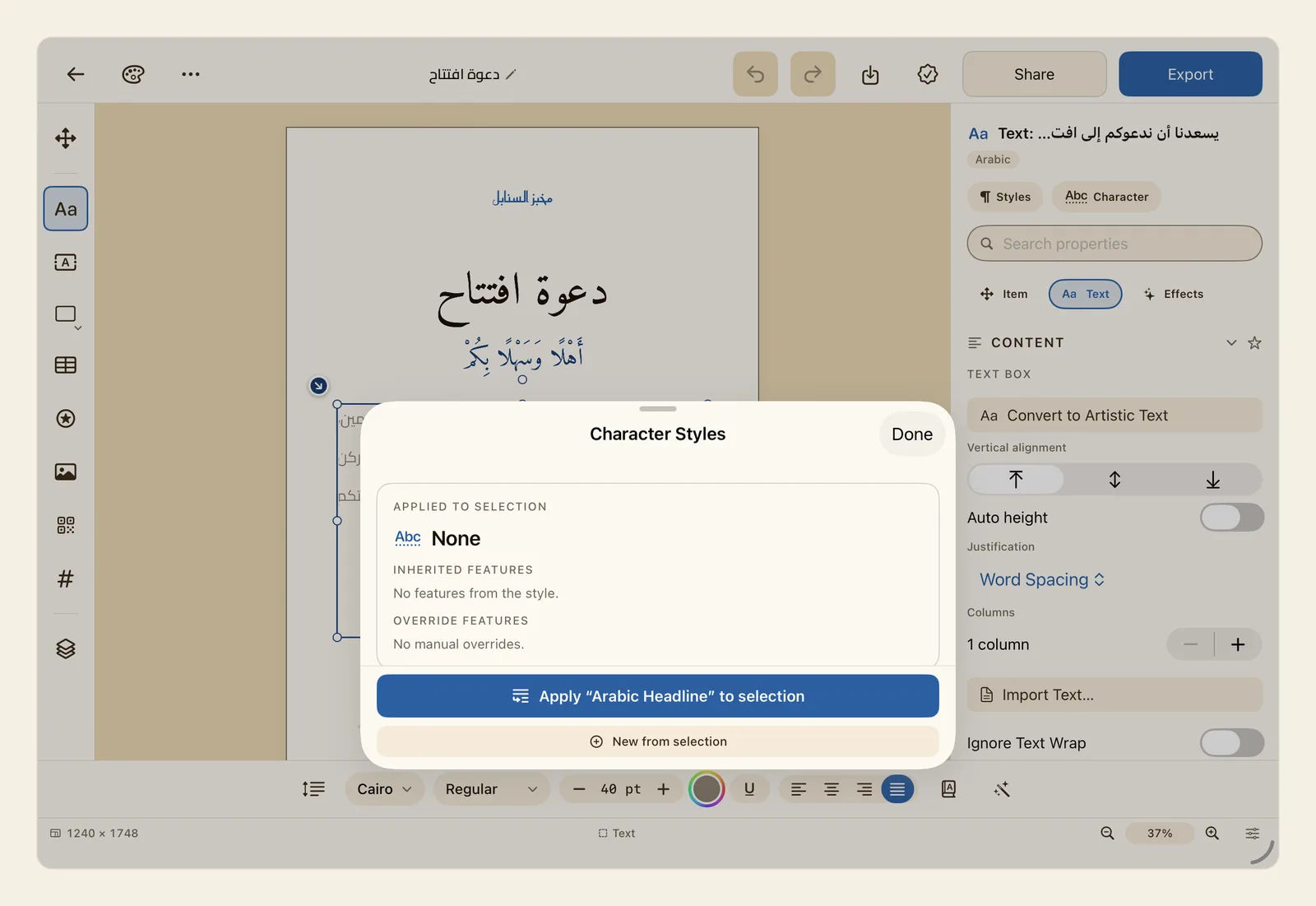
A character style is a saved look for a few words inside a paragraph: a colour, a weight, a style of numbers. It changes only what it sets. The words keep everything else, such as the font and size, from their paragraph.
How to apply a character style
Tap the text box that holds the words, then select the words you want to style: double-tap a word, or press and hold on a word, then drag to select more.
If you select no words, the style goes on all the text in the box.
In the properties panel beside the page, tap Text in the row of tabs under Search properties, between Item and Effects, if it is not already open. Then scroll down the panel to the Appearance section.
Under Character Style, just below Paragraph Style, tap the row that shows the style of your selection. It reads None when the words have no style yet.
A menu opens with the character styles in your design.
Tap a style to put it on the words you selected. A tick marks the style they already have. A new blank design has five styles:
- Arabic Headline switches on alternate letter shapes, Stylistic Alternates and Stylistic Set 1, if the font has them.
- Arabic Body sets nothing of its own, so the words follow their paragraph. The panel describes it as Default — follows the paragraph’s formatting.
- Financial Numbers switches on Tabular Numbers, which give every digit the same width so that prices line up in a column, if the font has them.
- Small Caps draws English letters as small capital letters.
- Emphasis makes the words bold and blue.
To see what a style does, to change it, or to make your own, tap Edit Character Styles… at the end of the menu instead. The Character Styles panel opens, as in the picture at the top of this page. Its top card, Applied to selection, names the style your selected words have, or None.
Scroll down to the list under Styles and tap a style to choose it. Nothing changes on the page until you tap the wide button at the bottom of the panel, which carries the style's name, such as Apply “Arabic Headline” to selection.
If you have already given the selected words the look you want, for example a price you made bigger and red with the text style bar, tap New from selection instead. Type a name and tap Create. The new style keeps what makes those words different from the rest of the text, and it goes on them straight away. Then select other words and apply the style to give them the same look.
Tap Done when you have finished.
Tips
- Character, at the top of the properties panel next to Styles, opens the Character Styles panel in one tap.
- To give a whole paragraph its look, use a paragraph style instead. A character style sits on top of it and changes only what the character style sets. See Paragraph Styles.
- A change to a style updates the text on the page you are on. In a design with several pages, text on the other pages keeps the old look until you apply the style to it again.
- Formatting you gave the same words by hand, such as a colour from the text style bar, wins over the style. That includes the words you made a style from with New from selection. The Applied to selection card shows the difference: what the style gives the words appears under Inherited Formatting, and what you set by hand under Local Formatting.
- Applying a style replaces the OpenType features you switched on for those words in the OpenType panel. Features you switch on afterwards take priority over the style; the card lists them under Override Features. See OpenType.
- To take a style off, select the words and choose Remove Style in the Character Style menu, or tap Remove at the bottom of the panel. The words go back to their paragraph's look, and formatting you set by hand stays.
- Press and hold a style in the list for Apply, Duplicate, Rename and Delete. Deleting a style takes its look off the text on this page that used it. Two styles can't have the same name.
- Small Caps is meant for English words. Arabic has no capital letters, and in most Arabic fonts the style only draws Arabic words smaller.
- Tracking in a style spaces out English letters only; Arabic letters stay joined. See Line and letter spacing.
- The Font list in the style editor offers the fonts that come with Liwan Studio, plus Geeza Pro and Helvetica. Fonts you added yourself are not in it. See Fonts.
- Character styles belong to the design they are in. A style you make in one design does not appear in your other designs.
- Character styles also work in a table: while you type in a cell, the Text panel has a Character Styles row that opens the same panel. See Tables.
- On iPad the panel opens over the lower part of the screen. Drag the handle at its top upwards to see more of it at once.
- You can undo each change, including changes to a style. See Undo and redo.