
Canvas and layout
Grid
Draw evenly spaced lines over the page and let objects snap to them, so prices, rows and columns line up.
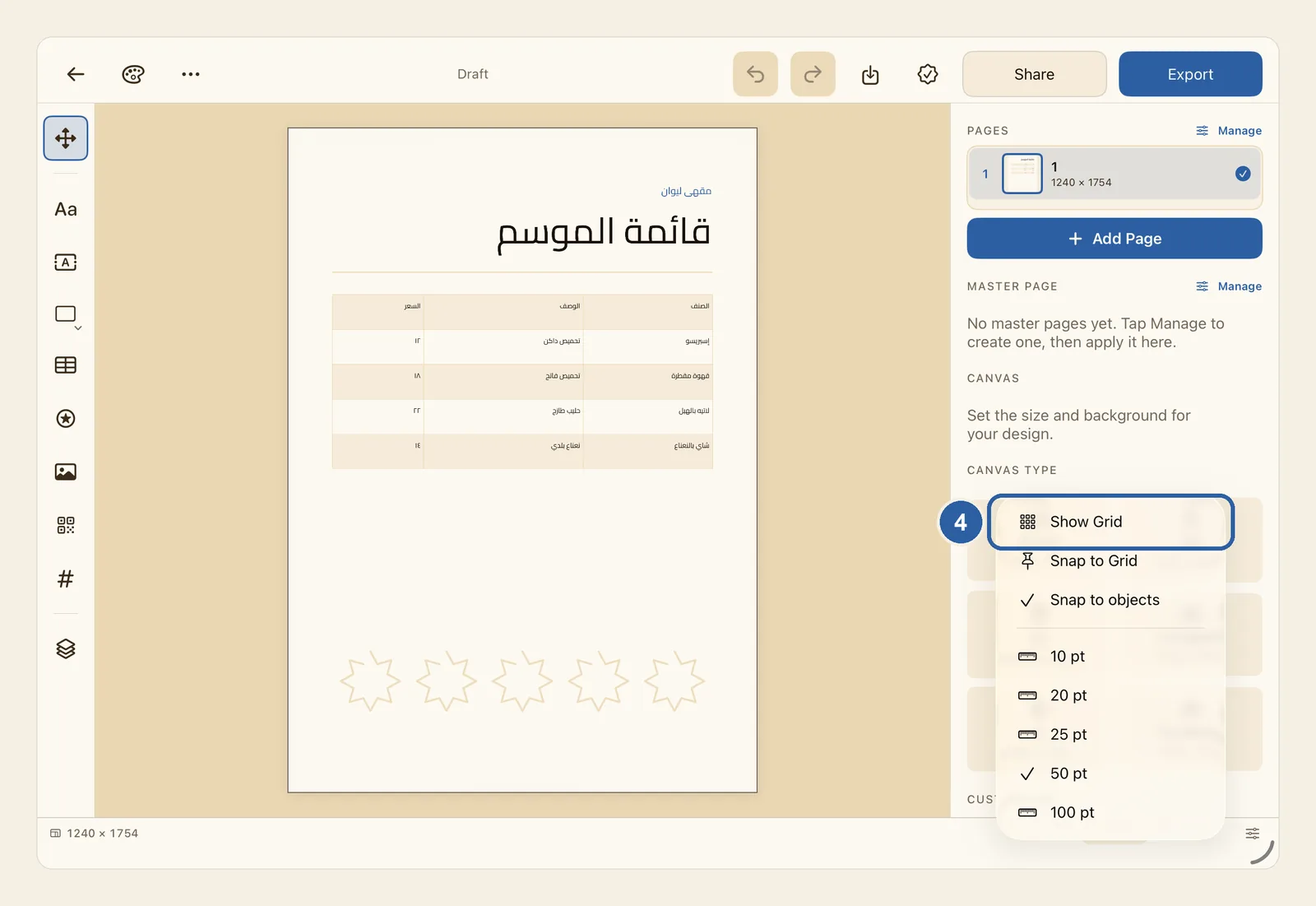
The grid is a set of faint lines drawn over the page while you work, a little like squared paper. It starts switched off, and its control stays hidden until you add it to the status bar, the thin bar along the bottom of the editor.
How to show the grid and snap to it
Tap the button with three small sliders at the end of the status bar. It is at the right end, or at the left end when Liwan Studio is in Arabic. You can also press and hold an empty part of the status bar, or right-click it on a Mac.
In the menu that opens, tap Grid. A new Grid button appears in the status bar, next to the sliders button. It shows a small grid of squares and the word Off.
Tap the Grid button. Its menu opens, as in the picture at the top of this page.
Tap Show Grid, marked 4 in the picture at the top of this page. Faint lines now cover the page, and only the page, not the area around it.
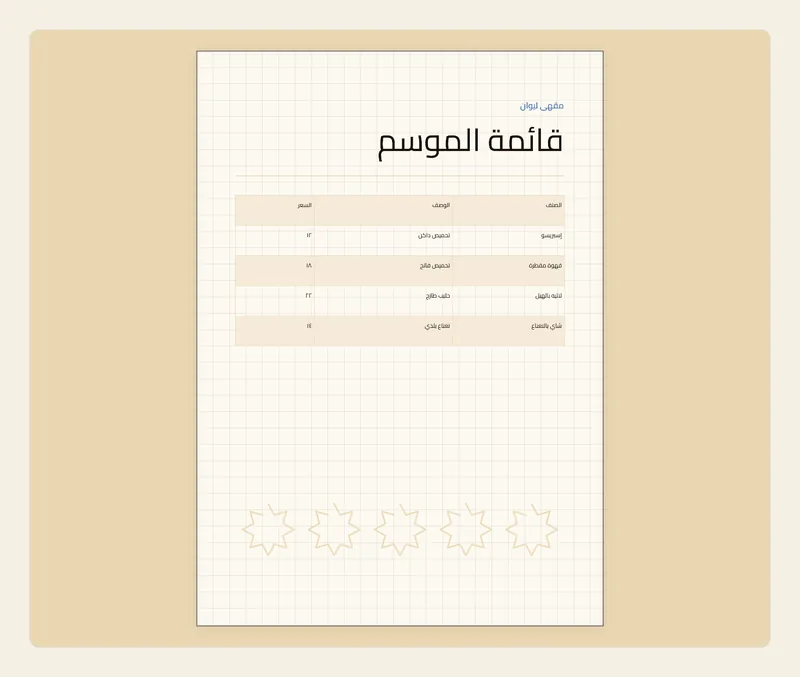
To make objects jump onto the lines as you drag them, tap the Grid button again and choose Snap to Grid. The menu closes after each choice. A tick shows what is on; choose an item again to turn it off.
Tap the Grid button once more and pick the space between the lines: 10 pt, 20 pt, 25 pt, 50 pt or 100 pt. The tick marks the current spacing, which is 50 pt until you change it.
The Grid button now shows the spacing, for example 50, or 50 · snap while snapping is on.
Tips
- Show Grid and Snap to Grid work separately. You can hide the lines and still snap to them, or show the lines just to check your layout by eye.
- Snapping happens only while you drag one object. Moving several objects together, or moving an object with the arrow keys, does not snap. A rotated object snaps by its centre only.
- The page centre, the page edges and other objects come before the grid: when one of them is close as well, the object lines up with it rather than with the grid line. See Alignment guides.
- Snap to objects, in the same menu, lines objects up with each other's edges and centres. It is on at first, and it is the same setting as Snap to objects in Settings.
- The grid is only a work aid. It is not saved in the design and never appears in what you export.
- The lines are drawn underneath your objects, so a photo or a filled shape hides the lines behind it.
- When you zoom far out, fewer lines are drawn so the page does not turn grey. Objects still snap to the spacing you chose.
- The spacing uses the same units as the page size shown in the status bar. On a 1080 × 1080 post, 100 pt gives about ten squares across.
- Your grid choices apply to every design on this device, and they stay as they are the next time you open Liwan Studio.
- You can also turn the lines on or off in Settings: under Canvas, use the Grid switch. It is the same setting as Show Grid. Snapping to the grid is set only from the status bar. See Settings.
- Removing the Grid button from the status bar does not turn the grid off. Turn off Show Grid and Snap to Grid first, then tap Grid in the sliders menu to remove the button.