
Pages and print
Preflight
Check your design for missing fonts, low-resolution photos and objects off the page before you print it or post it.
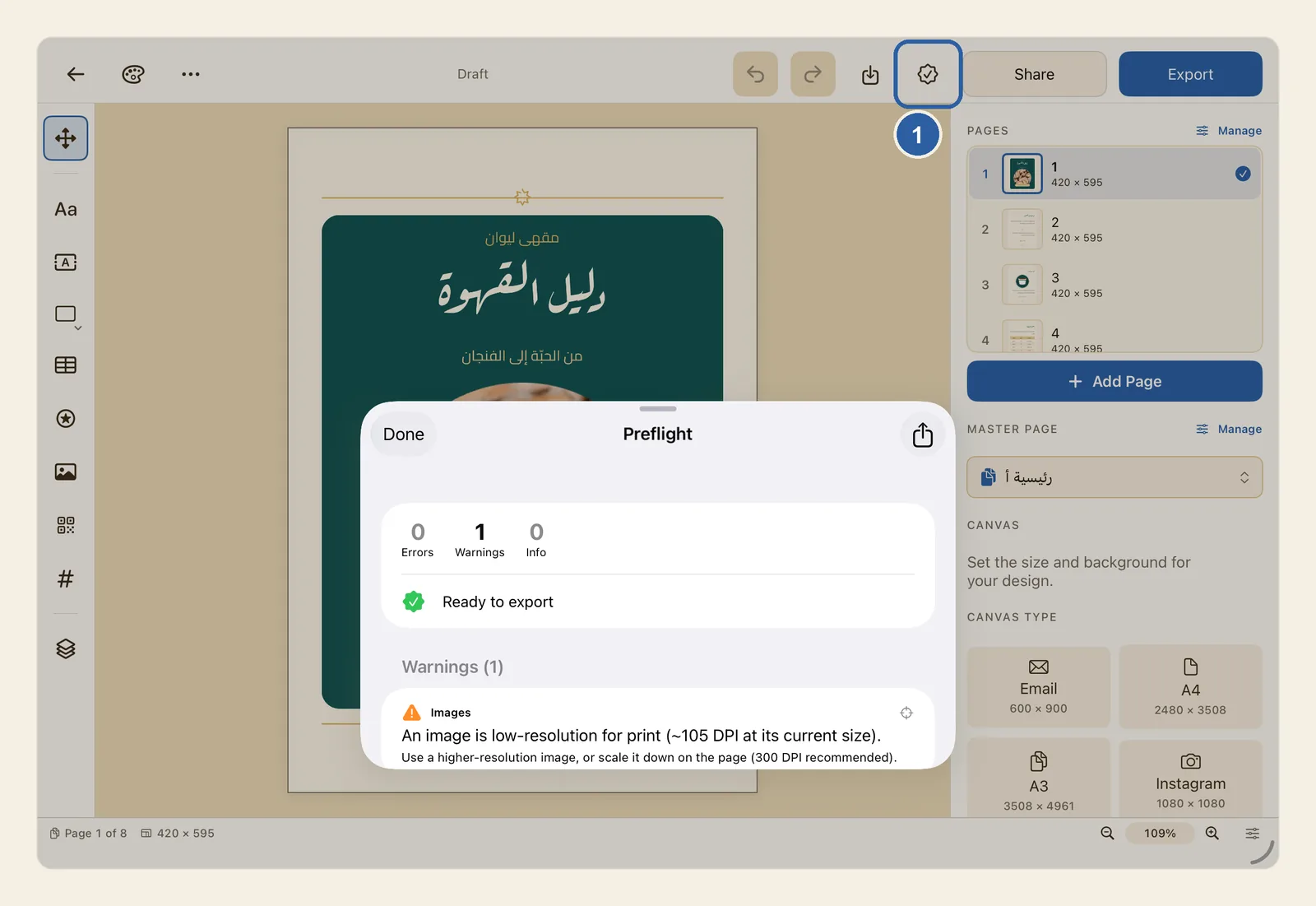
Preflight is the check a print shop runs before a job goes to press. In Liwan Studio it reads through your design and lists anything that may come out wrong once the design is printed or exported. It only reports: it never changes your design.
How to check your design
Open your design and tap Preflight in the top bar: the button with a seal and a check mark, beside Share. It is marked 1 in the picture at the top of this page.
The Preflight panel opens. For a moment it may show Running preflight… while it checks the design.
Read the checklist. At the top, three numbers count what was found:
- Errors are problems that can stop the file coming out at all, such as too little free storage for the export.
- Warnings are worth fixing before you print, such as a photo that is too small for the space it fills.
- Info notes are for your information, such as an empty text box or a page with nothing on it.
Under the numbers, the panel says Ready to export with a green seal, or Blocking issues — not ready to export with a red one. When nothing at all is found, it says No issues found — the document is ready to export.
Below that, the issues are grouped under headings such as Warnings (1). Each one names the kind of check in small type, such as Images or Layout, says what is wrong and usually suggests a fix. On iPad, drag the bar at the top of the panel upwards to see more of the list.
Preflight looks for:
- photos whose resolution is too low for print at the size they have on the page;
- fonts that are not on this device, which a system font would replace;
- pictures and stickers that can't be loaded;
- objects that lie completely off the page, or run past its edge;
- empty text boxes, empty pages, and two pages with the same name;
- text that still shows a placeholder such as
{{name}}; - storage too low to finish an export.
In the picture at the top of this page, the booklet has no errors and one warning: a photo is about 105 DPI at its current size. DPI (dots per inch) is how many of the photo's pixels fall on each inch of paper; for print, 300 is recommended.
Tap an issue to go to it. An issue about one object, like the photo in the picture, has a small target sign at the right end of its first line. Tap the issue: the panel closes and that object is selected on the page, ready for you to change.
Fix it as the issue suggests. For a low-resolution photo, use a larger, sharper photo instead, or make this one smaller on the page. Then tap Preflight again to check that the issue has gone.
Issues without the target sign are not tied to one object, such as a missing font or a picture that can't be loaded. Fix those yourself, for example by choosing another font for the text. Tap Done to close the panel.
Tips
- Preflight never stops you exporting. Only errors change the verdict to Blocking issues — not ready to export; warnings and info notes are advice.
- Tapping an issue selects the object only when it is on the page you are viewing, and the issue doesn't say which page the object is on. In a design with several pages, if nothing gets selected, the object is on another page: go to that page, open Preflight again and tap the issue. See Pages.
- The checks for fonts and for pictures that can't be loaded look only at the page you are on. The other checks cover every page. In a menu or booklet, run Preflight once from each page before you print.
- Objects on master pages are not checked, such as a logo repeated on every page. See Master Pages.
- A photo under 150 DPI at its current size gets a warning, and one between 150 and 300 DPI gets an info note. Making a photo smaller on the page raises its DPI; making it bigger lowers it, so run Preflight again after you resize photos.
- If you set Bleed and Safe margin under Print & bleed, Preflight also tells you about objects that run past the bleed or cross the safe margin. These values are only checked: they add no bleed or crop marks to the PDF and draw no guides on the page. See Print & bleed.
- To send the result to your print shop, tap the share button at the top right of the panel. Under Preflight report, choose Copy (Markdown) or Copy (JSON) to copy the report and paste it into an email or chat, or Save… to keep it as a file. Under Production report, Save… keeps a longer summary that also lists every page with its size and every picture. The headings of both reports are in English; the descriptions of the issues are in the app's language.
- The Export sheet runs a shorter check of its own. When a font is missing, a picture or sticker can't be loaded, or storage is low, a Preflight box appears near the top of the sheet. These issues don't stop the export. See Export.