
Export and sharing
Liwan Studio documents (.ldf)
Save an editable copy of a design as one .ldf file to back it up, move it to another iPad or Mac, or send it to a colleague.
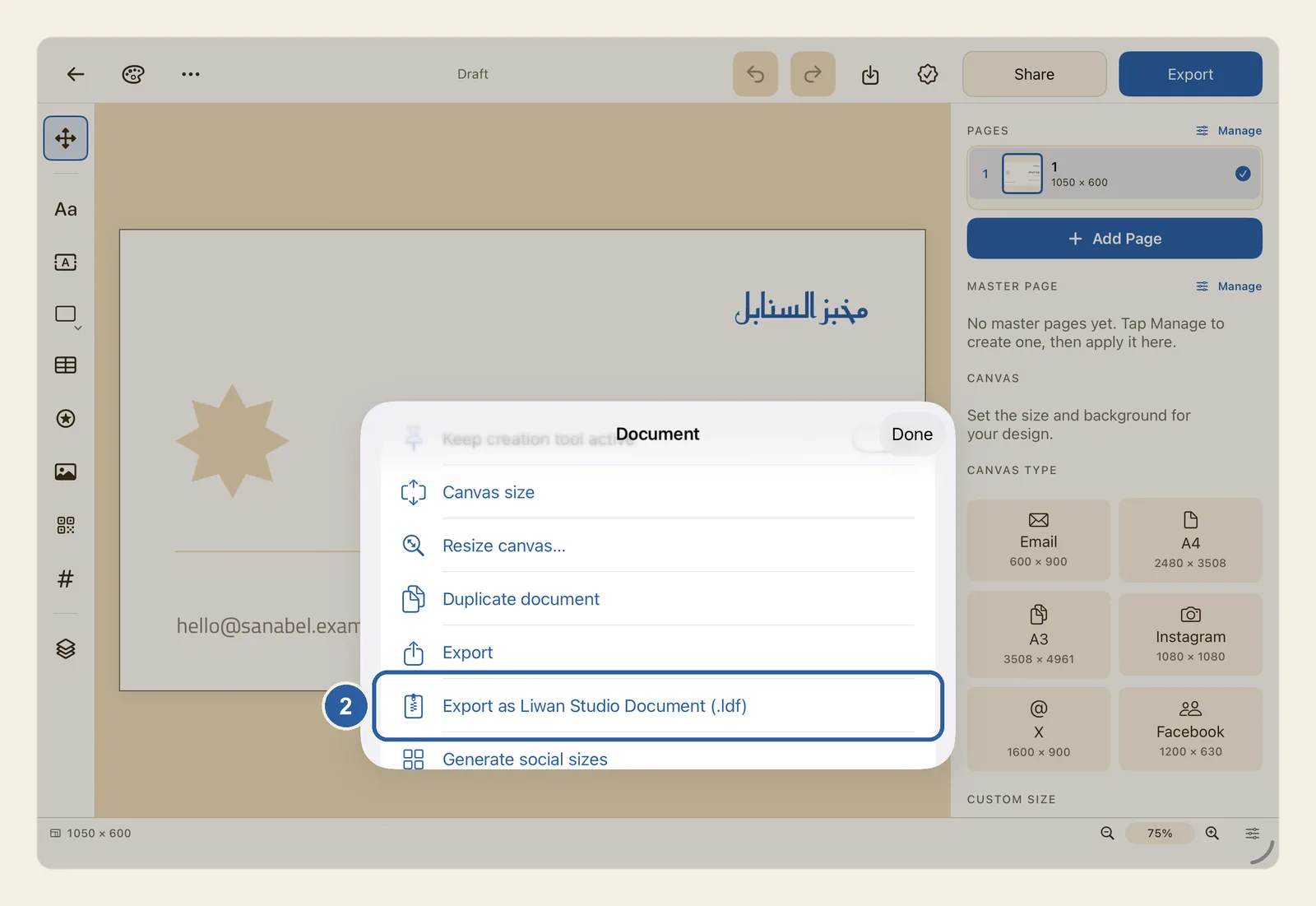
A Liwan Studio Document is the design itself, not a picture of it: every page, with text you can still edit and your photos packed inside the file. Anyone with Liwan Studio can open it and carry on working. To post or print your design, use Export instead.
How to save a design as a .ldf file and open it again
Open the design and tap the … button near the back arrow, at the start of the top bar (top left; top right when Liwan Studio is in Arabic). Its name is Document. The Document list opens.
Tap Export as Liwan Studio Document (.ldf), marked 2 in the picture at the top of this page. It comes just after Export; if you don't see it, scroll down the list. The list then closes by itself.
On a Mac you can choose File ▸ Export as Liwan Studio Document… in the menu bar instead, which does steps 1 and 2 at once.
Choose where to keep the file. On iPad, a Files window opens: pick a folder and confirm. On a Mac, the usual Save window opens.
The file takes the name of your design and ends in .ldf, for example Bakery card.ldf. A design with no name is saved as Untitled.ldf.
To work on the design again, later or on another iPad or Mac, open the Files app and tap the file. Liwan Studio opens it in the editor, with all its pages. A file you receive by AirDrop, Mail or Messages opens the same way. On a Mac, double-click the file in Finder.
Liwan Studio works on its own copy of the file. Once you change something, the design joins your designs on Home and saves itself like the others. The file you tapped stays as it was.
Tips
- The file carries the names of its fonts, not the fonts themselves. If the other device doesn't have a font, the design opens with a Fonts not on this device notice naming it, and that text is shown in a substitute font. Add the same font on that device, or tap Got it to carry on. See Fonts.
- This option always asks where to save. It doesn't use the Save destination folder chosen in Settings under Export.
- Liwan Studio shows no message when it can't make the file. If no window appears for choosing where to save, nothing was saved: try again.
- If you open a file just to look at it and leave without changing anything, it is not added to Home.
- Changes you make after opening a file go into the design on Home, not into the file. To bring the file up to date, export the design again.
- On the iPad or Mac the file was exported from, it opens as that same design, not as a copy. Once you change it, the design on Home is replaced by the file's version with your changes. To keep the version on Home as well, duplicate it there first. See Rename, duplicate and delete designs.
- If the design had a name when you exported it, it keeps that name even if you rename the file. To change the name, rename the design on Home before you export it.
- If Couldn’t open that file appears, tap OK. The file may be damaged, or it may have been made with a newer version of Liwan Studio: update Liwan Studio on this device and try again.
- The other device needs Liwan Studio with an active subscription, set up past its first screens. Otherwise tapping the file opens Liwan Studio but not the design. Finish setting up, then tap the file again. See Liwan Studio Subscription.
- To use the design as a template on the other device, open the file there and tap Save as template, the button in the top bar with an arrow pointing down into a box. See My Templates.
Keyboard shortcuts
- ⇧⌘E Export as Liwan Studio Document…
- ⌘O Open Liwan Studio Document…