
Templates
My Templates
Save a design you make again and again — a weekly menu or a branded post frame — as your own template, and start each new one from it.
A template is a starting point. Each time you use it, you get a new design to change as you like, and the template itself stays as you saved it. Your own templates are kept in My Templates, next to the built-in ones.
How to save and reuse your own template
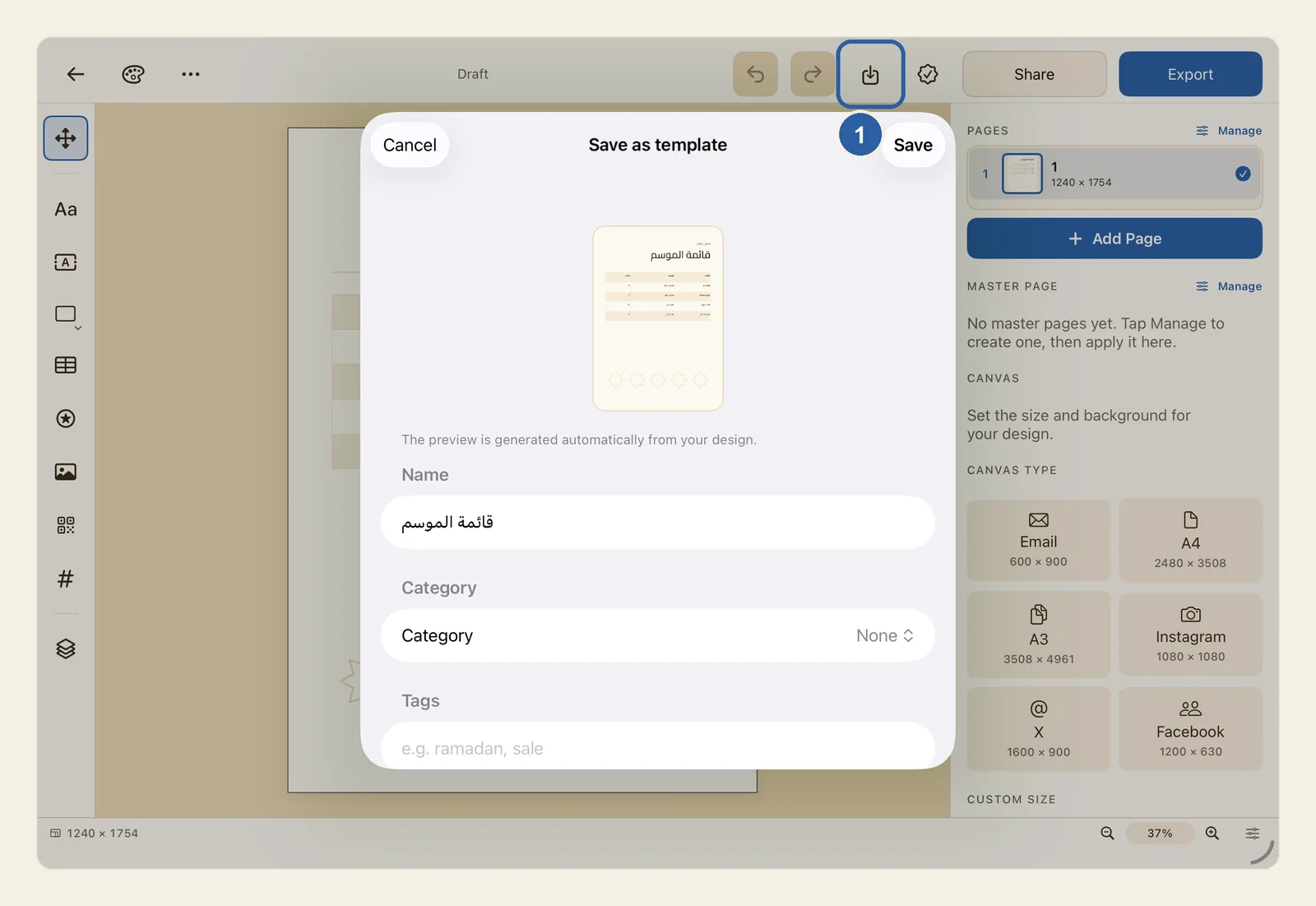
Open the design you want to reuse, such as this week's menu. In the top bar, tap Save as template: the button with an arrow pointing down into a box, just after the Undo and Redo arrows. It is the button marked 1 in the picture at the top of this page.
The Save as template window opens with a preview of your design. Under Name, the design's current name is already filled in; change it to something you will recognise, such as "Weekly menu". Category and Tags are optional. Tap Save, then tap OK on the Saved to My Templates message.
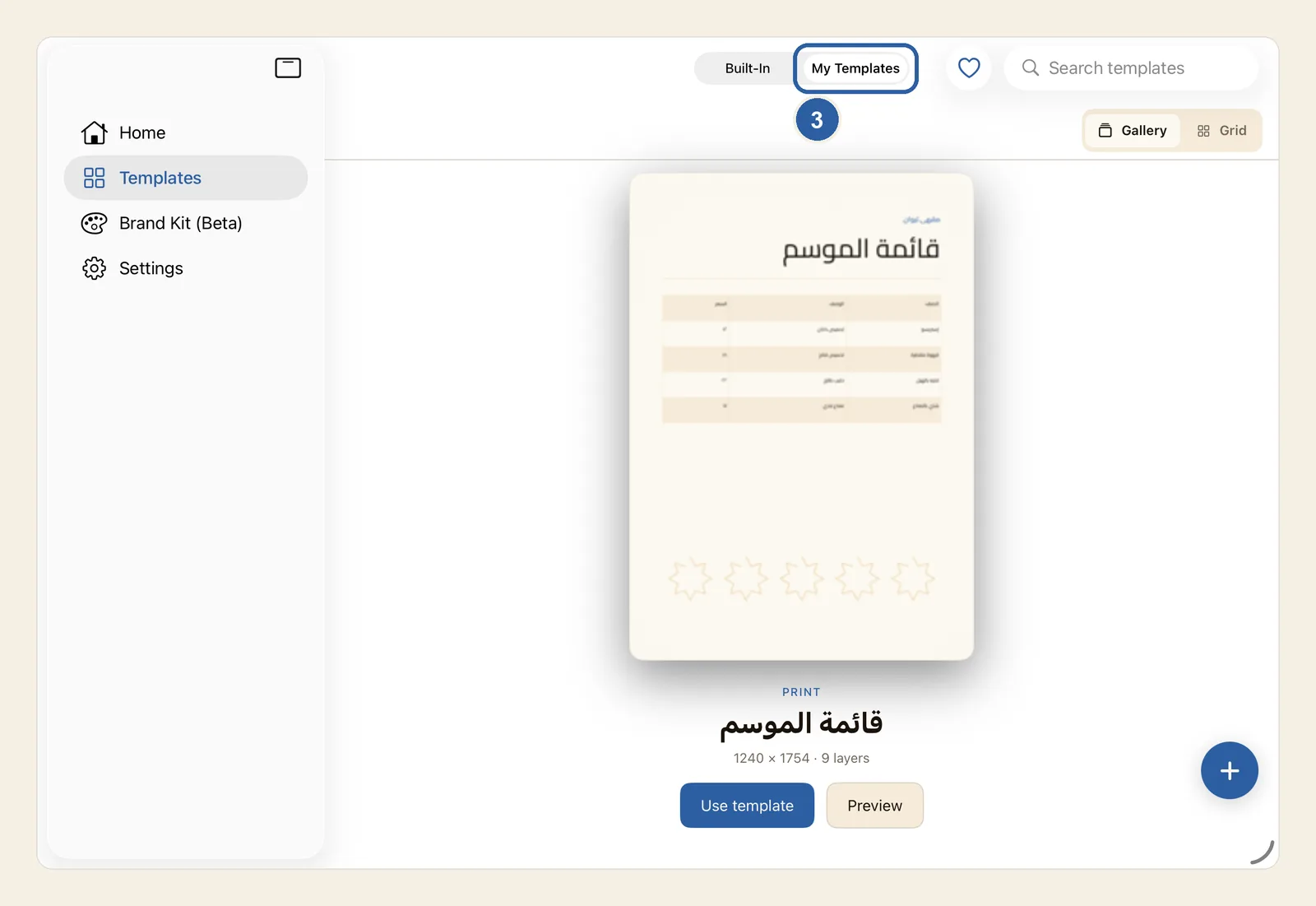
Leave the editor with Back, the arrow at the start of the top bar, and open Templates. At the top of the screen, tap My Templates, next to Built-In. Your template is there, with its name and size under the picture.
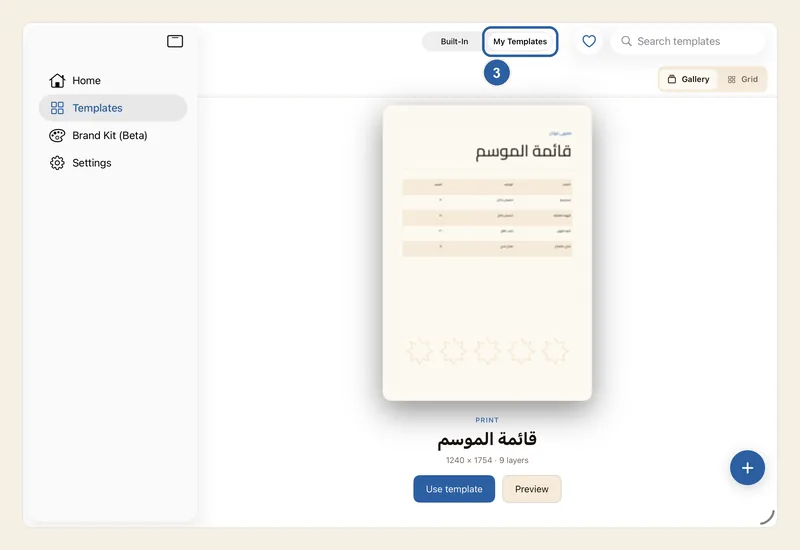
If you have saved several templates, swipe the cards sideways until yours is in the middle. Tap Use template under it. A new design made from the template opens in the editor, ready for this week's changes, and the template stays exactly as you saved it for next time.
In Grid view, long-press the template's card instead (right-click on Mac) and choose Use template.
Tips
- Saving the same design again updates its template instead of adding a second one, and the window names the template it will update. To keep both, turn on Save as a new template before you tap Save.
- Saving a template also gives the design you are working on the template's name.
- Add a few Tags, such as menu or ramadan, so you can find the template later with Search templates at the top of My Templates. Separate tags with commas; the Arabic comma (،) works too.
- To rename, duplicate, export or delete a template, tap Grid beside Gallery, then long-press the template's card (right-click on Mac). These options are not shown in Gallery view. Deleting a template can't be undone.
- In Grid view, tap the heart on a card to mark a template as a favourite. Tap the heart button at the top of the screen to show only your favourites, and tap it again to see all your templates.
- Your templates stay on this iPad or Mac and do not move to your other devices by themselves. Export saves a copy of a template as a Liwan Studio Document (.ldf) file that you can keep as a backup or send to another device. There, open the file and tap Save as template; there is no button that adds a .ldf file to My Templates directly. See Liwan Studio documents (.ldf).
- If you start a design from a template and leave without changing anything, no new design is added to Home.
- On Mac, Save as template opens as a floating window over the editor, and Esc closes it without saving. Hold the pointer over the button in the top bar to see its name.