
Canvas and layout
Select and move objects
Pick the text, picture or shape you want to change, then drag it into place or type its exact position on the page.
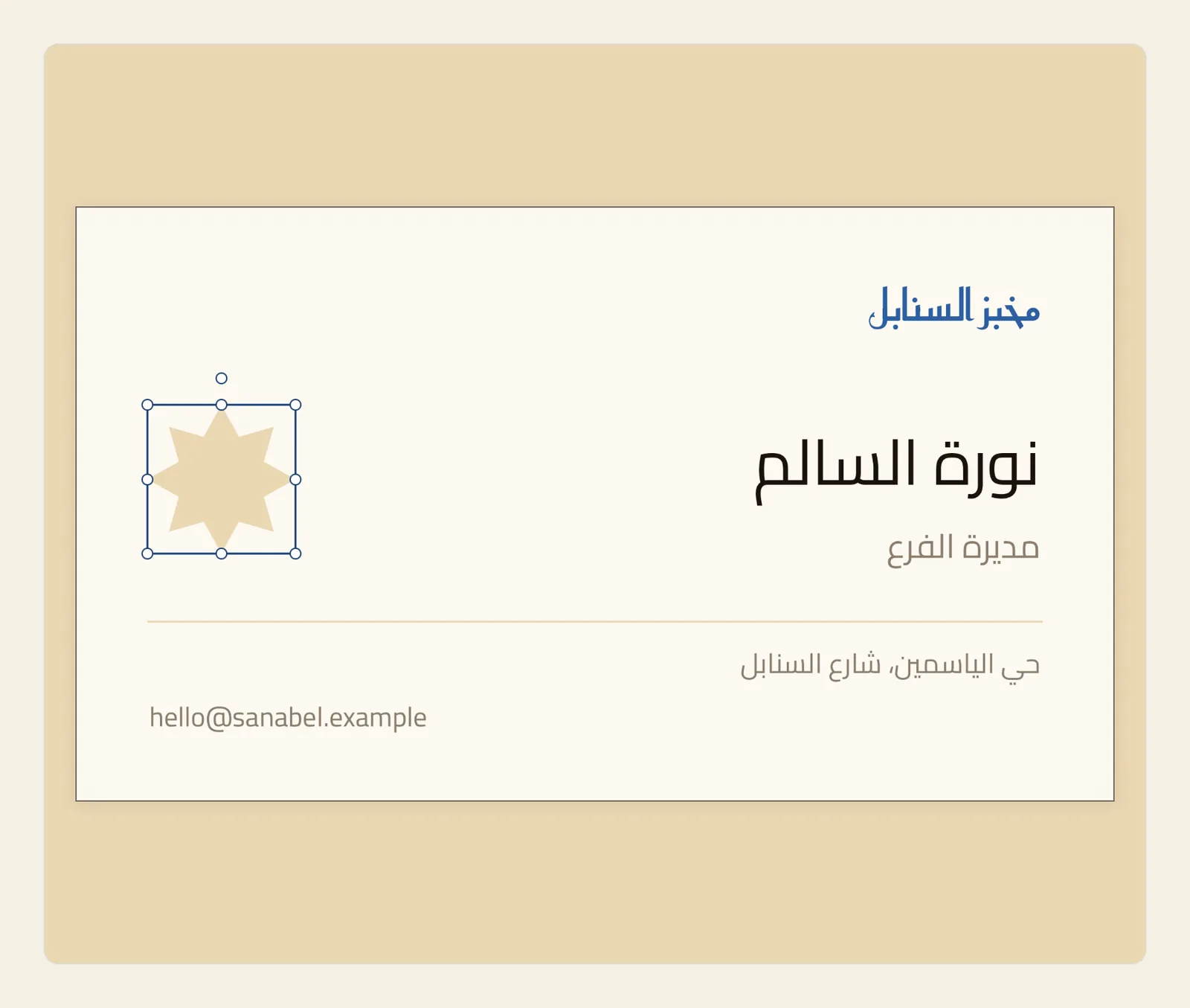
Almost every change in Liwan Studio starts with selecting. The panel beside the page shows the settings of the selected object, and what you change there applies to it.
How to select and move an object
Tap the object on the page. A blue outline with round handles appears around it, as in the picture at the top of this page, and the panel beside the page shows its settings.
Tapping a text box also puts the cursor in it, ready to type.
Drag the object with one finger (on a Mac, with the pointer) and let go where you want it. On the way it can snap into line with the centre of the page or with another object, and thin guide lines show what it lined up with — see Alignment guides.
When nothing is selected, you can drag any object straight away. When another object is selected, tap the one you want first: dragging an object that isn't selected does nothing while something else is.
For an exact position, tap Item in the row of tabs near the top of the panel, marked 3 in the picture. Selecting a picture, shape or sticker usually opens this tab already; selecting text opens the Text tab instead.
You can also press V on a keyboard, except while you are typing in a text box. If another tab is showing, tapping Item (Box), the four-arrows button at the top of the tool rail, works too.
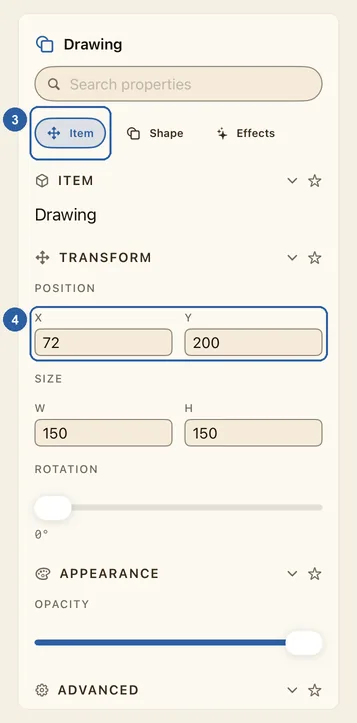
Under Transform, find Position, marked 4. Type a number in X, then in Y, and press Return. Moving from one field to the other also applies the number you typed. The object moves there at once.
X is the distance from the left edge of the page to the left edge of the object, and Y the distance from the top edge of the page to its top edge. They use the same units as the page size: on a 1080 × 1080 Instagram post, an X of 540 puts the object's left edge in the middle of the page. X counts from the left in an Arabic design too.
Tips
- To clear the selection, tap an empty part of the page or press Esc.
- While you are typing in a text box, the first tap outside it only stops the typing, and the box stays selected. Tap again to select something else. To move the text box itself, tap Item (Box) at the top of the tool rail, or tap an empty part of the page, then drag the box. See Troubleshooting.
- Where objects overlap, a tap picks the one in front. A tap counts anywhere inside an object's box, even on a see-through part, such as the empty corner around a photo whose background you removed. To reach an object underneath, select it in the Layers panel.
- Locked and hidden objects can't be picked on the page. Select them in Layers — see Order, lock and hide objects.
- If dragging a photo doesn't move it, or slides the picture inside its frame instead of moving the frame, the Image tab is showing. Tap Item at the top of the panel, or press V, and drag again. See Add and adjust pictures.
- If the Item tab is already showing, don't tap Item (Box) again: that switches to the object's own settings, such as Shape or Text.
- On a Mac, press an arrow key to move the selected object by 1 point, or hold ⇧ to move it by 10. Arrow keys don't snap to guides, and they don't move anything while you are typing in a text box.
- A whole drag counts as one step, and so does a run of arrow-key presses, so a single undo puts the object back where it was. See Undo and redo.
- To move several objects together, select them with ⇧-tap or ⌘A (on iPad, with a keyboard attached) and drag any one of them. They don't snap to guides, and X and Y are set one object at a time. See Work with several objects at once.
- In a narrow window on iPad, the panel is not beside the page: tap Item (Box) to open it from the bottom of the screen.
- For a rotated object, X and Y place its box as it would sit before rotating, so the corners you see won't land exactly on those numbers. To change size and angle, see Resize and rotate objects.