
Pages and print
Pages
Keep a whole menu or brochure in one design, and add, duplicate, reorder or remove its pages as you work.
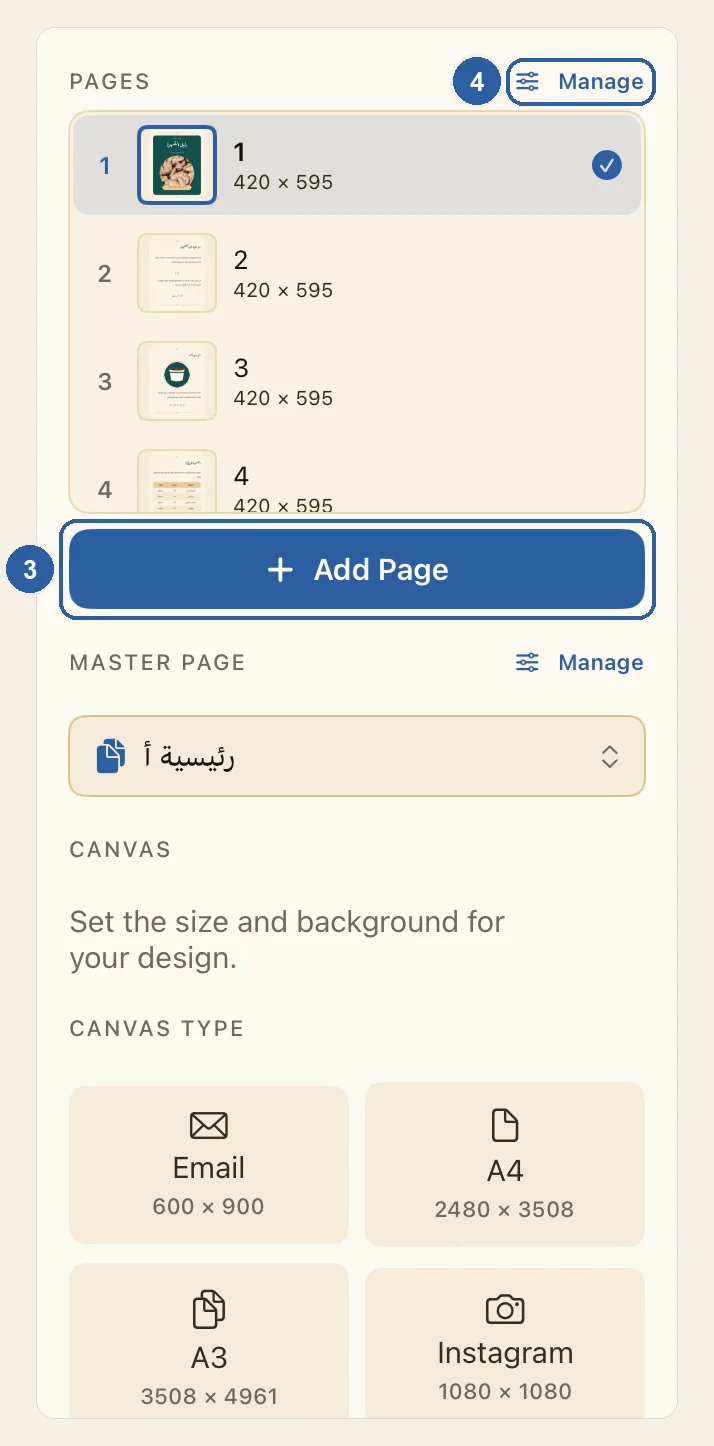
A design can have more than one page, such as the front and back of a menu or every page of a brochure. The page list shows them all and marks the one you are on.
How to add and arrange pages
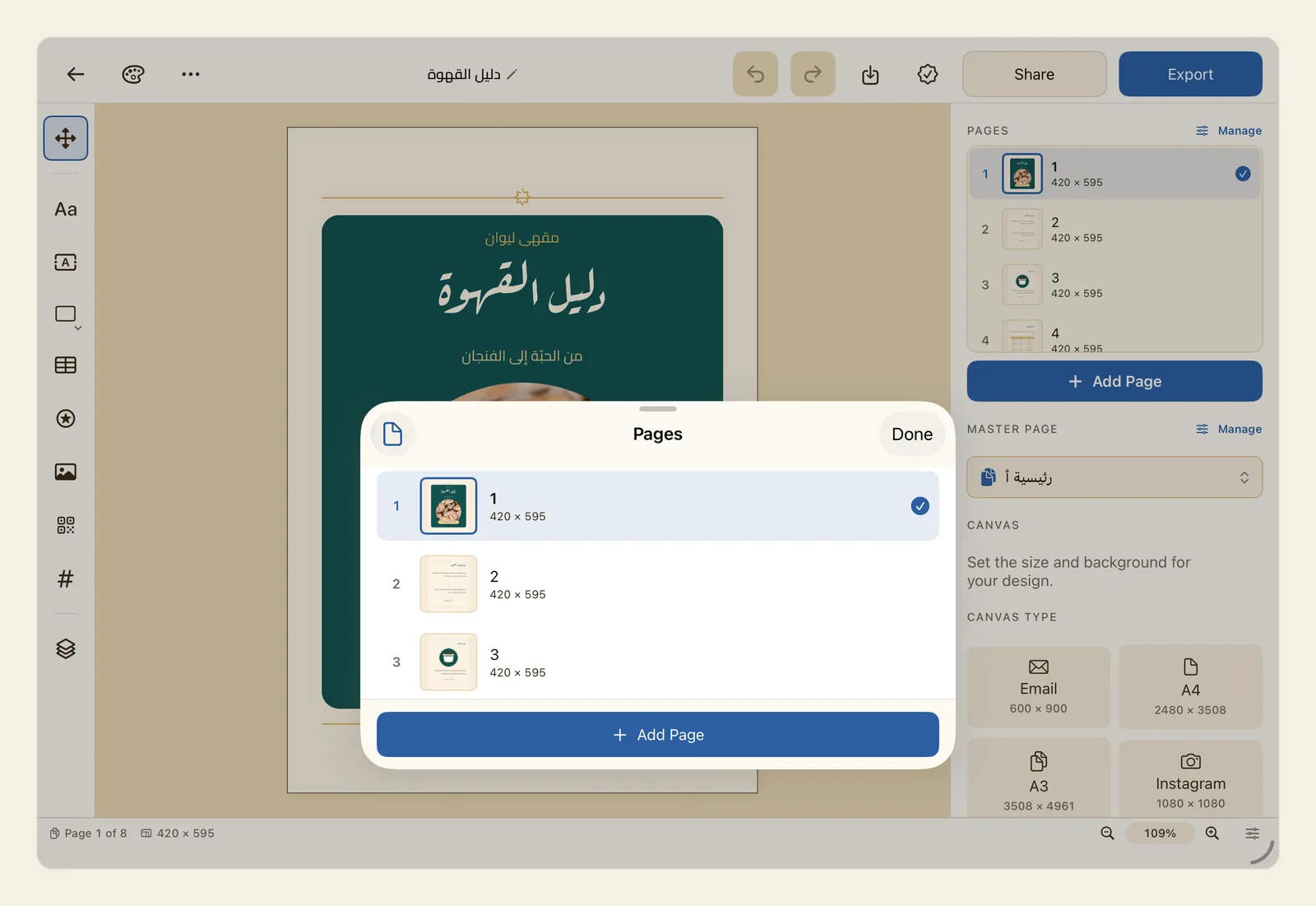
Open your design and tap an empty part of the page, so that nothing is selected. The properties panel beside the page now shows the settings of the page itself instead of an object's.
If you don't see the properties panel, for example when Liwan Studio shares the iPad screen with another app, tap Item (Box), the four-arrows button at the top of the tool rail, to open it.
Pages is the first section at the top of the panel. It lists the pages of your design in order, each with its number, a small picture of the page, its name and its size. The page you are on is highlighted and has a check mark.
Tap another page to go to it. When the design has more pages than the list can show, scroll the list to see the rest.
Tap Add Page under the list. It is marked 3 in the picture at the top of this page. A blank page is added right after the page you are on, and it opens so you can start working on it. It has the same size and background colour as that page, but none of its objects.
To change the order of the pages, tap Manage (4), next to the Pages heading. The Pages panel opens with every page of the design.
Press and hold a page until it lifts, then drag it up or down the list and let go. On a Mac, drag the page with the pointer. When the order is right, tap Done.
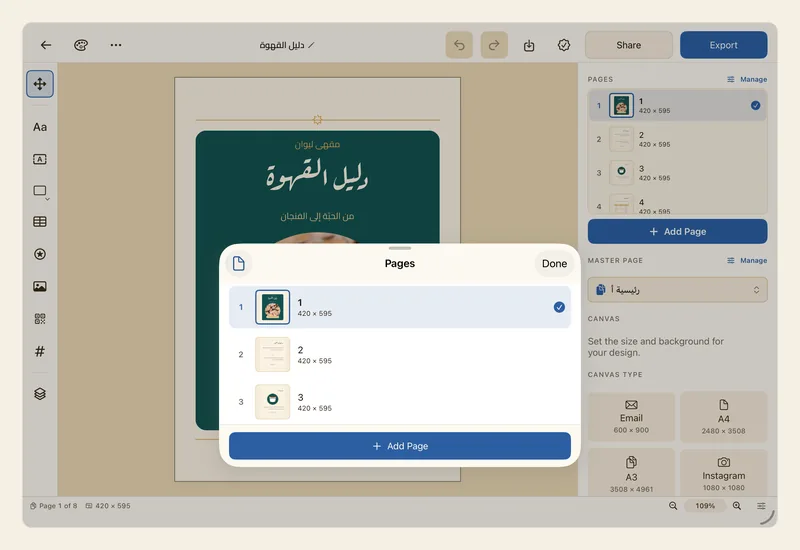
To copy or remove a page, press and hold it, either in the Pages list of the properties panel or in the Pages panel, and choose from the menu. On a Mac, right-click the page.
- Duplicate adds a copy of the page, with everything on it, right after the original, and opens the copy. Use it when the next page should look like this one, such as a second page of dishes in a menu.
- Delete removes the page straight away, without asking. If you delete the wrong page, tap Undo (the curved arrow at the top of the editor) or press ⌘Z. Delete doesn't appear when the design has only one page.
Tips
- From the page before it, a new blank page takes only the size and the plain background colour. A gradient or picture background is not carried over. To start from a page with its background and objects, use Duplicate instead.
- To add a blank page at an exact spot, open the Pages panel, press and hold the page that should come before it, and choose Insert Page After This.
- When the design has master pages, Add Page and Insert Page After This in the Pages panel ask Attach a master page? Choose a master page, or No Master. Add Page in the properties panel adds the page without a master page. See Master Pages.
- You can drag pages only while the Pages panel shows Single Pages. If it shows the pages side by side in pairs, tap the button at the top left of the panel, choose Single Pages, reorder the pages, then switch back to Facing Pages. Switching the view doesn't change your pages. See Facing Pages.
- In the Pages panel, press and hold a page and choose Properties… to rename it or give it its own size, for example an A5 insert in an A4 menu.
- A new page is named after the place where it was added, such as "Page 3", and keeps that name when you move it. Two pages can end up with the same name, and Preflight then warns you. Rename them with Properties….
- Page numbers you add with Page Number update by themselves when you reorder pages.
- Adding, duplicating, deleting and reordering pages can each be undone. Going to another page is not a change, so Undo skips it, but undoing a change can switch the page you are looking at. Undo works only while the design is open: once you leave the editor, a deleted page can't be brought back. See Undo and redo.
- In a design with more than one page, the status bar at the bottom of the editor can show which page you are on, such as "Page 1 of 8". See Zoom.
- A PDF export includes every page, in order and each at its own size. Every other format exports only the page you are on, so go to that page first. See Export.