
Text and fonts
Arabic and English in one design
Type Arabic in one text box and English in another, and each box reads in its own direction, with nothing to switch.
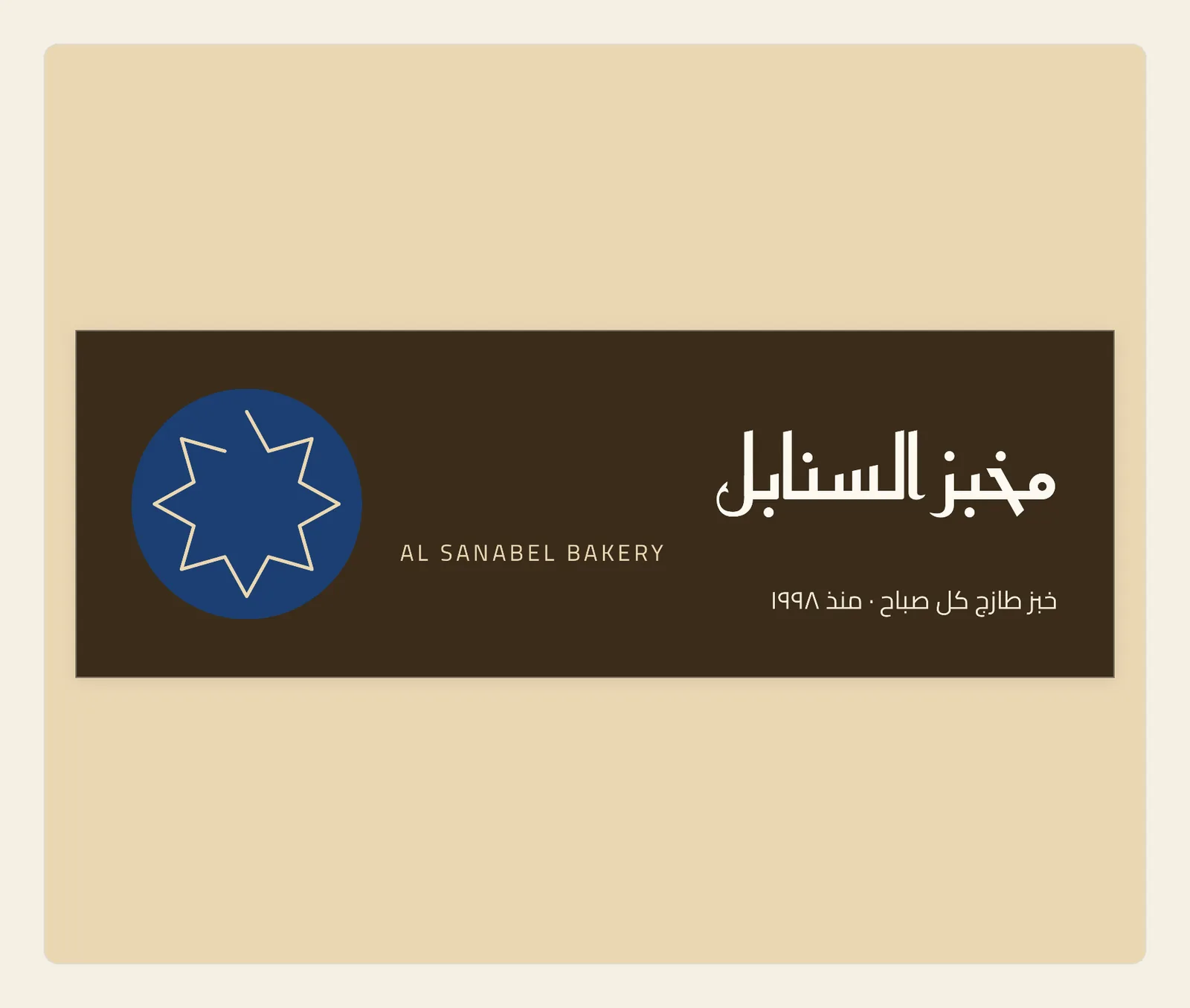
Arabic reads from right to left, and English from left to right. Liwan Studio sets the direction of each text box from the letters you type in it, so there is no direction button to look for.
How to mix Arabic and English
Add a text box and type your Arabic, for example the name of your shop. Then add a second box and type the English line in it. On the tool rail, tap Artistic Text for a short headline or Paragraph Text for longer text. See Add and edit text.
Each box takes its own direction as you type. The Arabic box reads from right to left, and its lines start at its right edge. The English box reads from left to right, and starts at its left edge.
In the picture at the top of this page, the three lines of the sign are in boxes of the same width, one under another, all with the same alignment. The Arabic name and the Arabic line at the bottom start on the right; AL SANABEL BAKERY starts on the left.
A new, empty box is ready for Arabic. If you type English into it, it changes to left to right as soon as you type the first letter.
To check which way a box reads, select it and look at the top of the properties panel beside the page, above its tabs. Under the box's name, such as "Text: AL SANABEL BAKERY", a small label shows English for a box that reads left to right, or Arabic for one that reads right to left.
Tips
- Unless a paragraph style sets it (see below), the direction belongs to the whole box. Even one Arabic letter makes the whole box read right to left, English lines included, and the box goes back to left to right only when no Arabic letter is left in it. Give a line that should start on the left its own box.
- An English word, a brand name or a phone number inside an Arabic sentence keeps its own left-to-right order within the line. You don't need to type it backwards.
- The alignment buttons in the text style bar follow the sides of the screen: the left-align button puts Arabic or English text against the left edge. If you replace the words in a box with the other language, text that sat against one side moves to the other side. Tap the alignment you want again.
- Unless you choose otherwise, digits follow the words next to them: after an Arabic word they show as ٠–٩, after an English word as 0–9. To use one style for the whole box, choose it under Numerals in the Text panel. See Numerals.
- On iPad, when you tap into a box, the on-screen keyboard switches to the box's language, Arabic or English, as long as you have added that keyboard on your iPad.
- In paragraph text, the built-in paragraph styles Arabic Body, Arabic Heading and Arabic Caption always read right to left, and English Body always reads left to right, whatever you type. To change a style, open the style menu under Paragraph Style in the Text panel, choose Edit Paragraph Styles…, and set Direction to Right → Left, Left → Right or Automatic, which follows the text. See Paragraph Styles.
- In a table, each cell takes its direction from its own text, so Arabic and English cells can sit in the same row. See Tables.