
Settings and help
Settings
Choose the language and look of Liwan Studio, the size of its text, and the size and file format your new designs and exports start with.
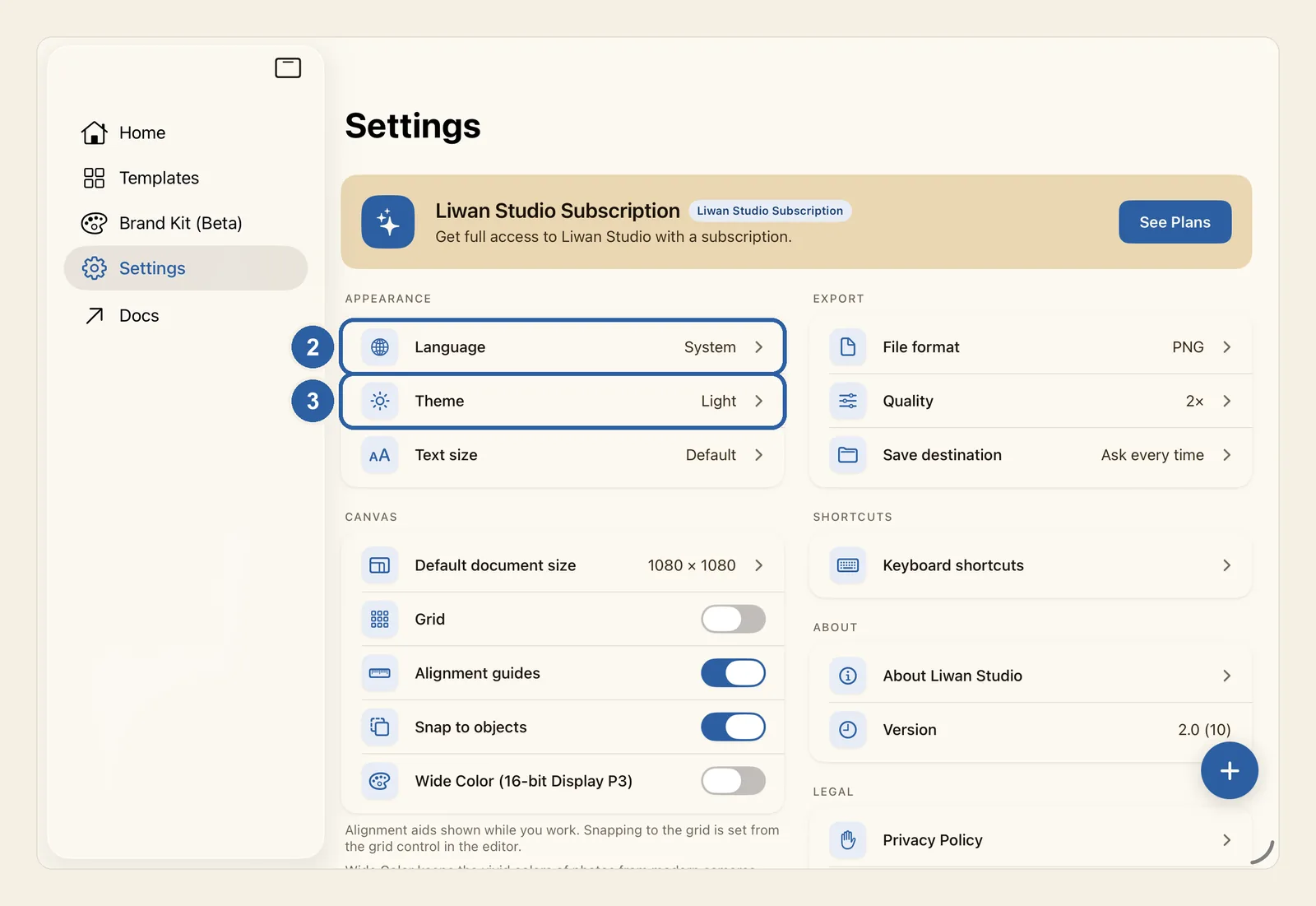
Settings is one screen of cards. Each change takes effect the moment you tap it, and Liwan Studio keeps it for the next time you open it, so there is no Save button.
How to change your settings
If a design is open, tap Back, the arrow at the start of the editor's top bar, to close it. Then tap Settings in the sidebar, or in the tab bar if your screen shows the tabs as a bar. On a Mac, Settings is in the sidebar. The settings are grouped in cards, as in the picture at the top of this page.
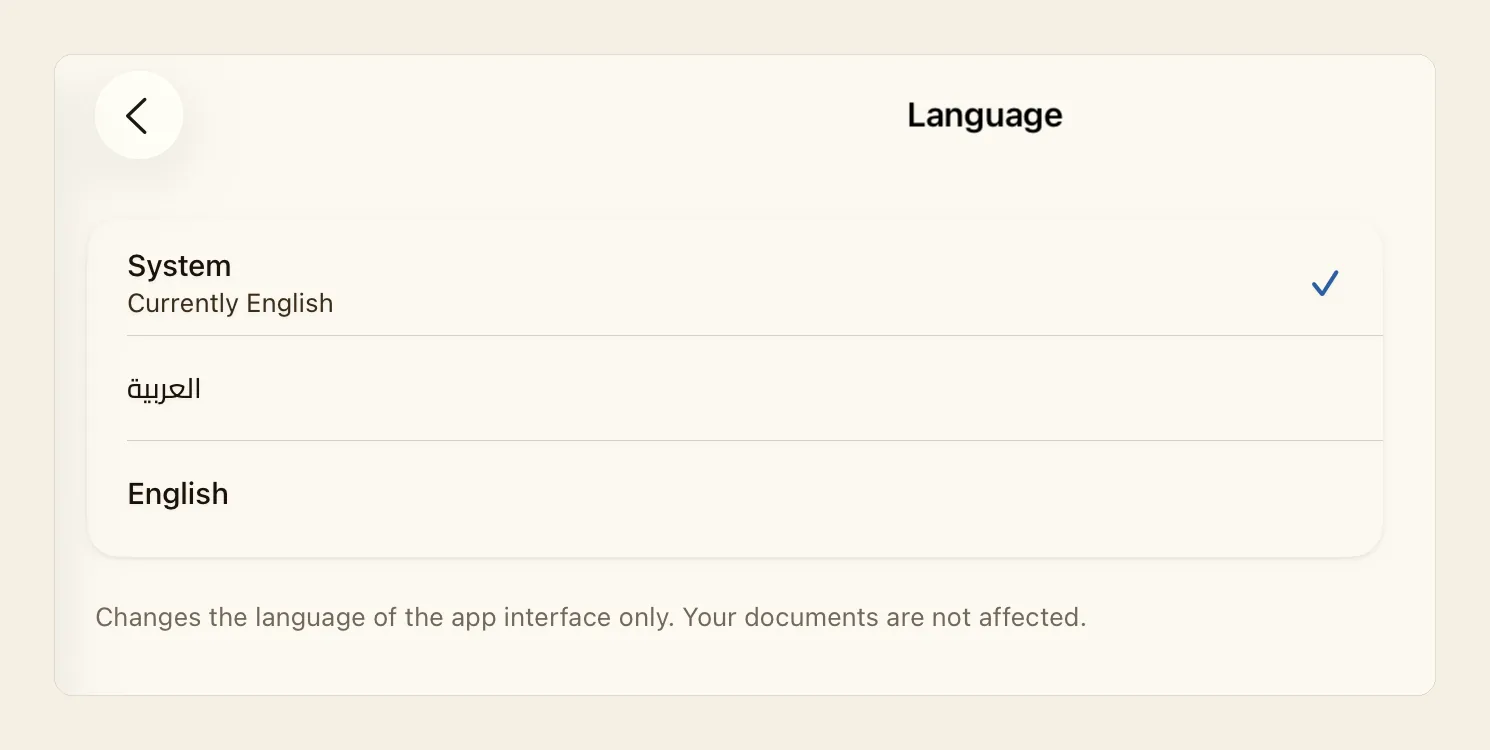
Under Appearance, tap Language, marked 2 in the picture at the top of this page. The row shows your current choice. On the Language page, tap العربية or English. Or tap System to follow your device's language: the line under it, for example Currently English, tells you which language that is.
Liwan Studio switches at once, with no restart. In Arabic, the whole screen turns to run right to left.
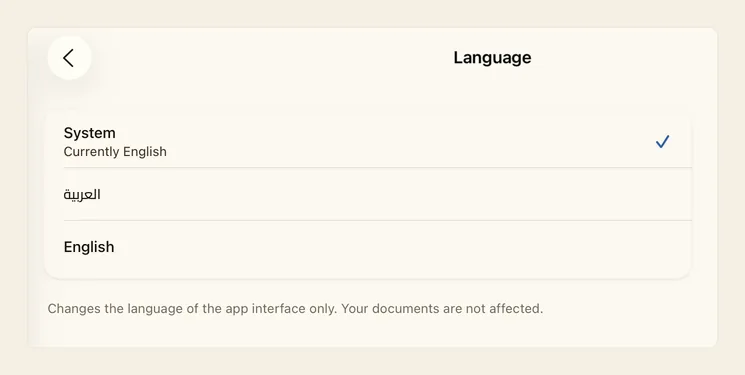
Tap the back button at the top of the page to return to Settings. Tap Theme, marked 3, and choose Light or Dark to keep that look all the time, or System to follow your device's light or dark mode.
Go back again and tap Text size, just below Theme. Choose Small, Default, Large or Larger. Each option is written at the size it gives, and the sample sentence at the top of the page shows the size you have now.
Back in Settings, under Canvas, tap Default document size and choose the size a new blank design should start at. The sizes are grouped under Screen, Social and Print. Each one shows its width and height under its name, and your choice gets a check mark.
Then go back and, under Export, tap File format. Choose PNG, JPEG or WebP for a picture, TIFF for a CMYK picture to print, PDF for a document, MP4 for a video or GIF for an animation. From now on, the export sheet that opens when you tap Export in the editor starts on this format.
Tips
- Quality, just below File format, shows only the choices your format uses: Scale (1× to 4×) for PNG, WebP and TIFF; Scale and Quality (Low, Medium, High or Maximum) for JPEG; and a Quality preset (Screen, Print or Press Quality) for PDF. MP4 and GIF have nothing to set here: you choose their size on the export sheet each time.
- Until you change them, exports start as PNG at 2×, JPEG at High and PDF at Print. Whatever you change on the export sheet applies to that one export only, and your settings stay as they are. See Export.
- The Share button in the editor uses the same file format and quality. If your format is MP4 or GIF, it shares a PNG instead.
- The default size is what you get from the round + button, and from File ▸ New Design (⌘N) on a Mac or with a keyboard. The New design sheet on Home still asks for a size, and the designs you have already made keep theirs. See New design.
- None of the sizes under Default document size is wider than it is tall: Facebook Post, for example, gives a 630 × 1200 page. For a wide page, change the size in the editor — see Canvas size.
- To save exports straight into one folder instead of being asked every time, tap Save destination, then Choose Folder…, and pick the folder. Each export you save then goes into it without a question. Tap Ask every time to be asked again. If the folder can no longer be reached, for example because its drive was removed, the row reads Unavailable. Choose it again. Choose the folder again.
- Language changes only Liwan Studio's own buttons, menus and messages. The text in your designs, its direction and its fonts stay exactly as they are. On a Mac, the menu bar changes language too.
- With System chosen, Liwan Studio follows your device's language, even if you change it while Liwan Studio is open. If your device uses neither Arabic nor English, Liwan Studio appears in English.
- Theme and Text size change only how Liwan Studio itself looks: the colours and text sizes in your designs stay as you set them. Text size comes on top of your device's own Larger Text setting. To change the size of text in a design, use the text style bar.
- The Grid and Snap to objects switches under Canvas are the same settings as Show Grid and Snap to objects in the menu of the Grid button in the editor's status bar. Alignment guides is set only here. See Grid and Alignment guides.
- Wide Color (16-bit Display P3), the last switch under Canvas, keeps the vivid colours of photos from modern cameras and the smooth tones of 16-bit pictures, on the canvas and in PNG, JPEG and PDF exports. It starts off and uses about twice the memory, so leave it off for designs that don't need it. A design that was open when you switched it changes the next time you open it.
- There is no button that puts every setting back at once. Liwan Studio starts with System for both Language and Theme, Default text size, 1080 × 1080 for new designs and PNG for exports.
- In a narrow window, such as iPad Split View, the cards sit in one column: scroll down to find Export. In Arabic the screen is mirrored, so Appearance and Canvas are on the right and the back button is at the top right.
- The other cards lead to Help & FAQ and Contact Support, the list of Keyboard shortcuts, About Liwan Studio and the legal documents. The card at the top shows your plan — see Liwan Studio Subscription.