
Getting started
Home
Home shows your latest design and your recent ones, so you can get back to work in one tap.
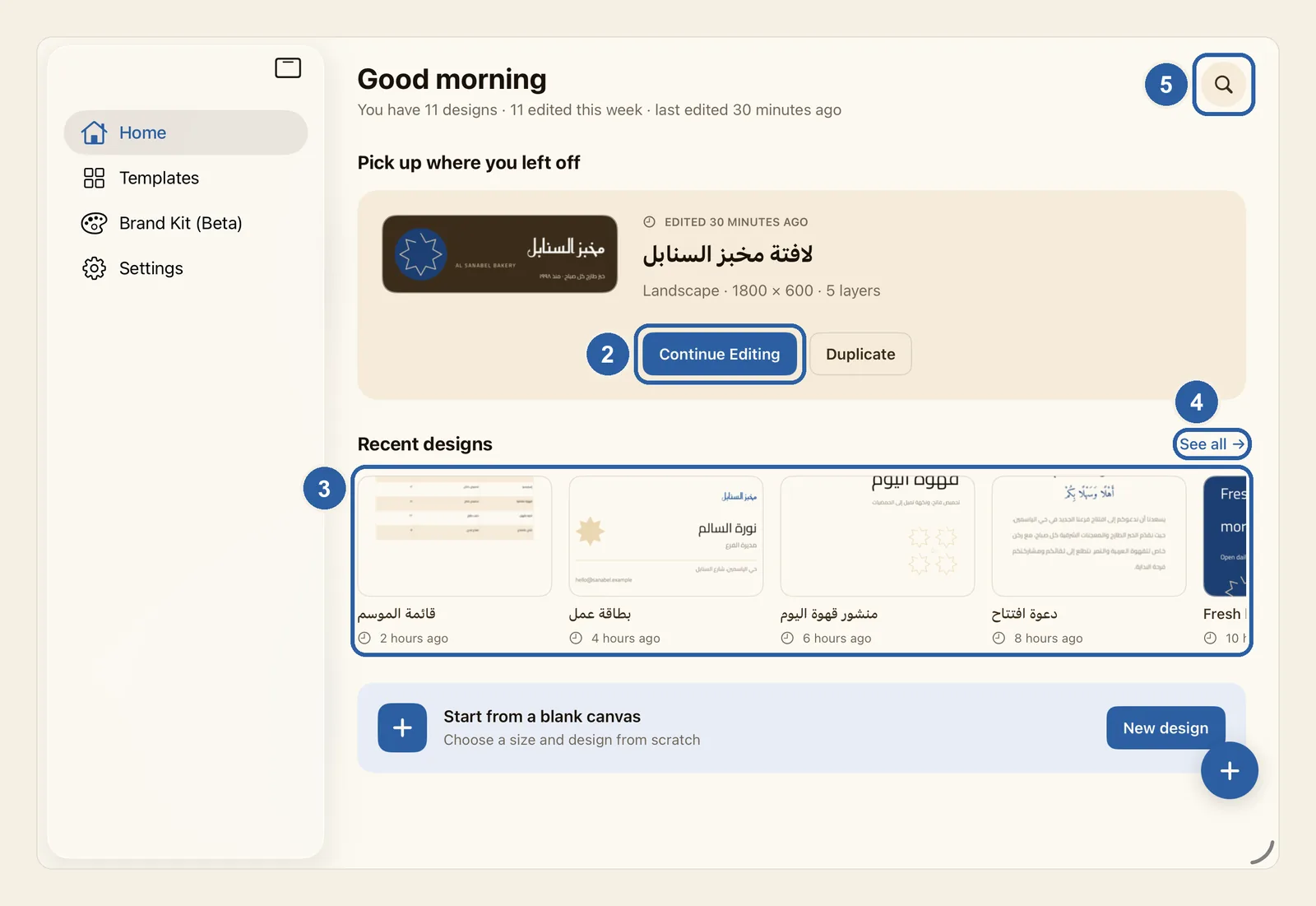
Home lists the designs saved on this device, with the one you edited last at the top.
How to open a design from Home
Tap Home in the sidebar, or in the tab bar if your screen shows the tabs as a bar. Liwan Studio opens on Home, so you are usually there already.
Under Pick up where you left off, tap Continue Editing to reopen the design you edited last.
Or open another design: tap any one under Recent designs. Scroll the row sideways to see more of them.
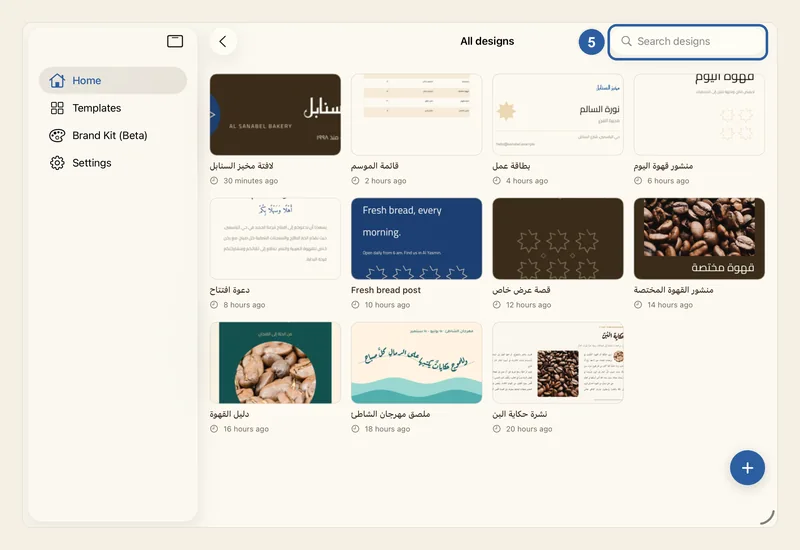
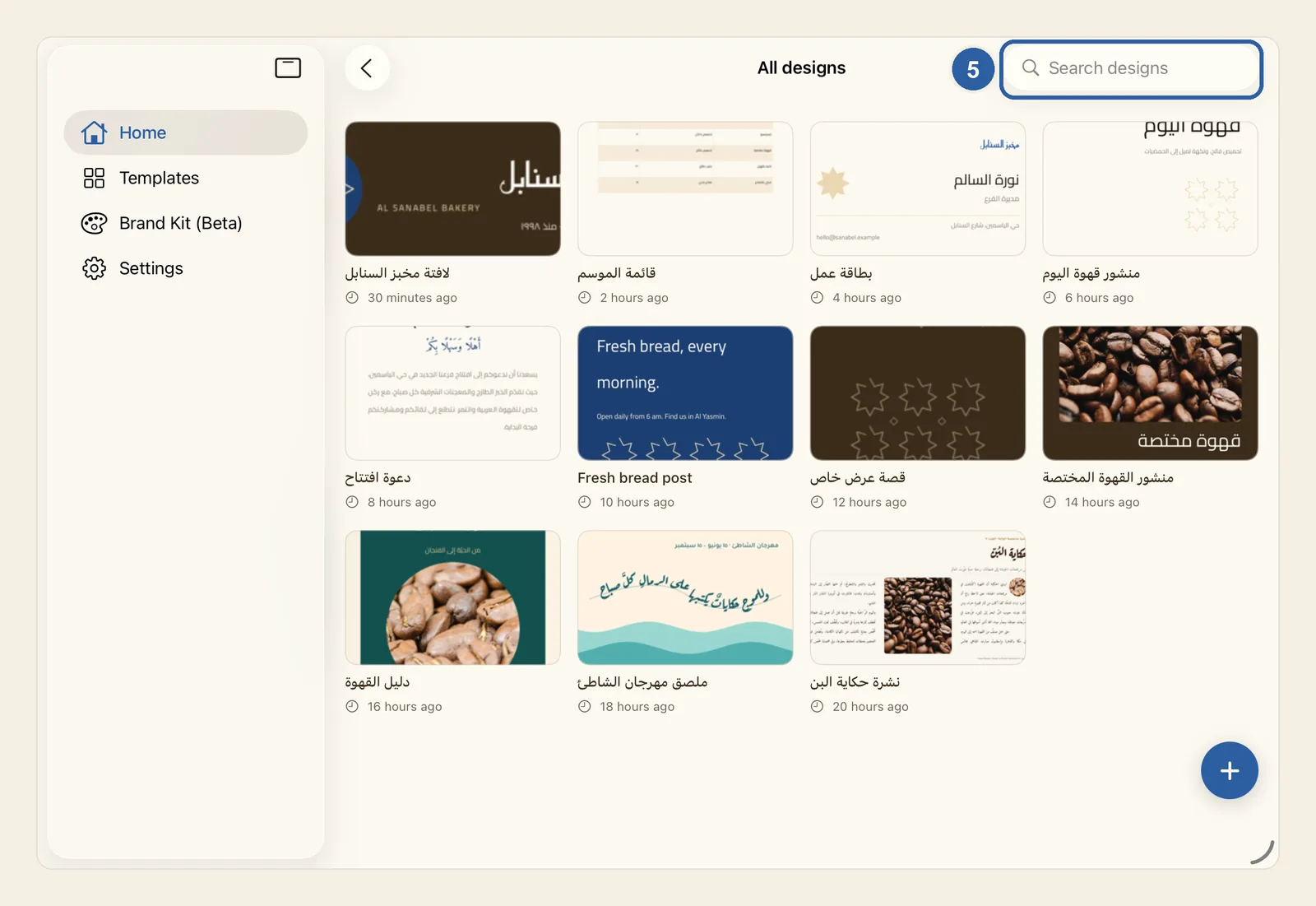
Tap See all to open All designs. It shows every design you have saved, with the most recently edited first.
To find a design by its name, tap the magnifying-glass button at the top corner of Home. It also opens All designs. Tap the Search designs field and type part of the name: the list narrows as you type. Tap the design to open it.
Tips
- The line under the greeting counts your designs, how many you edited this week, and when you last edited one.
- The big card shows the shape of your latest design, its size in pixels and how many layers it has — or how many pages, if it has more than one.
- Recent designs shows up to 8 designs after your latest one. All the others are on All designs.
- See all appears only once you have two or more designs. The magnifying-glass button is always there.
- Designs are ordered by when you last changed them. Renaming a design does not move it.
- Duplicate, next to Continue Editing, makes a copy of your latest design, with Copy added to its name.
- Touch and hold a design under Recent designs or on All designs (right-click on Mac) for Rename, Duplicate and Delete. The big card has no such menu, so rename or delete your latest design from All designs. See Rename, duplicate and delete designs.
- A new design that you close without changing anything is not kept, so it does not appear on Home. See How your work is saved.
- With no designs yet, Home shows Create your first design and a New design button. At any time you can start a design with the New design button next to Start from a blank canvas, or with the round + button in the corner. See New design.
- To go back from All designs to Home, tap the back button at the top of the page.
- In Arabic, Home is laid out from right to left: the magnifying-glass button and See all are on the left, and the + button is in the bottom-left corner.