
Templates
Start from a template
Pick one of more than a thousand ready-made designs, from Ramadan and Eid greetings to menus, flyers and posts, and make it your own.
A template is a finished design with the layout, fonts and colours already in place. When you start from one, you get a new design of your own to change, and the template itself stays as it is.
How to start from a template
Tap Templates in the sidebar, or in the tab bar if your screen shows the tabs as a bar. At the top of the screen, make sure Built-In is selected. My Templates, beside it, holds the templates you have saved yourself — see My Templates.
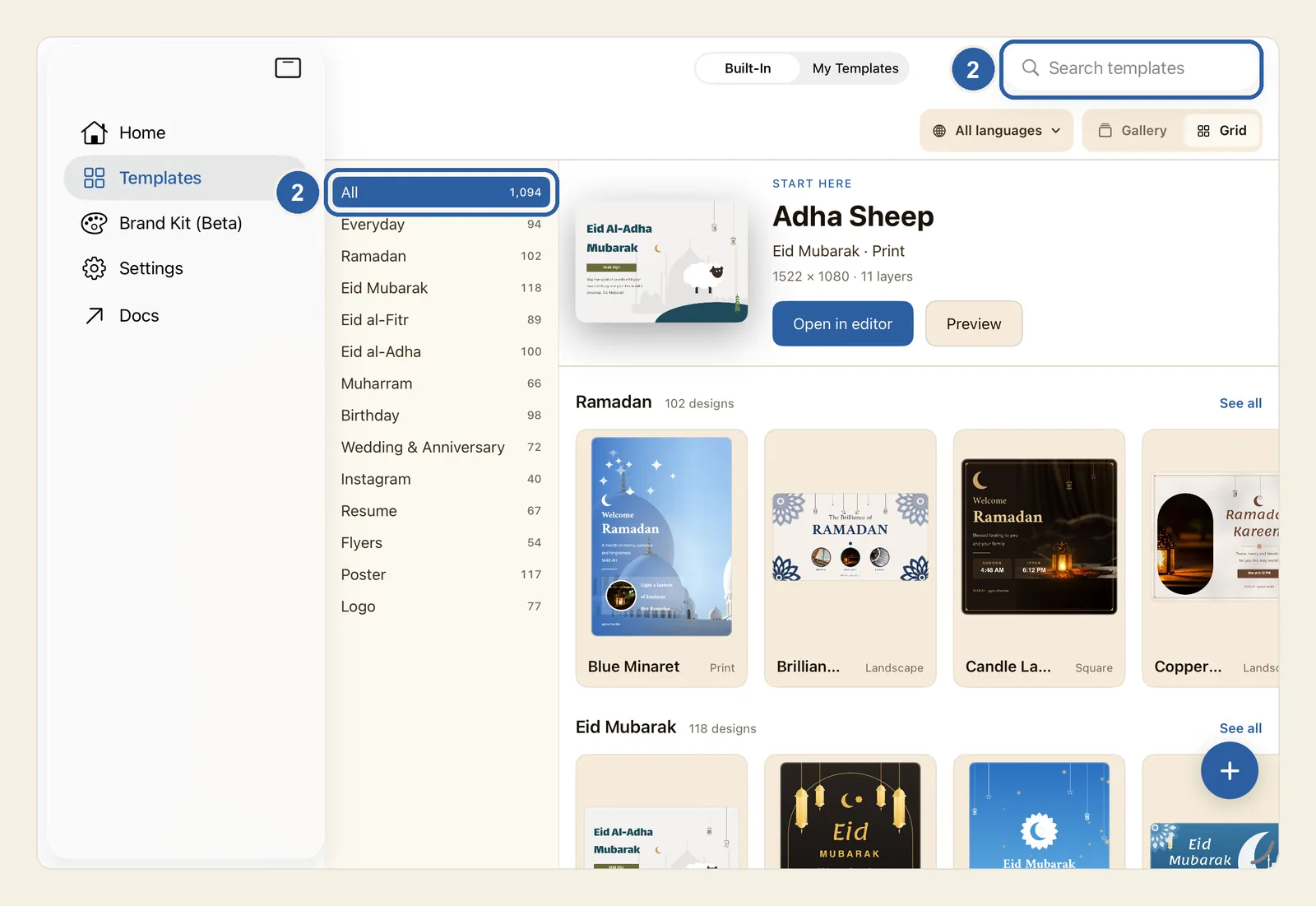
Narrow the choice. Both ways are marked 2 in the picture below.
- By category. The list beside the templates starts with All, and each category shows how many templates it holds. Tap a category, such as Ramadan, Eid al-Adha or Poster; Logo is the last one. Tap All to see every template again. In a narrow window, such as Split View on iPad, the categories are a row of buttons above the templates instead: swipe it sideways to reach the others.
- By searching. Tap Search templates at the top of the screen (top right; top left when Liwan Studio is in Arabic) and type a word such as menu, eid or wedding. The templates change as you type.
A category and a search work together: tap Flyers, then type menu, and you see only the menu flyers. If nothing matches, No templates found appears; try another word or another category.
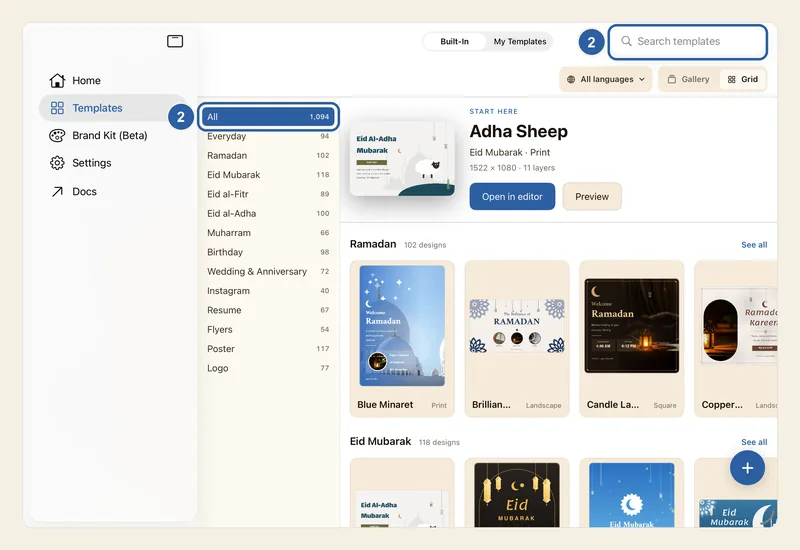
The templates are laid out in a grid. At the top, Start here shows one template with its category and shape, its size in pixels and how many layers it has. Below it come rows for the biggest categories, each with the number of designs in it and See all, and then All templates. Once you have opened two or more templates, a Recently used row appears too. When you choose a category, you see Start here and All templates for that category only.
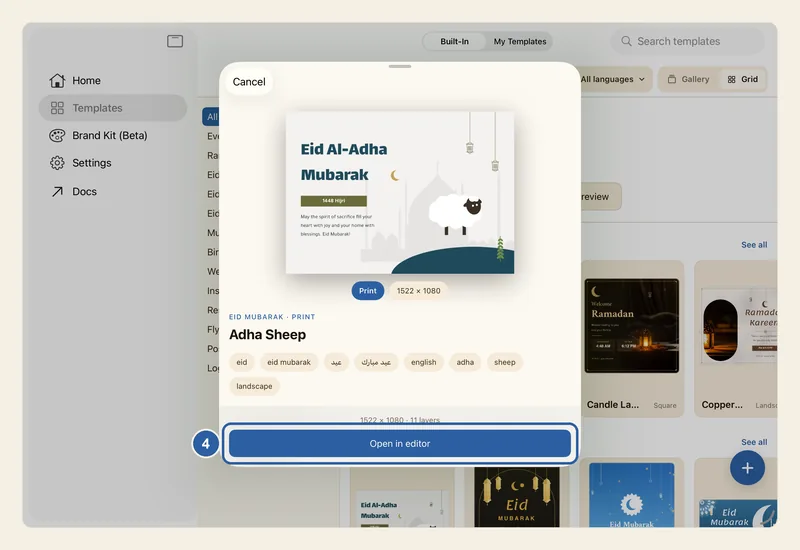
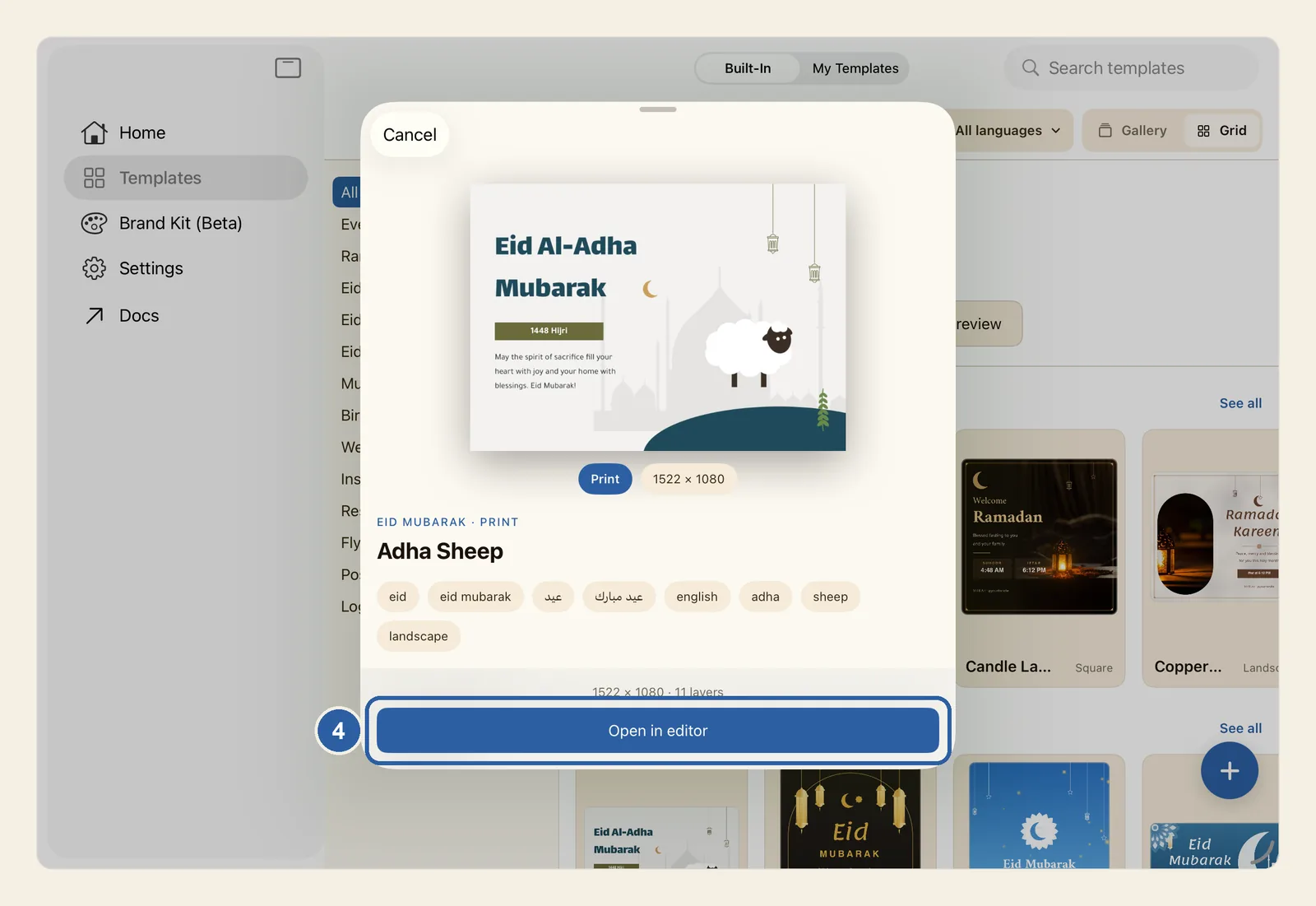
Tap the template you want, or Preview in Start here. The preview opens over the templates and shows the design bigger, with its shape, such as Print, and its size. Above the name is its category, and under it are its tags. Scroll down to What you can edit to read up to six of the texts in the design, the words you will be replacing, and a count of its texts, shapes and images.
Tap Open in editor, marked 4, at the bottom of the preview. The editor opens with a new design named after the template, ready for your own words, photos and colours. If the template needs a moment to get ready, Preparing canvas… shows first.
To close the preview without starting a design, tap Cancel. Once you know a template is the one, you can skip the preview: Open in editor in Start here opens the editor straight away, and so does Use template in a card's menu (see the tips below).
Tips
- To turn through the templates one large card at a time, tap Gallery, beside Grid above the templates (top right; top left when Liwan Studio is in Arabic). The templates then stand in a row of cards with one large card in the middle: swipe the cards left or right, tap the round arrow buttons beside them, or tap a card at the side to bring it to the middle. Under the large card are its category and shape, its name, its size and how many layers it has, with Use template and Preview. Grid brings the grid back, and Liwan Studio remembers your choice.
- All languages, beside Gallery and Grid, shows only the templates written in Arabic, or only those in English, once you choose one. While a language is chosen, the button is filled in; choose All languages to see every template again.
- In Grid view, tap a card to open its preview, or long-press it (right-click on Mac) and choose Use template or Preview.
- In Gallery view, tapping a category always starts it from its first template. While you search, the category list shows only the categories that still have matching templates.
- Template names are as their designers wrote them, so some are in Arabic and some in English, whatever language Liwan Studio is in. Search looks at those names and at the English category names: eid or ramadan finds every template in those categories, but typing رمضان finds only templates with that word in their name.
- If you have made a Brand Kit, the preview also has a Brand Kit section. Its switch reads Template default while it is off. Turn it on, and the new design opens with your kit's fonts and colours instead of the template's; with more than one kit, tap the kit's name to choose another. This works like Apply a Brand Kit to a design: Brand Kit is still marked Beta, and on each page the largest text is taken as the heading and the rest as body text.
- Once you turn the Brand Kit switch on, it stays on for the next templates you open, even with Open in editor in Start here or Use template. To go back to the templates' own fonts and colours, turn it off in a preview.
- Each template comes in one size, shown in its preview. For another size, open it and use Resize canvas, or Generate social sizes for a set of post sizes.
- You can start from the same template as often as you like: each time, you get a separate new design. It is saved by itself once you change something, and then it appears on Home. If you leave without changing anything, nothing is added. See How your work is saved.