
Export and sharing
Share
Turn your design into a picture in one tap, then save it to Files or send it to Messages, Mail, AirDrop or another app.
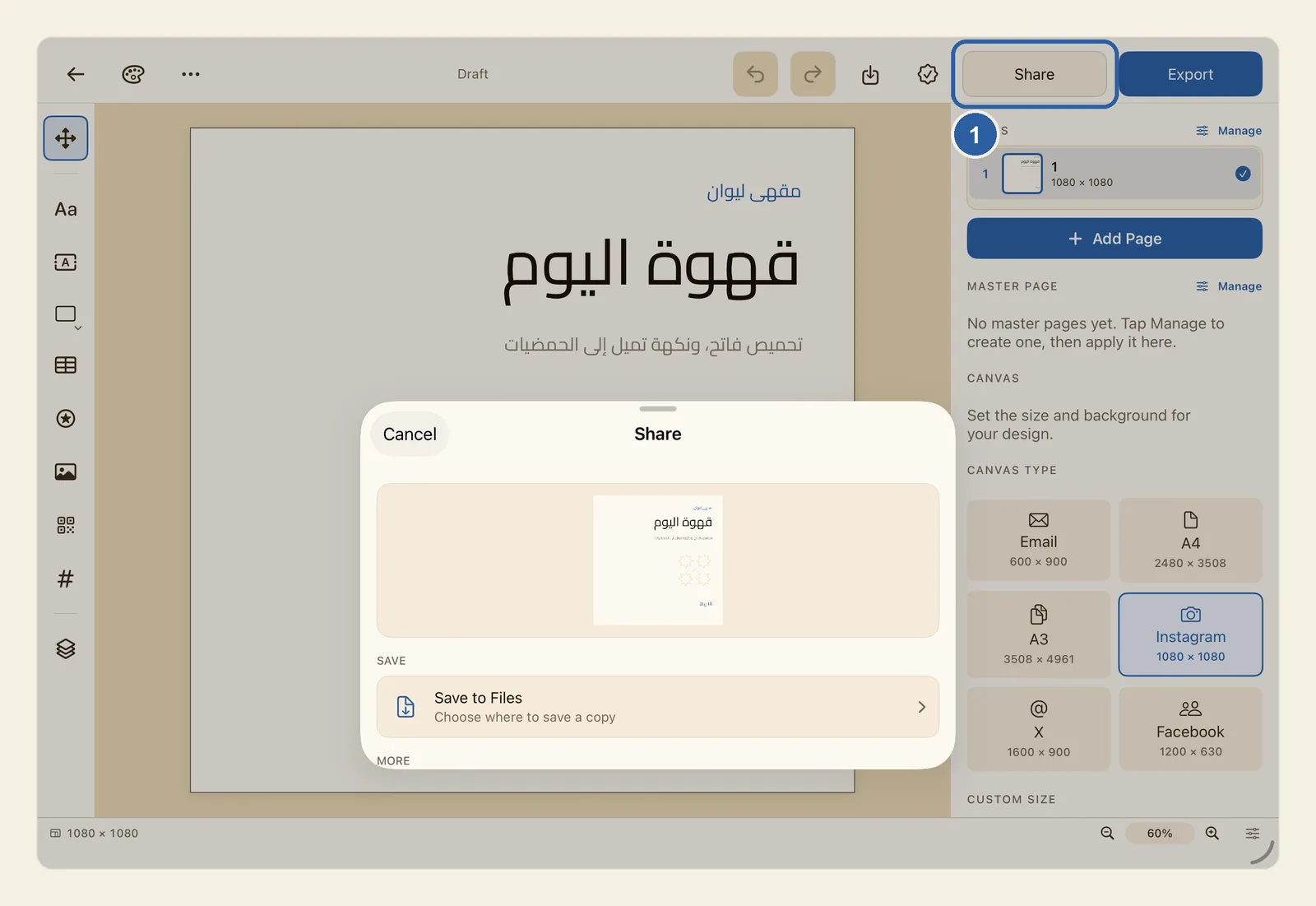
Share skips the export options. It makes a file of your design with the format and size chosen in Settings (a PNG picture, unless you changed it), then asks where the file should go. When you want a different format or size for one file, use Export instead.
How to share your design
Open your design and tap Share near the end of the top bar, just before Export (top right; top left when the app is in Arabic). It is marked 1 in the picture at the top of this page.
The button shows a spinner for a moment while Liwan Studio makes the file. Then the Share window opens, with a small preview of the picture at the top.
Choose what to do with the file:
- Tap Save to Files to keep a copy. In the Files window that opens, choose a folder and confirm.
- Tap More options to send it. Your iPad's share sheet opens: pick the app you want to send the file with. More options sits below Save to Files; if you can't see it, scroll down inside the Share window.
To close the window without saving or sending anything, tap Cancel.
Tips
- What Share makes is set in Settings, under Export, by File format and Quality. Out of the box it is a PNG at twice the size of the page in pixels, so a 1080 × 1080 post becomes a 2160 × 2160 picture. If you mostly send JPEG pictures or PDFs, change it once there. See Settings.
- A PNG or JPEG holds only the page you are on. To share another page, go to that page first. See Pages.
- When the format in Settings is PDF, Share makes one PDF with every page, and the window shows no preview.
- When the format in Settings is MP4, Share makes a PNG picture instead. Videos are made only from Export.
- For another format, size or file name just this once, use Export. When the export is done, the same Share window opens.
- The file takes the name of your design. To change it, rename the design on Home (see Rename, duplicate and delete designs), or type a File name in Export.
- The apps in the share sheet that More options opens depend on what is installed on your device. Liwan Studio has no Save to Photos button: to keep a copy, use Save to Files.
- There is no Print command in Liwan Studio. Export a PDF, then on iPad choose Print in the share sheet that More options opens. On Mac, save the PDF with Save to Disk and print it from another app.
- A picture or PDF can't be edited again in Liwan Studio. To send a design that someone else can open and keep working on, export it as a Liwan Studio Document. See Liwan Studio documents (.ldf).