
Pictures and graphics
Stickers
Decorate menus, invitations and greetings with ready-made stickers — crescents, lanterns, frames and icons — and change their colours to suit your design.
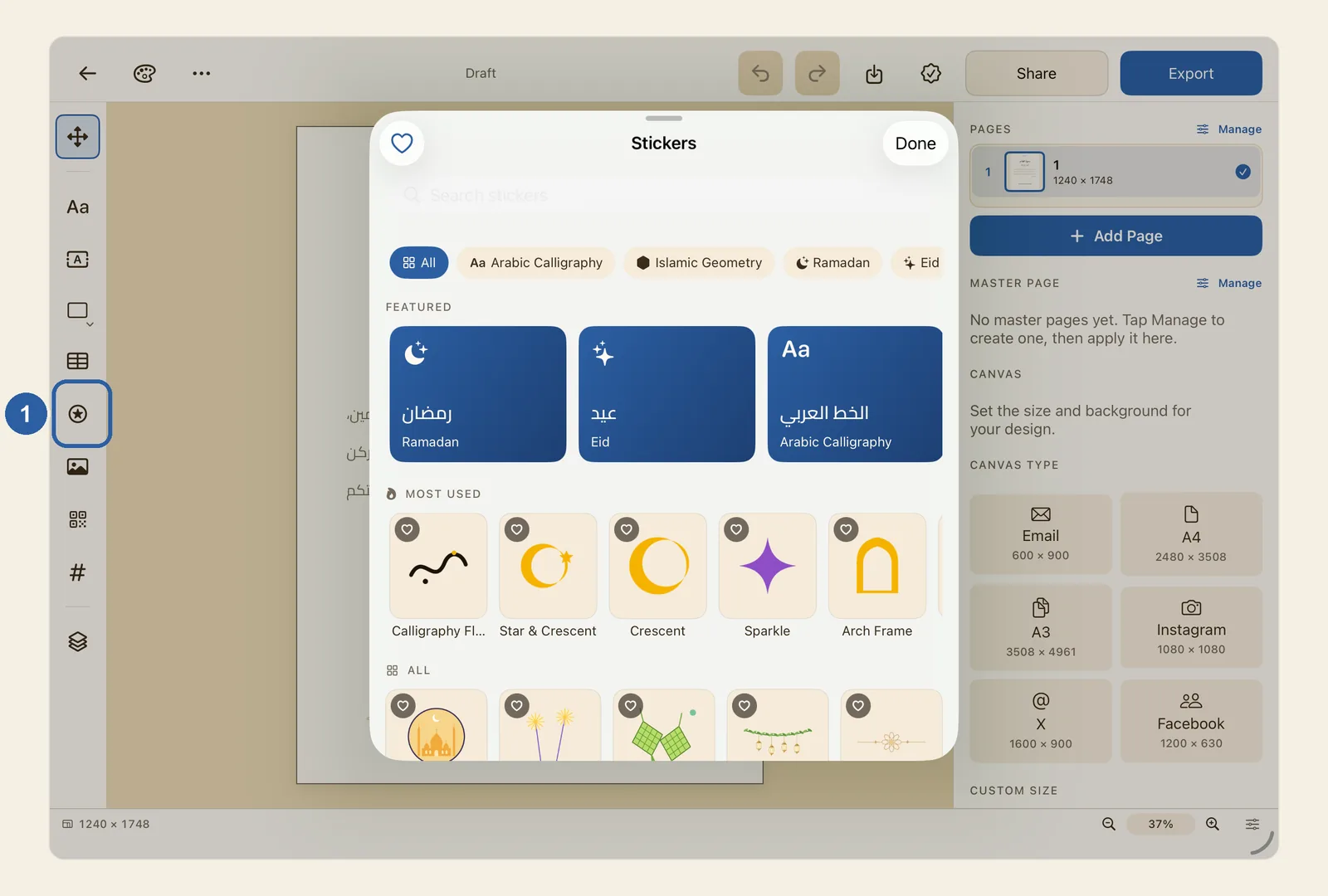
A sticker is a ready-made drawing that you place on the page, move and resize like any other object, and recolour. The stickers come with Liwan Studio, so the library works without an internet connection.
How to add a sticker
Tap Sticker on the tool rail. Its icon is a star in a circle, just under the Table button, and it is marked 1 in the picture at the top of this page. The rail runs down the left edge of the editor; when Liwan Studio is in Arabic, it is on the right edge.
The Stickers window opens over the page.
Find the sticker you want:
- Tap a category in the row at the top of the window, such as Ramadan, Eid or Islamic Geometry. Swipe the row sideways to see more categories. All takes you back to the whole library.
- Or tap one of the large cards under Featured to open that category.
- Or type a word in Search stickers, in Arabic or English — for example "رمضان" or "lantern". Diacritics make no difference to the search.
Before you choose anything, the window shows Featured and Most used, then Recently used and Recent searches once you have added or searched for stickers, and then every sticker under All. Most used starts with a few suggestions, then shows the stickers you add most often.
Tap a sticker. The window closes, and the sticker appears in the middle of the part of the page you are looking at, in front of everything already there. It is selected, so you can drag it into place straight away, or drag its handles to make it bigger or smaller — see Resize and rotate objects.
To close the window without adding anything, tap Done.
To change the sticker's colours, use the properties panel on the other side of the page. If it shows Item, tap Sticker at the top of the panel, between Item and Effects. You can also double-tap the sticker on the page to go straight there.
Under Appearance:
- Recolor — some stickers are made of separate areas of colour and list them as Color 1, Color 2 and so on. Tap a colour swatch to change only that part. Reset colors puts them all back. Most stickers don't have this section; use Tint for those.
- Tint — tap the colour swatch and choose a colour. The whole sticker takes that one colour, and the words beside the swatch change from Original colors to Tinted. Tap Remove tint to bring back the sticker's own colours.
- Stroke — turn on the switch (Outline on) to draw a line around the sticker. Choose the line's colour with the swatch and its thickness with the slider. Of the two buttons under the swatch, Outline draws one line around the whole sticker, like a cut-out sticker, and Per Element draws a line around each part of it.
Tips
- Tap the small heart in the corner of a sticker to save it to your favourites. Tap the heart at the top-left of the window to see only your favourites; tap it again to go back to the whole library.
- A search looks only inside the category you have chosen. If you see No stickers found, tap All to search the whole library.
- Many stickers are named in English only, even when Liwan Studio is in Arabic. If an Arabic word finds little, try the English word.
- Under Recent searches, tap a past search to run it again, or tap Clear to empty the list.
- To swap a sticker for a different one, tap Replace Sticker under Content in the Sticker panel and pick another. The new sticker takes the old one's place and is sized to fit inside it, and keeps its tint, outline and glow. Colours you set under Recolor are cleared, because they belonged to the old drawing.
- A colour you set under Recolor stays on its part even after you tint the whole sticker.
- For a sticker, the Effects panel has Glow as well as Drop Shadow. Turn on the switch (Glow on), choose the glow's colour with the swatch, and drag Radius to spread it further. Glow is only for stickers; for the shadow, see Drop Shadow.
- To put a sticker behind a text box or a picture, use the Layers panel, where it is listed as Sticker.
- Any colour change can be taken back with Undo.