
Pictures and graphics
Draw (Freehand)
Draw underlines, arrows and hand-drawn accents on your design with a pen, brush, calligraphy nib or pencil.
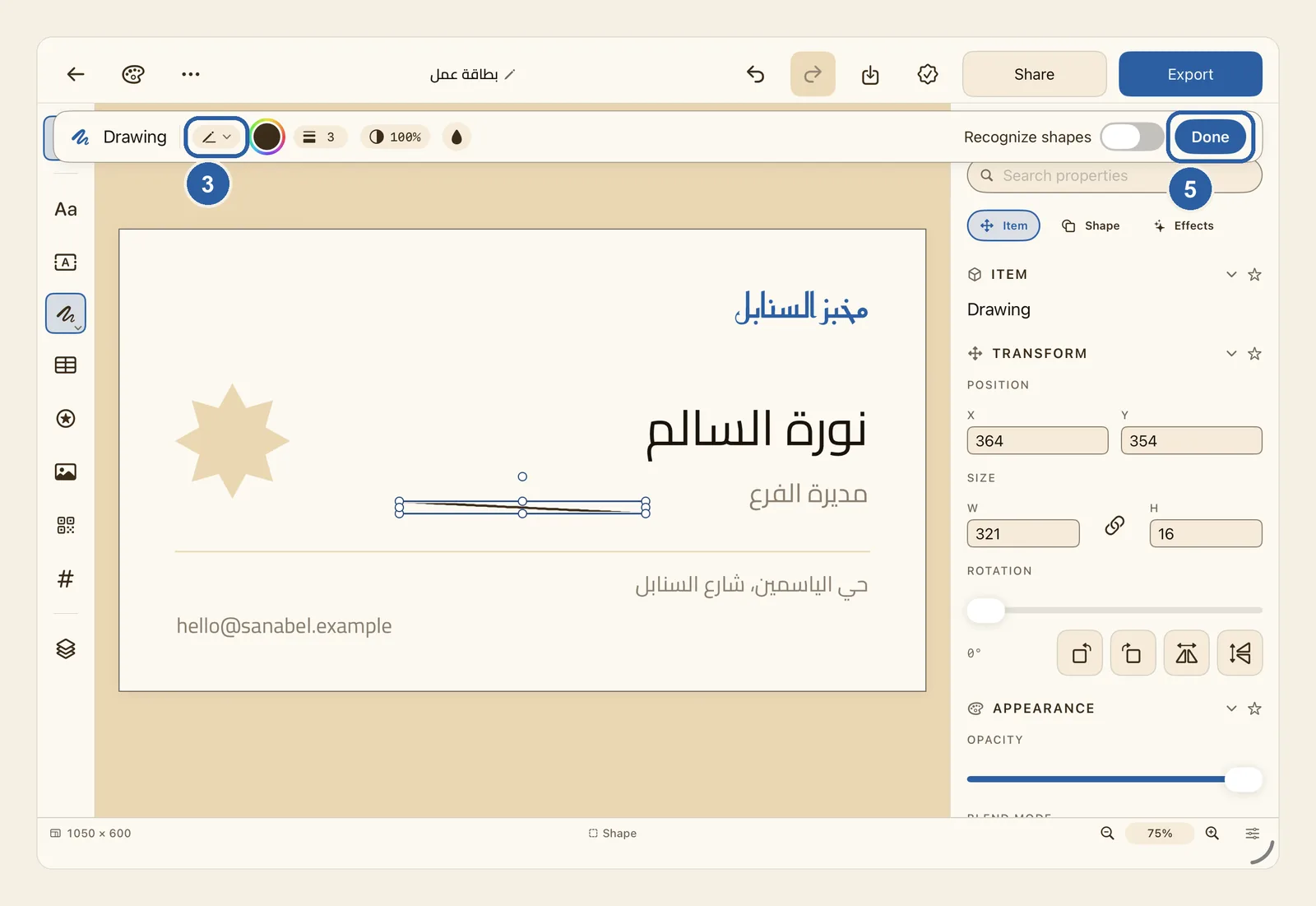
Every line you draw becomes an object of its own. You can move it, resize it, change its colour or delete it, just like a shape.
How to draw freehand
Find the shape button in the tool rail, the column of buttons along the left edge of the editor (the right edge when Liwan Studio is in Arabic). It shows a shape, with a small arrow in its corner. Press and hold it to open its list of shapes.
Choose Draw (Freehand) at the end of the list.
The Drawing bar appears across the top of the editor, and the shape button changes to a scribble so you can see that you are drawing. If something was selected, it is deselected first, so your first line cannot move it by mistake.
Pick a brush. Tap the pen button just after Drawing, marked 3 in the picture at the top of this page, and choose one:
- Pen: an even line with round ends. This is the one you start with.
- Brush: twice as thick as the pen, and thinner at both ends, like a stroke of a paintbrush.
- Calligraphy: square ends and sharp corners.
- Pencil: a finer, lighter line.
The buttons next to it set the line itself:
- The colour circle opens the colour picker.
- The button with a number opens Thickness. Drag the slider from 1 to 30 pt; it starts at 3.
- The half-filled circle opens Opacity. Drag the slider to make the line see-through, down to 5%.
Draw on the page with your finger or an Apple Pencil. On a Mac, drag with the mouse or trackpad. The line appears as you move. When you let go, the line becomes an object and is selected.
Carry on drawing: each new line is a separate object. To move around the page while you draw, scroll with two fingers or pinch to zoom.
When you have finished, tap Done at the right end of the bar. The bar closes and the shape button shows a shape again. Your lines stay on the page.
Tips
- Recognize shapes, next to Done, is off at first. Turn it on, and each line is tidied the moment you let go: a roughly straight line becomes perfectly straight, and a closed loop that looks like a circle or oval, a triangle, an upright rectangle or a five-pointed star becomes that shape, drawn cleanly. Small marks, curves and other loops stay as you drew them.
- To colour in a shape, tap the drop button (Fill bucket), then tap a shape, or a drawing you closed into a loop. It fills with the colour in the colour circle. While the drop button is on, dragging does not draw; tap it again to go back to drawing. Text, pictures and Line shapes cannot be filled.
- Putting a second finger on the screen while you draw cancels the line you are drawing, because two fingers move the page.
- An Apple Pencil draws exactly like a finger: pressing harder does not make the line thicker.
- Drew something wrong? Undo takes away the last line, one line at a time.
- To change a line later, select it, open the Shape panel and change its colour and width under Stroke. In Layers, each line is listed as "Drawing".
- To run text along a line you drew, select the line, open the Shape panel and, under Text on Path, tap Add Text on Path. See Text on Path.
- Adding any other object from the tool rail, or moving to another page, also ends drawing.
- The names Pen, Brush, Calligraphy and Pencil stay in English when Liwan Studio is in Arabic.