
Export and sharing
Export
Turn your design into a PNG or JPEG picture, a PDF for printing, or a short MP4 video you can post or send.
Export makes a finished file from your design, in the format you choose. Before the file is made, the Export window shows you the page as it will come out and about how big the file will be.
How to export your design
Open your design and tap Export, the last button in the top bar, just after Share (top right; top left when Liwan Studio is in Arabic). The Export window opens.
You can also tap the … button near the back arrow (its name is Document) and choose Export. On a Mac, File ▸ Export… in the menu bar does the same.
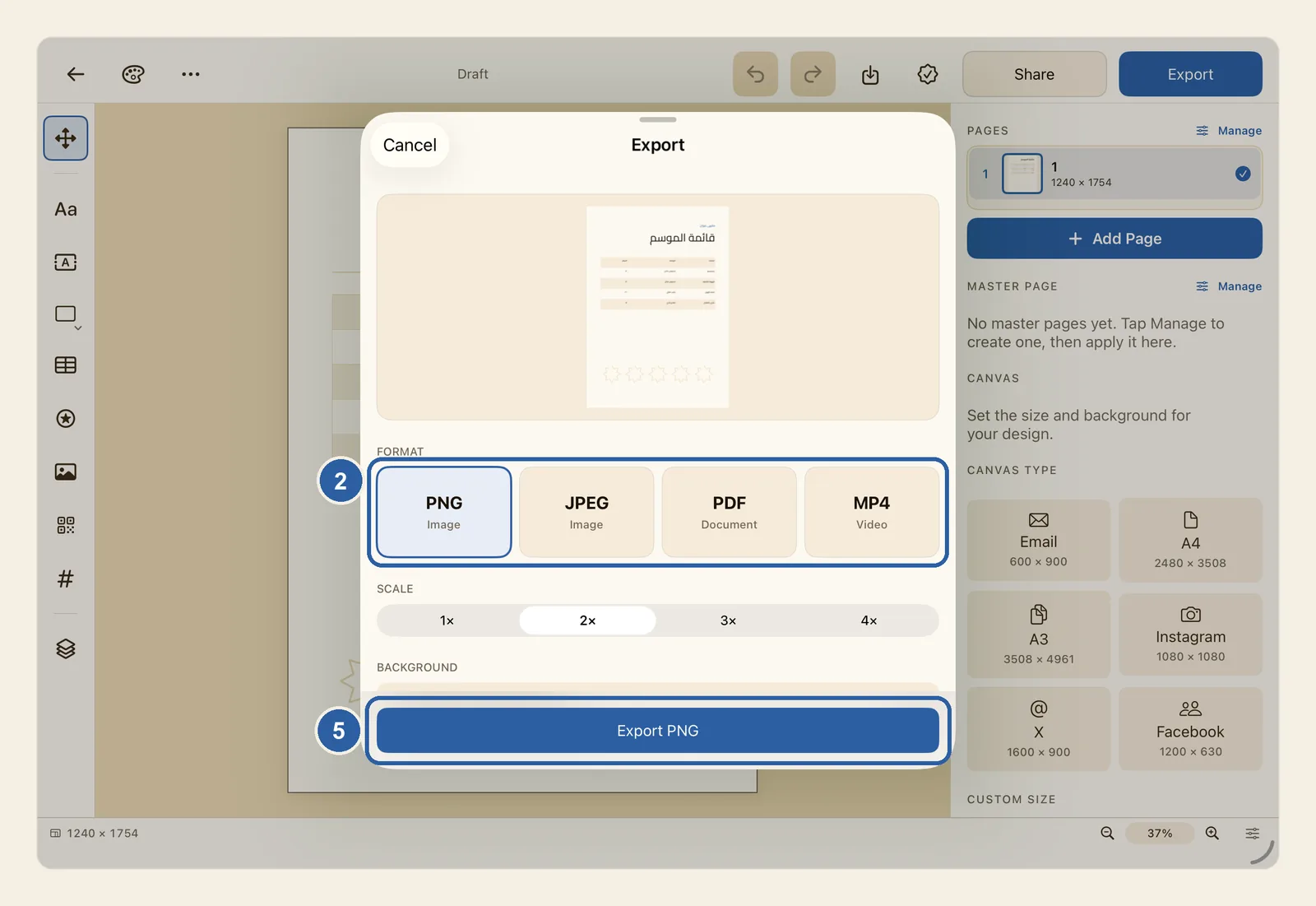
Under Format, marked 2 in the picture, tap the kind of file you want: PNG or JPEG (both labelled Image), PDF (Document) or MP4 (Video). The window then shows only the options for that format.
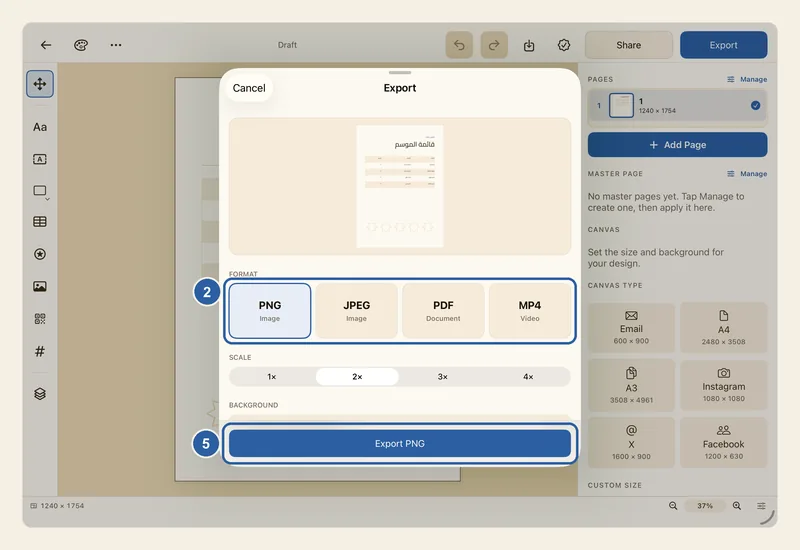
Set the options for that format as you need:
- PNG: under Scale, choose 1×, 2×, 3× or 4×. At 2× the picture is twice the size of your page in pixels, so a 1080 × 1080 post becomes 2160 × 2160. Under Background, turn on Transparent background to leave out the page's background colour, for example to place a logo on top of another picture. The picture at the top of the window then shows a grey checkerboard where the file will be see-through.
- JPEG: choose a Scale as for PNG, then a Quality: Low, Medium, High or Maximum. Lower quality makes a smaller file. Under Background, choose White or Custom: a JPEG can't be see-through, so this colour fills any transparent part of the page. With Custom, tap the colour swatch next to Custom color to pick the colour.
- PDF: under Quality preset, choose Screen (96 DPI) for a small file to send, Print (200 DPI) for everyday printing, or Press (300 DPI) for a print shop. DPI (dots per inch) only concerns the photos and stickers in your design. Text and shapes stay sharp at every preset.
- MP4: under Animation, choose how the design comes onto the screen: None, Fade, Scale, Slide or Rotate. For Slide, choose under Direction the side it comes in from: Left, Right, Top or Bottom. Resolution is always 1080p, which means the shorter side of the video is 1080 pixels. Then choose a Frame rate of 30 fps or 60 fps, and a Duration of 3, 5 or 10 seconds.
Further down, the File name field starts with the name of your design. Type another name if you like. The full name of the file, such as Menu.png, shows under the field.
Check the result before you export. The picture at the top of the window shows the page as it will come out. At the end of the window, the Preview card lists the file's Dimensions in pixels, the number of Pages (Frames for a video) and its Estimated size. For a PDF it also shows the Page size and the Quality. When your pages are not all the same size, it says Varies by page.
Tap the button at the bottom of the window, marked 5 in the picture above. Its name follows the format: Export PNG, Export JPEG, Export PDF or Export MP4. A spinner turns on the button while the file is being made. Keep the window open until it finishes: tapping Cancel or closing the window stops the export.
When the file is ready, the Export window closes and the Share window opens. Tap Save to Files to keep the file in a folder you choose, or More options to send it with Messages, Mail, AirDrop or another app. The Share page explains this window.
Tips
- Which format? PNG for logos, text and anything that needs a see-through background. JPEG for a smaller picture to send in a chat or put on a website. PDF for printing, and for a menu or booklet with several pages. MP4 for a short moving post.
- PNG, JPEG and MP4 hold only the page you are on. A PDF holds every page of the design in one file, in order, with each page's own page number. To export another page as a picture, go to that page first. See Pages.
- The window takes its starting format and size from Settings, under Export, with File format and Quality. Unless you change them, it opens on PNG at 2×, with High for JPEG and Print for PDF. If you always export the same way, set it once there. The file name, the background and the video options are chosen again for each export. See Settings.
- The video options start on Fade, 30 fps and 3 seconds.
- Estimated size is an estimate, marked ≈. The exact size is known only once the file is made.
- In a PDF, text stays real text rather than a picture: it stays sharp at any size and can be selected. Shapes and tables stay sharp too. An object with a drop shadow is the exception: it goes into the PDF as a picture, so its text can't be selected. See Drop Shadow.
- A PDF has no bleed or crop marks. Bleed and Safe margin under Print & bleed are only checked by Preflight; they add nothing to the file. If your print shop needs bleed, ask them how to set up the page before you export. See Print & bleed.
- There is no Print command in Liwan Studio. Export a PDF, then on iPad tap More options in the Share window and choose Print. On a Mac, save the PDF with Save to Disk and print it from another app, such as Preview.
- A video moves the whole design as one piece: text, pictures and shapes come in together, and you can't animate one object on its own. The video has no sound. Every animation except None keeps zooming in slowly to the last frame, so the edges are trimmed very slightly by the end: keep important text away from the very edge of the page.
- Transparent parts of the page come out black in a video. Give the page a background colour before you export an MP4. See Canvas size.
- If a font is not on this device, a picture or sticker can't be loaded, or storage is low, a Preflight box appears under the picture at the top of the window. These issues don't stop the export: a missing font is replaced by a system font, and a picture that can't be loaded is left out. For a full check before you print, tap the button with a seal and a check mark in the top bar. See Preflight.
- If the export fails, a message appears above the button, such as Not enough storage to export. Free up space and try again. When Try Again appears beside the message, tap it to try once more.
- The Share button, just before Export, skips this window: it makes a file with your choices from Settings, and never a video. See Share.
- A PNG, JPEG, PDF or MP4 can't be opened and edited again in Liwan Studio. To keep or send a copy you can go on working on, choose Export as Liwan Studio Document (.ldf) from the … button. See Liwan Studio documents (.ldf).
Keyboard shortcuts
- ⌘E Export…