
Canvas and layout
Resize canvas
Turn a square post into a story or a print size, and fit your design to the new shape without stretching the letters.
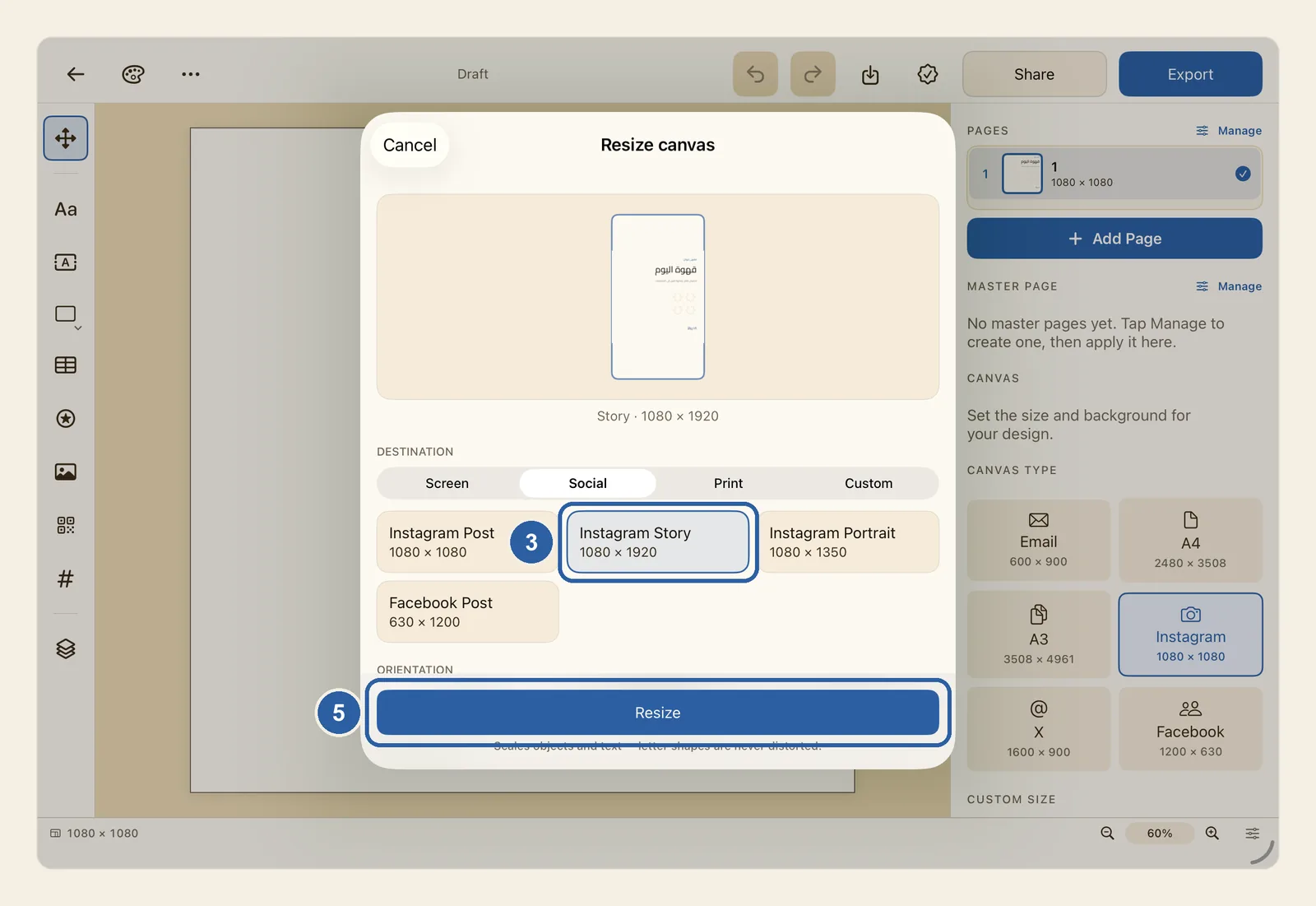
Resize canvas changes the size of the page and can scale everything on it to suit the new size. A preview shows the new page shape before anything on your page changes.
How to resize the canvas
Open the design you want to resize, and tap the … button (Document) in the top bar. It is at the left end of the bar, after the back arrow and the Brand Kit palette button. When Liwan Studio is in Arabic, the bar is mirrored and the button is at the right end.
The Document list opens.
Tap Resize canvas…, just below Canvas size.
The Resize canvas window opens. At its top, a small preview shows the shape of the new page with your design placed in it, and the new size is written under the preview.
Under Destination, choose a group, then tap the size you want, like the card marked 3 in the picture at the top of this page. Each card shows its width and height, and the card you choose is outlined:
- Screen: Web 720 and Desktop 1440
- Social: Instagram Post, Instagram Story, Instagram Portrait and Facebook Post
- Print: A4, A5 and US Letter
- Custom: type your own Width and Height
Then, under Orientation, choose Portrait for a page that is taller than it is wide, or Landscape for one that is wider than it is tall. The sizes on the cards change to match. As is keeps a custom size exactly as you typed it.
Under Resize mode, choose what happens to the objects on your page:
- Resize canvas only: only the page changes size. Every object keeps its size and its place, measured from the top-left corner. If the new page is smaller, objects near its right or bottom edge can end up off the page.
- Resize canvas + scale contents: the whole design grows or shrinks to fill the new page. If the new page has a different shape, parts of the design go past its edges.
- Resize canvas + fit contents inside it, marked Recommended: the whole design grows or shrinks until all of it fits inside the new page. Nothing is cut off, but if the shape changes, empty space appears around the design. This choice is already selected when the window opens.
For example, if you resize a 1080 × 1080 post to Instagram Story (1080 × 1920) with the recommended choice, the design keeps its size and sits in the middle of the taller page, with empty space above and below it. With Resize canvas + scale contents, it grows to the full height of the page instead, and its left and right sides go past the edges.
If your design has more than one page, Apply to appears below the modes. Choose This page or All pages.
Check the preview and the Analysis box below the options, then tap Resize, marked 5, at the bottom of the window. The window closes and your page takes the new size.
Resize stays grey while the size you chose is the same as your page's size. For a 1080 × 1080 design, that is the case when the window opens, because Instagram Post is selected first. To close the window without changing anything, tap Cancel at its top left (top right when Liwan Studio is in Arabic).
Tips
- Letters are never stretched: text is made bigger or smaller by its font size and spacing, so Arabic letters keep their shapes. In the two modes that scale the design, every shape, picture and sticker grows or shrinks evenly in both directions and keeps its proportions.
- The Analysis box tells you what to expect: the Current and Destination sizes, the Scale, and how many objects of each kind are on the page. Confidence reads High, Medium or Low. When some objects may need a look, Need review gives their number. Under the box, Expected result adds short notes, for example that empty space will appear around the content. With Medium or Low, you may need to move or resize a few things by hand afterwards.
- The card sizes follow Orientation. With Portrait, Facebook Post is 630 × 1200; choose Landscape to make it 1200 × 630. When the window opens, Orientation is set to Landscape if your page is clearly wider than it is tall, and to Portrait otherwise.
- The Print sizes use smaller numbers than the print tiles in the Canvas section: A4 is 595 × 842 here, while the A4 tile there is 2480 × 3508. The shape is the same. If you want 2480 × 3508, choose Custom and type those numbers.
- Under Custom, the Width and Height boxes start with your page's current size. Use whole numbers from 16 to 8192; other values are not used. Choosing Custom sets Orientation to As is, so the size stays exactly as you type it.
- This page resizes only the page you are on, so the pages of one design can have different sizes. All pages gives every page the new size. See Pages.
- The whole resize is one step. Tap Undo once to get the old size and layout back. See Undo and redo.
- Resize canvas only works like typing a new size in the Canvas section of the properties panel. See Canvas size.
- Resize canvas changes the design you are working on. To keep the original and make copies in other sizes, use Generate social sizes in the same Document list. See Generate social sizes.
- If you are editing a master page when you choose Resize canvas…, Liwan Studio leaves the master first, because the resize applies to your pages. See Master Pages.
- On a Mac, Resize canvas opens as a window you can move. Finish with Resize or Cancel before you go back to your design.