
Text and fonts
Fonts
Choose a font for your text from Liwan Studio's Arabic fonts, see each one with your own words, and add your brand's own font files.
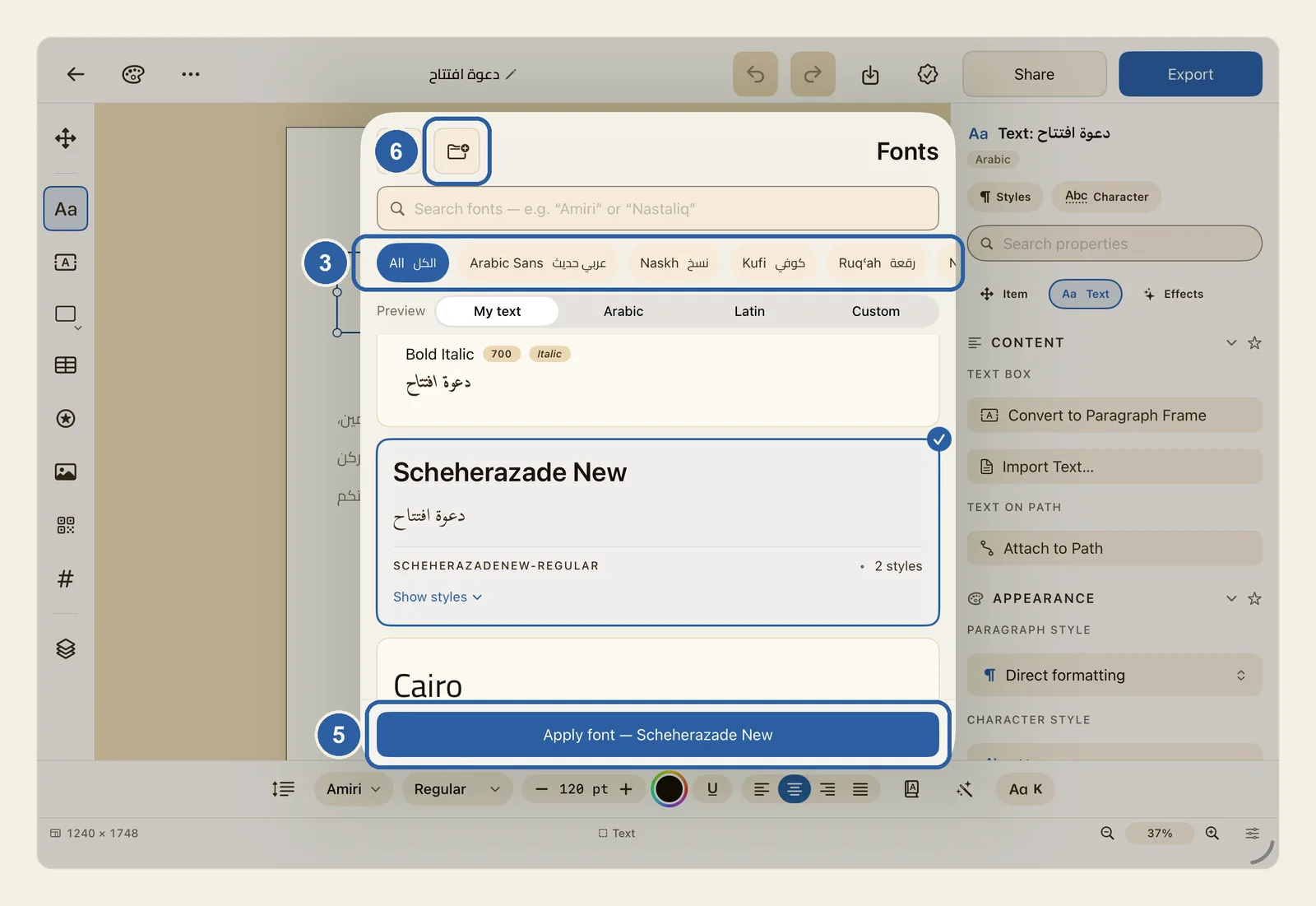
The Fonts library is where you choose the font for any text in Liwan Studio. It doesn't just list font names: each font is drawn in its own letters, with your own words where it can, so you can see how a heading will look before you decide. Ten Arabic fonts come with Liwan Studio: Amiri, Scheherazade New, Cairo, Tajawal, Almarai, Reem Kufi, Mada, Lalezar, Aref Ruqaa and Lemonada.
How to choose a font
Tap the text box you want to change, so the cursor is in it. To change only some of its words, such as one word of a heading, select those words.
The text style bar appears along the bottom of the screen.
Tap the font name in the text style bar. It is the second item in the bar, near its left end, and shows the font your text uses now, with a small arrow beside it. When Liwan Studio is in Arabic, it is near the right end of the bar.
The Fonts library opens over the page. The font your text already uses is selected, with its styles listed under it when it has more than one.
Narrow the list down. The row of buttons marked 3 in the picture at the top of this page shows the fonts of one Arabic writing style at a time. Each button carries its name in English and Arabic, such as Naskh نسخ. Swipe along the row to see the rest:
- All: every Arabic font in the library. The list starts here.
- Arabic Sans: plain, modern letters, such as Cairo, Tajawal and Almarai.
- Naskh: the familiar style of printed books and newspapers, such as Amiri.
- Kufi: straight, angular letters, such as Reem Kufi.
- Ruqʿah: the short, quick style of everyday handwriting, such as Aref Ruqaa.
- Nastaliq: the flowing, sloping style used for Persian and Urdu.
- Display: eye-catching fonts for headlines, such as Lalezar and Lemonada.
- Quranic: fonts made for text with full diacritics (the small vowel marks above and below the letters), such as Amiri and Scheherazade New.
- Calligraphy: calligraphic styles such as Ruqʿah and Diwani.
- Device Fonts: the fonts already on your iPad or Mac, English ones included.
Or search instead: type in the search field at the top of the library. You can type a font's name in Arabic or English, a style such as Kufi, or a weight such as bold, which opens the styles of the fonts that have it. You don't need to get hamzas, diacritics or tatweel (the stretching line, also called kashida) exactly right. A search in All also looks through the fonts on your device.
Under the buttons, Preview changes the words each font is drawn with. It doesn't change which fonts are listed:
- My text: the words in your own text box. It appears only when your text is in Arabic.
- Arabic: an Arabic sample sentence.
- Latin: a sample in English letters.
- Custom: type your own words in the field that opens below it.
Tap a font to choose it. Each card shows the font's name, with a line of text drawn in that font under it. The card you choose is outlined, with a tick in its corner.
Many fonts come in several weights, from light to heavy, and the card says how many styles it has. To pick one, tap Show styles, then tap the style you want, such as Bold. Hide styles folds the list away again.
Tap Apply font at the bottom of the library. The button names what you chose, for example Apply font — Cairo, or Apply font — Cairo Bold when you picked a style other than the regular one. The library closes and your text changes to the new font.
Apply font stays greyed out until you choose a font or style that is different from the one your text already has. In the picture it is not grey, because Scheherazade New is chosen while the text is still in Amiri.
To use your own fonts, such as the font of your logo or brand, tap Add fonts: the button with a folder and a plus sign at the top of the library, next to the close button. Press and hold it (or point at it on a Mac) to see its name, Add fonts from your device.
Choose one or more font files, or a whole folder; Liwan Studio also looks inside the folders within it. While it reads them, a line at the top of the list counts the files, for example "Importing fonts… 3 of 12". When it finishes, a message tells you how many fonts were added and how many files were left out. Its title is Import complete, or Fonts already added if you had added them before, or No fonts found.
Your fonts are then in the library under All. Type a name in the search field to find one, and apply it as in steps 4 and 5.
Tips
- With words selected, only those words change. With nothing selected, the whole box takes the new font, including any words you had set in another font. In a paragraph box that uses a paragraph style, the paragraph the cursor is in changes — see Paragraph Styles.
- To change only the weight, you don't need the library: the style button next to the font name in the text style bar lists the same styles. See Text style bar.
- The same library opens for text inside a shape and for text in a table cell.
- To close the library without changing anything, tap the close button (×) at its top, or swipe it down.
- With a keyboard on iPad, Return applies the font you chose, Esc closes the library, and ⌘F goes to the search field.
- Liwan Studio reads font files ending in .ttf, .otf, .ttc and .otc. Web fonts (.woff, .woff2) and old Mac .dfont files are skipped, and the message after adding says so.
- Liwan Studio uses your font files where they are and doesn't keep a copy of its own. If you move or delete the folder, or it is on a drive that isn't connected, its fonts can't be used, and a note at the top of the library names the folder. When the folder is back, its fonts return the next time you open Liwan Studio.
- You can't remove a font you added from inside Liwan Studio.
- Fonts you add yourself are not in the Font menu of Paragraph Styles and Character Styles. That menu offers only the ten fonts that come with Liwan Studio, plus Geeza Pro and Helvetica. Choose your own font for the text from the Fonts library instead.
- A Liwan Studio document (.ldf) carries the names of its fonts, not the font files. If you send a design that uses your own fonts to another iPad or Mac that doesn't have them, it opens with a Fonts not on this device notice naming them, and that text is shown in a substitute font. Add the same fonts on that device, or tap Got it to carry on. See Liwan Studio documents (.ldf).