
Text and fonts
Text on Path
Make a headline follow a curved line or run around a circle, for stamps, badges, seals and round logos.
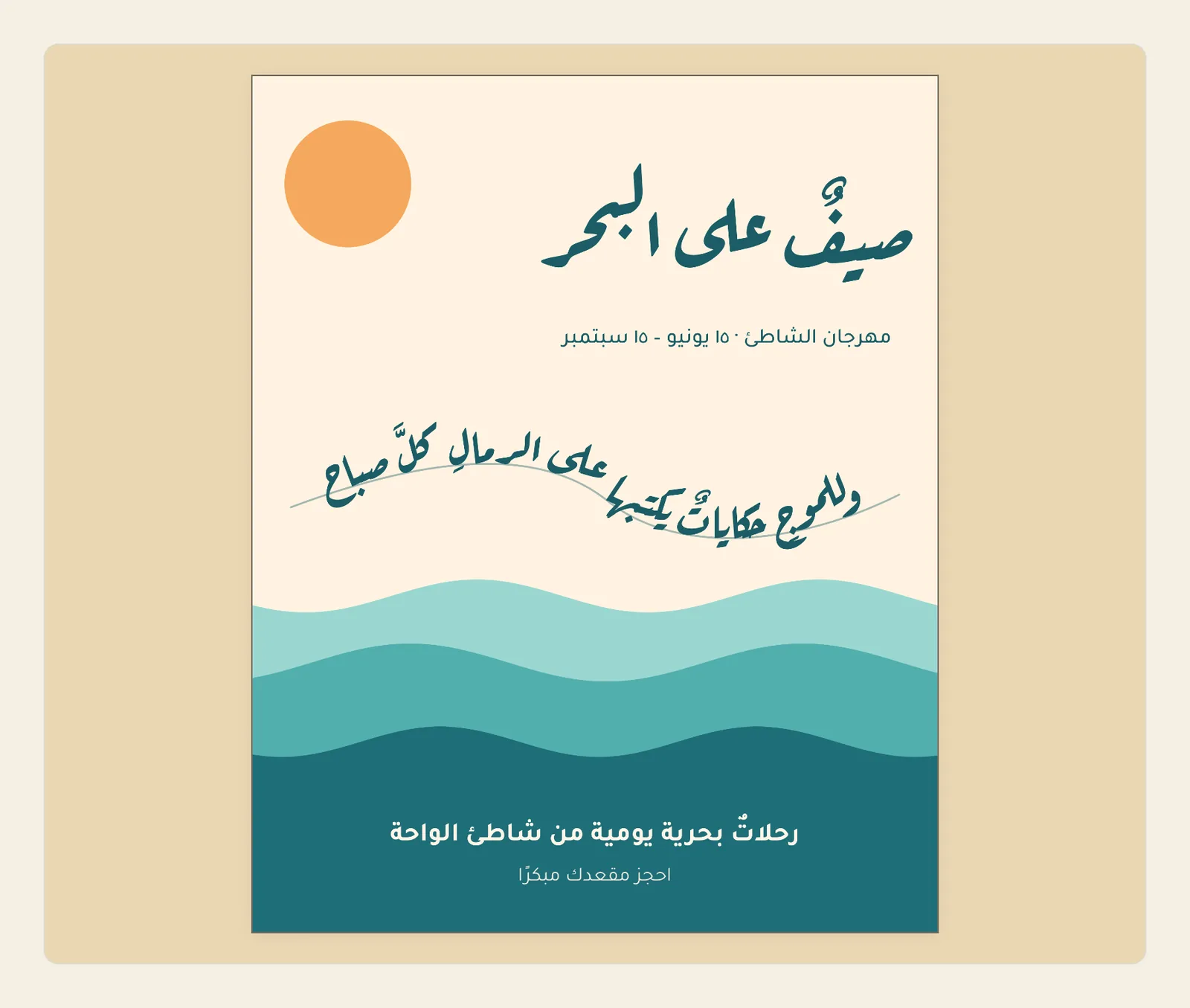
The path is the line your text sits on: a straight line, a curve you draw by hand, or the outline of a shape such as a circle or a star. The text stays an ordinary headline that you can edit; only its letters are laid out along the path.
How to put text on a path
Put both objects on the page: a headline made with Artistic Text, and the shape it should follow. Any shape works — a Line, an Ellipse (it starts as a circle), a Star, or a line you draw with Draw (Freehand). See Add text, shapes, pictures and more.
Then tap the headline to select it.
In the properties panel beside the page, tap Text to open the Text panel.
In the Content section, below Text Box, find Text on Path and tap Attach to Path.
If the page has more than one shape, a list asks Attach to which path?. It shows the shapes by number and name, such as "1. Ellipse". Tap the one you want.
The text jumps onto the outline of the shape, and Text on Path, marked 3 in the picture, now shows the settings for the curve.
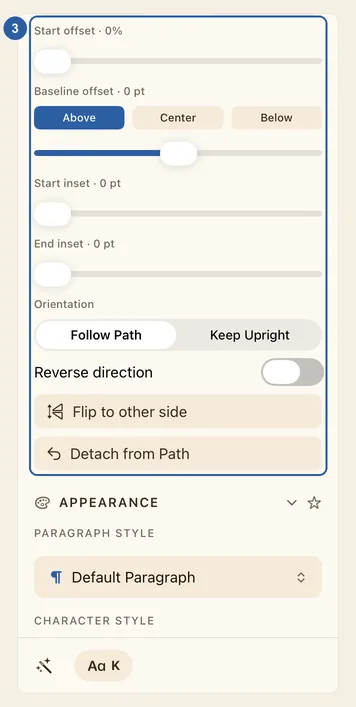
Move the text along the path until it starts where you want it:
- Start offset: drag the slider to slide the text along the path. On a circle, it turns the text around the circle.
- Alignment: on a line or a curve, Start, Center or End puts the text at the start of the path, in its middle, or at its end.
- Placement, for closed shapes such as a circle: Top runs the text across the top of the shape. Bottom puts it along the bottom, turned so that it still reads the right way up.
- Start inset and End inset: on a line or a curve with two ends, keep the text a set distance away from each end.
Tips
- To change the words, tap the text and type. The cursor follows the curve.
- Drag the text or the shape, and both move together. The handles around the text resize and rotate the shape, and the text follows its new outline.
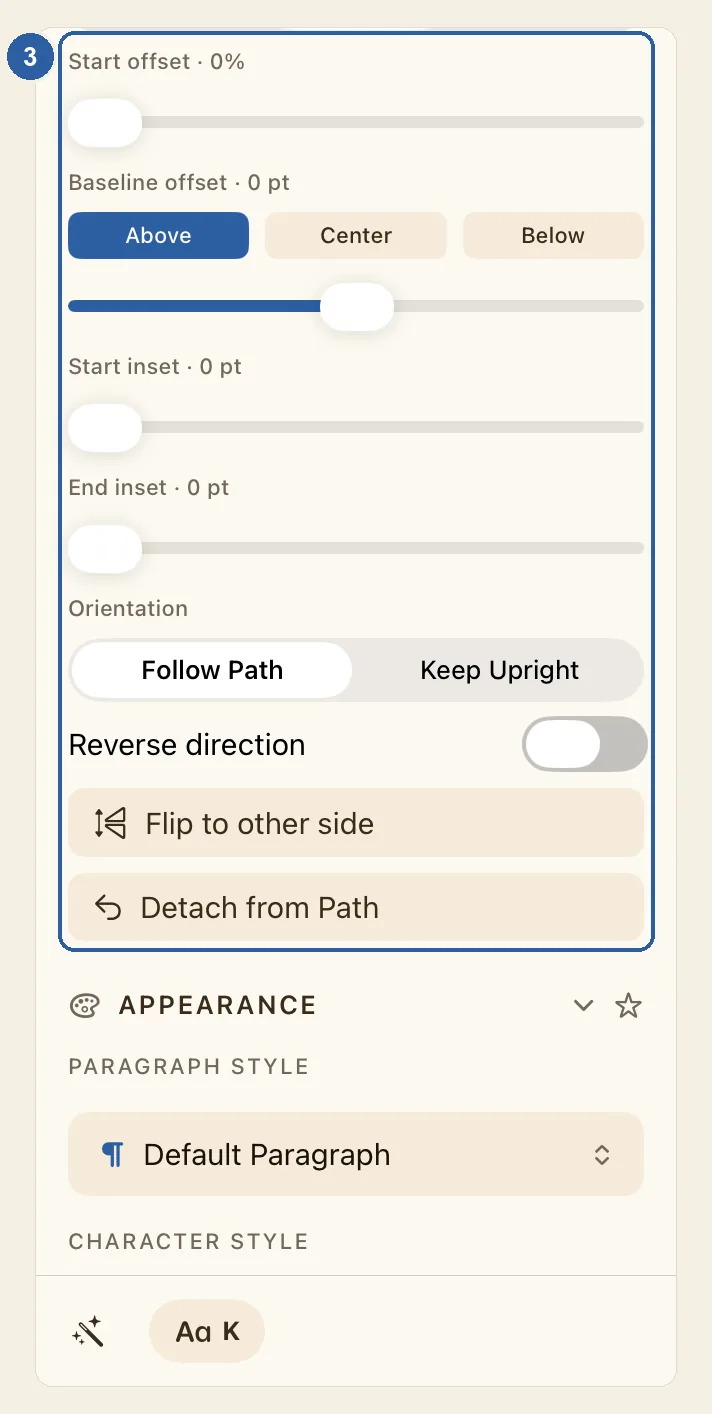
- Baseline offset sets where the letters sit against the line: Above puts them on top of it, Center runs the line through their middle, and Below hangs them underneath. The slider under the buttons fine-tunes the distance.
- Orientation: with Follow Path, each letter turns with the curve. With Keep Upright, every letter stays standing straight and only its position follows the curve.
- Flip to other side moves the text to the other side of the path; the button then reads Flip back. Turn on Reverse direction to run the text the other way along the path. If a note says the text looks upside-down, tap Flip to other side or choose Keep Upright.
- To make the text straight again, tap Detach from Path at the end of the section.
- Only artistic text can follow a path. If Text on Path is missing, the box is a paragraph box: tap Convert to Artistic Text under Text Box first.
- Only the first line goes on the path. Anything after a line break is not shown while the text is attached.
- On a circle, the text goes round once, and letters that do not fit are left out. On a line, text that is longer than the line carries on straight beyond it. Make the text smaller or the shape bigger.
- Each shape holds one text. In the Attach to which path? list, a shape that already has text is marked "in use", and picking it shows Path already has text. Detach that text first, or choose another shape.
- Kashida from the K button is not applied to text on a path — see Kashida intensity. Tracking spreads only English and other Latin letters; Arabic letters stay joined — see Line and letter spacing.
- Arabic letters stay joined and their diacritics stay in place: the text is shaped exactly as it would be on a straight line, then bent onto the curve.
- The shape stays visible under the text. To show only the text, hide the shape with the eye in Layers. The text keeps its curve on the page and in what you export.
- If you delete the shape, the text goes back to a straight line.