
Text and fonts
Paragraph Styles
Save the look of your headings or body text once, apply it to any paragraph, and change them all together by editing the style.
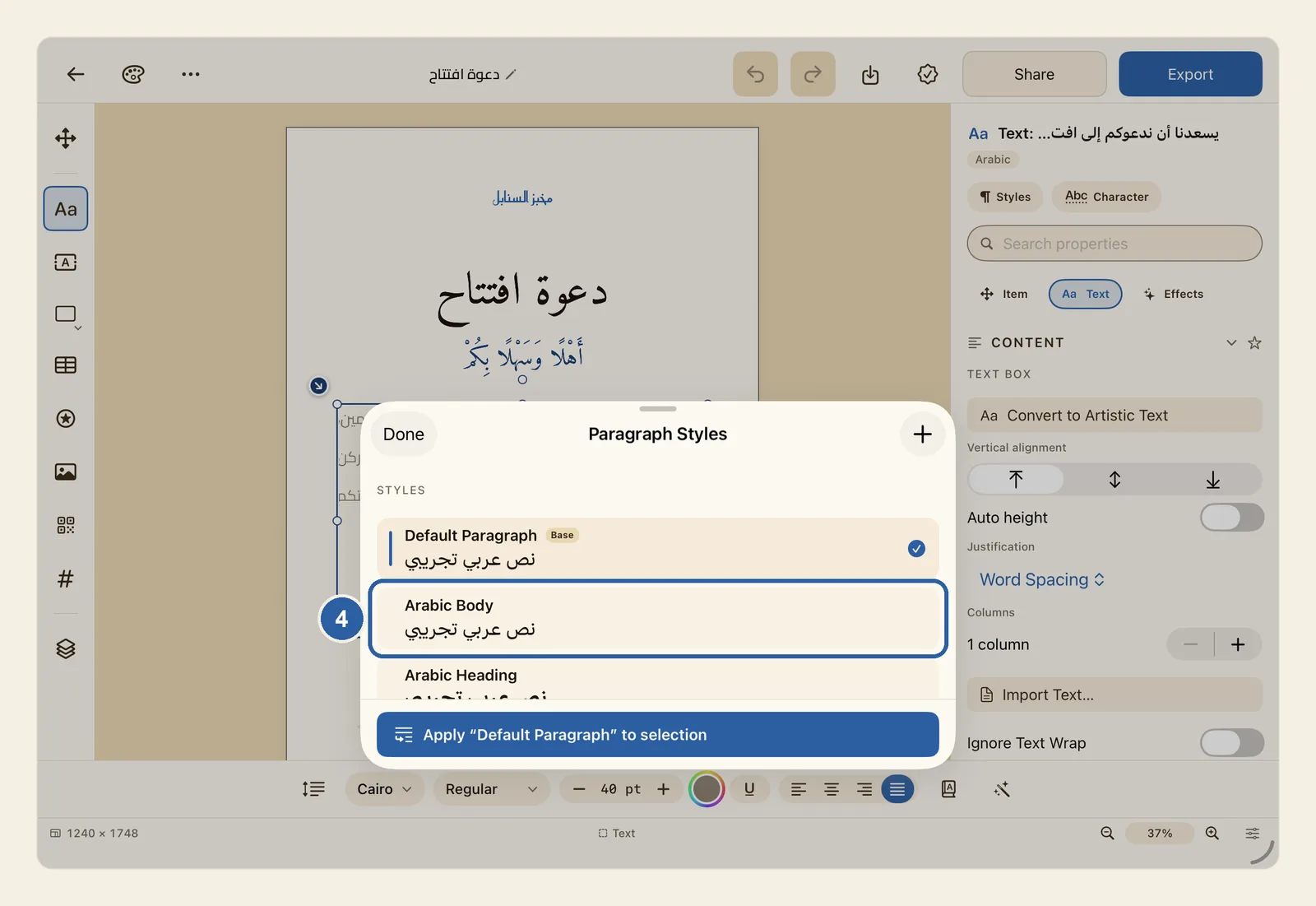
A paragraph style is a named set of formatting for whole paragraphs: font, size, colour, alignment, line spacing and the space around the paragraph. Give the style Arabic Heading to every dish name in a menu, for example. When you later change that style, every dish name changes with it. A paragraph is all the text up to the point where you pressed Return.
Every design comes with five styles: Default Paragraph, Arabic Body, Arabic Heading, Arabic Caption and English Body. You can change them and add your own.
How to apply and change a paragraph style
Tap the paragraph text you want to style. A cursor appears in it, and the style you choose will go to the paragraph the cursor is in.
- To style several paragraphs, select text that runs from the first of them to the last.
- To style every paragraph in the box, tap Item (Box), the four-arrows button at the top of the tool rail. Typing stops, and the box stays selected.
In the properties panel beside the page, tap the Text tab. The panel is on the right, or on the left when Liwan Studio is in Arabic.
Scroll down the panel to Appearance. The first row there, under Paragraph Style, starts with a ¶ sign and shows the name of the style the text uses now, such as Default Paragraph. Tap it.
A menu opens with the styles of this design. The style in use has a check mark.
Tap the style you want, for example Arabic Heading for a title or Arabic Body for the text under it. The text takes the style's font, size, colour and spacing straight away.
You can also choose from the Paragraph Styles panel, shown in the picture at the top of this page. To open it, tap Styles, the button with the ¶ sign near the top of the properties panel. Tap a style in the list (4), then tap the wide button at the bottom of the panel. It carries the name of the style you tapped, for example Apply “Arabic Body” to selection.
To change a style instead, tap the row under Paragraph Style again and choose Edit Paragraph Styles… at the bottom of the menu. The Paragraph Styles panel opens. Tap the style you want to change. Its settings appear below the list, under Editing — followed by the style's name. On iPad, drag the panel up to make it taller, and scroll to see the rest.
The settings are Font, Weight, Italic, Size, Color, Alignment, Justify, Direction, Line height, Space before and Space after, followed by Indents, Bullets & numbering, Tab stops, Rules & shading and OpenType. As you change them, every paragraph in the design that uses the style changes too. Tap Done when you have finished.
Tips
- To make a style of your own, tap the + button at the top of the Paragraph Styles panel. A style called New Style appears at the end of the list with the settings of Default Paragraph, and its settings open below. Set it up, tap Rename at the end of the Editing — line to give it a name you will recognise, such as "Dish name", then apply it.
- Press and hold a style in the list for Apply to selection, Duplicate, Rename and Delete. Default Paragraph can't be deleted, and two styles can't share a name. Deleting a style removes no text: paragraphs that used it go back to the plain formatting of their box.
- Renaming works on the styles you add. The five built-in styles always show their own names.
- Once a paragraph has a style, you can still change it with the usual controls, such as the size or colour in the text style bar. With the cursor in the paragraph and nothing selected, the change goes to the whole paragraph, on top of the style, and Overridden appears on the Paragraph Style row. Tap Clear Overrides under the row to put the paragraph back to its style; choosing the style again from the menu does the same. Until you clear it, such a change stays even when you edit the style.
- If the row says Mixed, the paragraphs you selected use different styles. Choose one style to give them all the same look.
- Paragraph styles shape paragraph text — boxes made with Paragraph Text — and text in table cells. A headline made with Artistic Text doesn't change when you choose a style. To style it, first tap Convert to Paragraph Frame under Text Box in the Text panel. Text inside a shape doesn't use paragraph styles.
- In a table, double-tap a cell to type in it, then tap Manage Paragraph Styles in the Table panel. The style goes to the paragraph the cursor is in, in that cell. See Tables.
- The space before and after a paragraph, indents, bullets and numbering, tab stops, and lines or shading around a paragraph can be set only in a paragraph style, and they work only in a named style, not in Default Paragraph. See Lists, tab stops and paragraph lines.
- Indents are measured from the Start and End of the line, not from left and right, because they follow the paragraph's direction: in Arabic text, Start is the right-hand side.
- The built-in Arabic styles always run right to left, and English Body left to right. To change this, set the style's Direction. See Arabic and English in one design.
- To justify all your body text with kashida, choose it under Justify in the style. See Kashida justification.
- The Font menu of a style lists the fonts that come with Liwan Studio, plus Geeza Pro and Helvetica. Fonts you added yourself aren't in it. See Fonts.
- Styles belong to the design you are working on. A style you add or change in one design doesn't appear in your other designs.
- The button at the bottom of the panel and Apply to selection work on one text box at a time. With no text box selected, or several objects selected, they are grey.
- On iPad you can also tap a text box with two fingers and choose Paragraph Styles from its menu. The panel opens over the lower half of the screen; drag it up to make it taller.
- You can take back each change with Undo — see Undo and redo.