
Pages and print
Master Pages
Design a logo, header or footer once on a master page, and it appears on every page of your menu or booklet that uses it.
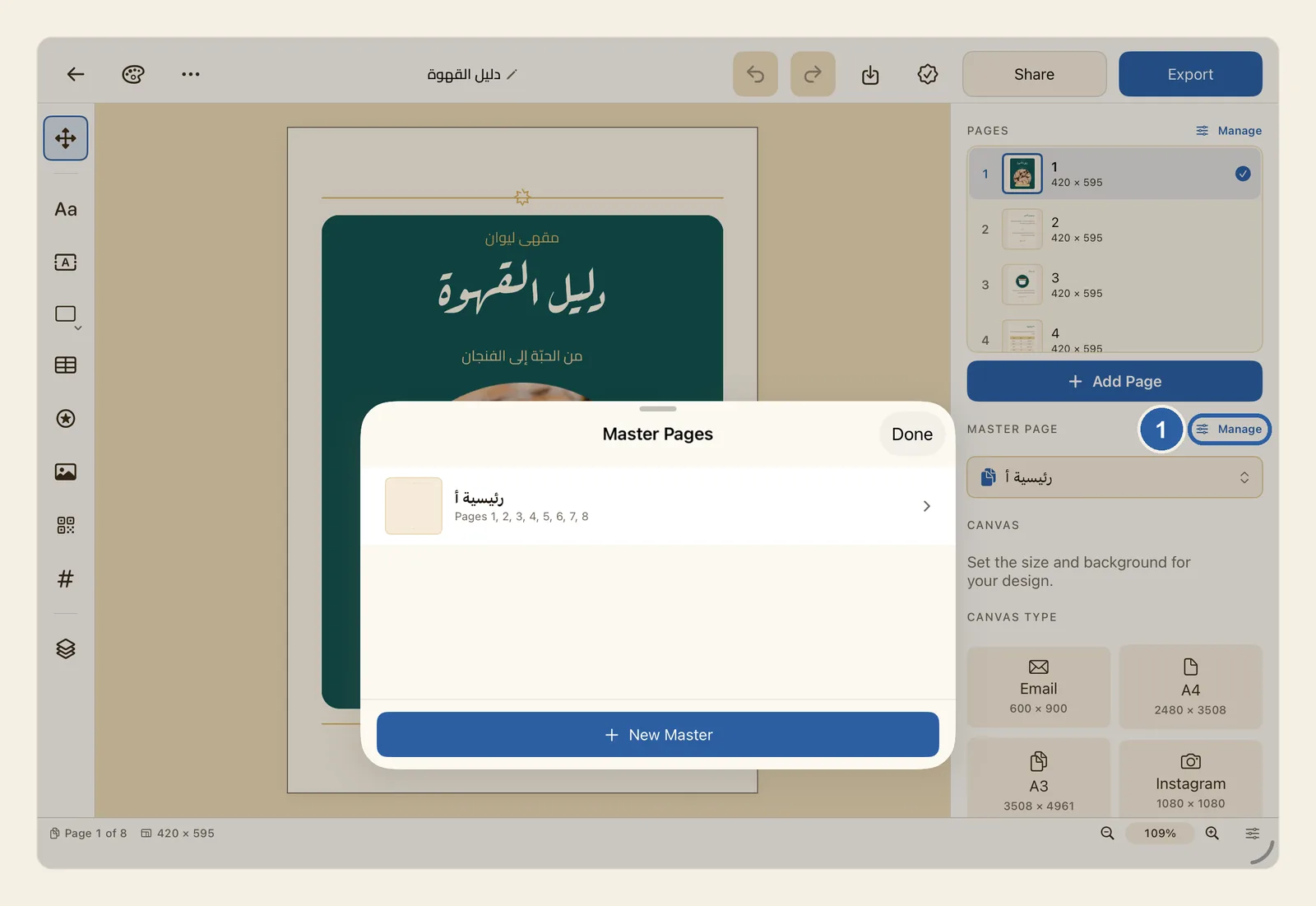
A master page is a layout that several pages share. Whatever you put on it, such as your logo, the business name at the top, a footer line or a page number, appears behind the objects of every page that uses it. Change the master page once, and all those pages change with it.
How to use a master page
Open your design and tap an empty part of the page, so that nothing is selected. The properties panel now shows the settings of the page itself.
Below Pages and the Add Page button is the Master page section. Tap Manage next to its heading. It is marked 1 in the picture at the top of this page. The Master Pages panel opens.
To make a new master page, tap New Master at the bottom of the panel, then choose:
- Blank Master to start with an empty master page.
- From Current Page to start with a copy of everything on the page you are on. The page itself stays as it is.
The first new master page is named "Master A", the next "Master B", and so on. Each row in the list shows a small picture of the master page, its name, and the pages that use it, such as "Pages 1, 3, 5", or Not used. In the picture at the top of this page, the booklet already has one master page, used by all eight pages.
Tap a master page in the list to edit it. The panel closes and the master page takes the place of your page. A bar at the top of the screen reads Editing master: followed by its name.
Add what every page should share, using the tool rail as you would on any page: your logo, a heading, a footer line, a background shape. To number the pages, add the page number here; see Page Number. When nothing is selected, the properties panel shows Editing Master and a short reminder that the master page's content appears beneath every page that uses it.
When you are done, tap Done in the bar at the top to go back to your page.
Now choose which pages use the master page.
- For the page you are on: tap an empty part of the page, then tap the menu under Master page in the properties panel and choose the master page. Its content appears on the page straight away. Choose None to take it off again.
- For several pages at once: open Master Pages again, press and hold the master page (right-click it on a Mac) and choose Assign to Pages…. Tap each page that should use it. A filled check mark means the page uses this master page; tap the page again to take it off. When a page uses a different master page, Current master: under it names the one that will be replaced. Tap Done when you have finished.
Tips
- The master page's content sits behind the page's own objects, and you can't select or move it on the page. To change it, edit the master page, and the change shows on every page that uses it. A large picture or shape on a page covers the master content behind it.
- To change a master item on one page only, such as removing the footer from the cover, tap Manage next to Pages, press and hold the page and choose Master Overrides…. Tap the item, then turn off Visible on this page, drag Opacity, type a new Position or, for a single text box, type new words under Text. Changed items are marked Overridden, and Reset to Master puts an item back as the master page has it. This choice appears only when the page's master page has something on it. Page numbers and linked text boxes can't take new words.
- A page uses one master page at a time. Choosing another one replaces the old one.
- A master page has no size or background of its own: the page's background shows behind it. Its objects keep the place you gave them and are not resized to fit, so on a page with a different size they may sit differently.
- From Current Page copies the page's objects into the master page but doesn't apply the master page to that page. If you then apply it to the same page, delete the originals from the page, or everything appears twice.
- Press and hold a master page in the Master Pages panel (right-click on a Mac) for Edit Master, Assign to Pages…, Rename…, Duplicate, Remove from All Pages and Delete. Remove from All Pages appears only when at least one page uses the master page.
- Delete removes the master page straight away, without asking, and takes it off every page that used it. If you delete the wrong one, tap Undo while the design is still open. See Undo and redo.
- In the Pages panel, you can also press and hold a page and open Master to choose a master page or None. When the design has master pages, adding a page there asks Attach a master page?. Add Page in the properties panel adds the page without a master page. See Pages.
- While you edit a master page, the Layers panel lists the master page's objects, and the properties panel has no Canvas section, because size and background belong to the pages.
- Undo and Redo only change content. They don't open or close a master page for editing, except that undoing the creation of the master page you are editing takes you back to your pages.
- If you tap Export or Share while you edit a master page, Liwan Studio goes back to your pages first, so you export your real design. See Export.