
Getting started
Welcome to Liwan Studio
Choose Arabic or English and a light or dark look the first time you open Liwan Studio; you can change both later in Settings.
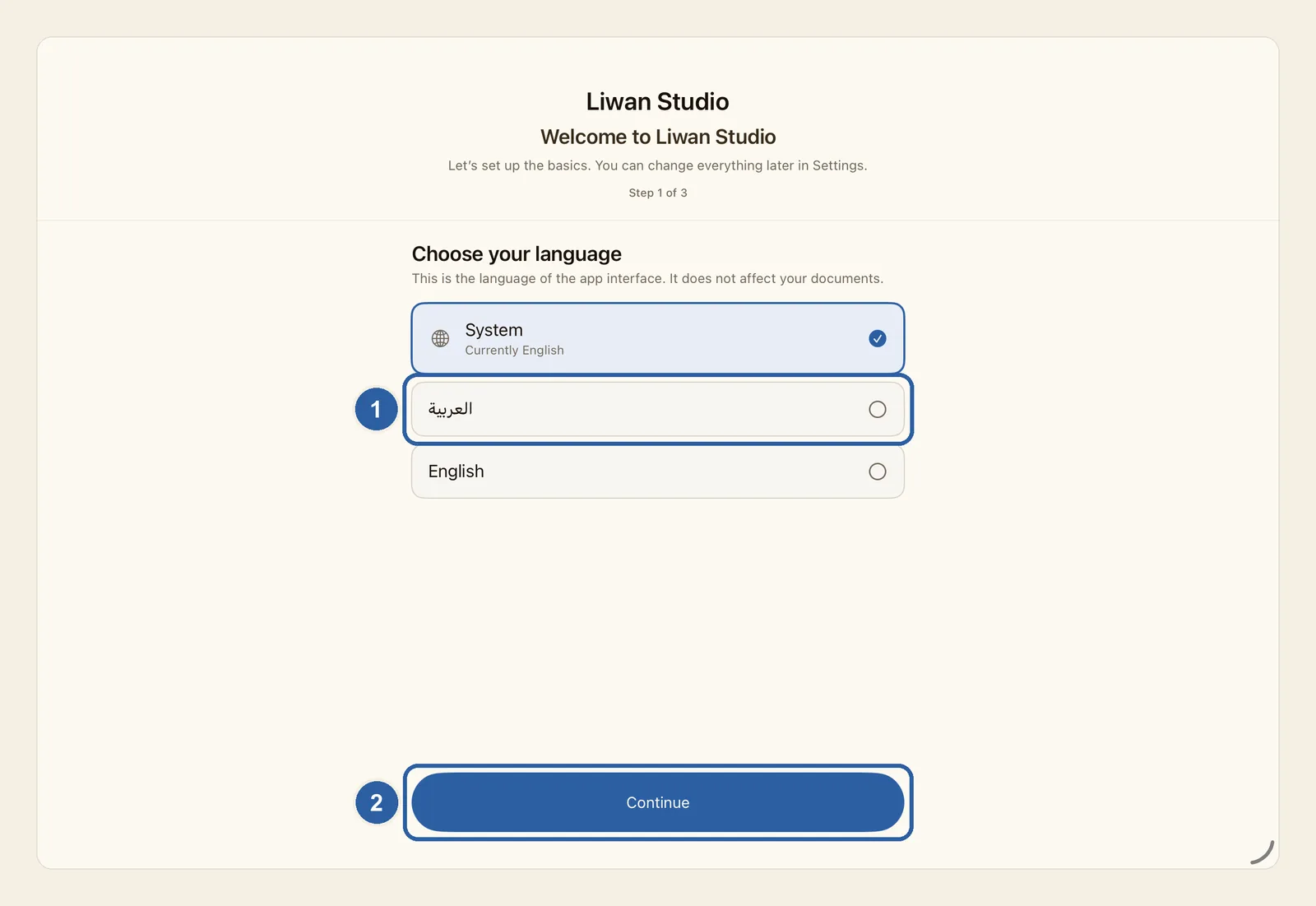
Setup appears once, before anything else, and asks two questions: which language Liwan Studio should use, and how it should look. The language is for the app's buttons, menus and messages only. It does not change the text in your designs.
How to set up Liwan Studio
Open Liwan Studio for the first time. Welcome to Liwan Studio appears, and the small line under it, Step 1 of 3, shows how far you have got. Under Choose your language are System, العربية and English. Each language is written in its own script, so you can find yours whatever language the screen is in.
Tap العربية or English, or keep System to follow your device's language. The screen switches to the new language as soon as you tap. If you choose Arabic, it also turns to run right to left. Then tap Continue.
Under Choose your theme, tap System to follow your device's light or dark mode, or tap Light or Dark to keep that look all the time. The screen changes straight away, so you can try each one before you decide.
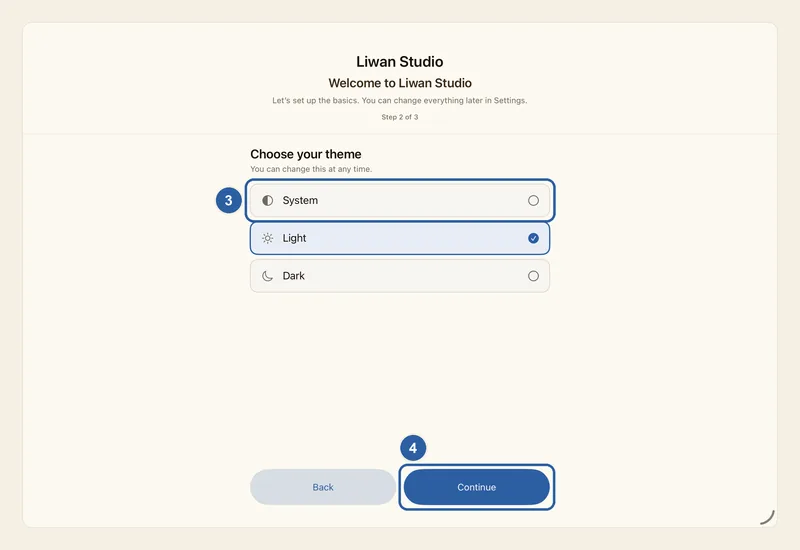
Tap Continue. The last screen, Privacy and terms, shows where Liwan Studio's legal documents are. Tap Privacy Policy to read it inside the app, then tap Done to close it. Terms of Use and License Agreement open on the Flowzant website.
Tap Get Started. Setup closes and Liwan Studio checks your subscription. If you are not subscribed yet, the subscription screen appears next — see Liwan Studio Subscription.
Tips
- To change a choice before you finish, tap Back to return to the previous screen.
- The line under System, for example Currently English, tells you which language Liwan Studio takes from your device. If you keep System and neither Arabic nor English is among your device's languages, Liwan Studio appears in English.
- On Mac, the menu bar changes to the language you choose as well.
- Nothing on the Privacy and terms screen asks you to tick a box or accept anything. It only shows where the documents are. You can open them again at any time from Settings, under Legal.
- The Privacy Policy is part of the app, so you can read it without an internet connection. The Terms of Use and License Agreement open in your web browser and need a connection.
- Setup appears only once, and you cannot open it again from inside Liwan Studio. To change the language or theme later, open Settings and tap Language or Theme — see Settings.
- If you close Liwan Studio before you tap Get Started, setup starts again from the first screen next time. The language and theme you already chose are kept.