
Text and fonts
Columns
Split a paragraph box into two or more columns, like a newspaper or a brochure, and choose the gap between them.
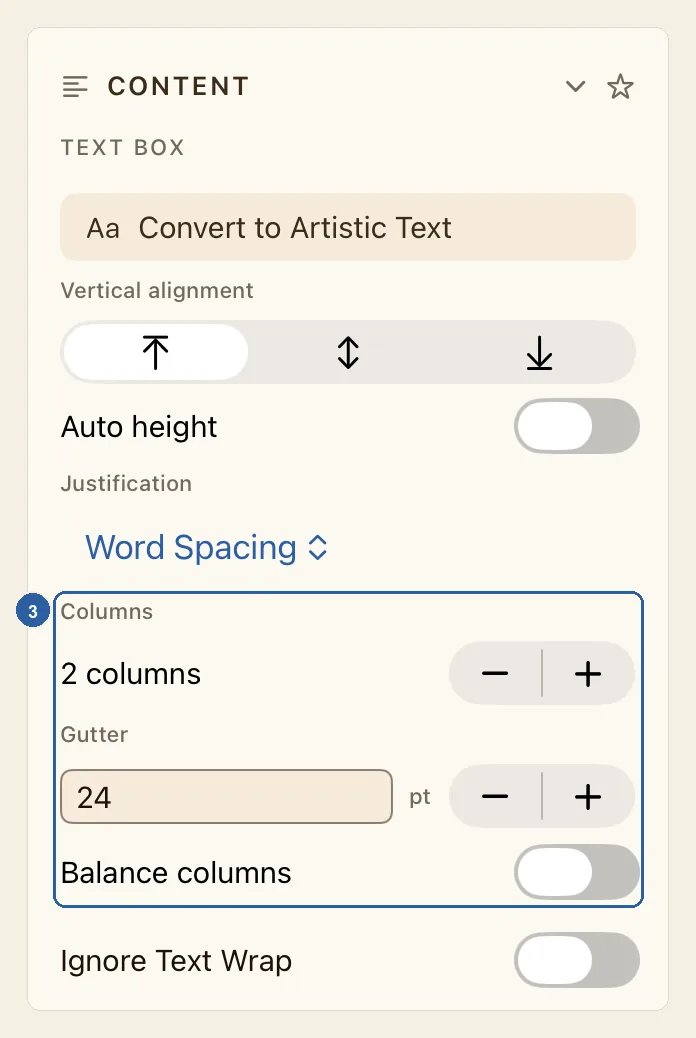
Columns let one paragraph box hold a long text the way a newspaper or a brochure does: the text fills the first column, then carries on in the next. The gap between two columns is called the gutter. Arabic text starts in the right-hand column and continues to the left; English text starts on the left.
How to set text in columns
Tap the paragraph box on the page. This puts the cursor in the text, so tap Item (Box), the four-arrows button at the top of the tool rail, to stop typing. The box stays selected, and on an iPad without a keyboard the on-screen keyboard goes away.
Of the two kinds of text box, only paragraph boxes have columns: the kind you make with Paragraph Text in the tool rail.
In the panel beside the page, tap Text at the top. Under Content, look in the Text Box group: Columns comes after Justification. If Content is folded away, tap its heading to open it.
If the group starts with Convert to Paragraph Frame instead of Convert to Artistic Text, the box holds artistic text, which has no columns. Tap Convert to Paragraph Frame to turn it into a paragraph box, and Columns appears.
Under Columns, marked 3 in the picture at the top of this page, tap the + button. The line beside the buttons changes from 1 column to 2 columns, and the text flows into the new column straight away. Tap + again for more columns, up to 10, or − to take one away.
Once the box has two or more columns, Gutter and Balance columns appear below.
Under Gutter, set the gap between the columns. Type a number in the box and press Return, or tap the − and + buttons after pt to change the gap 2 points at a time. A new box starts with a gap of 24 pt.
You can also set it on the page, while the box is selected and you are not typing in it, as in step 1. A violet line with a round handle runs down the middle of each gutter. Drag it sideways: the gap widens or narrows, and the text re-flows into the columns as you drag.
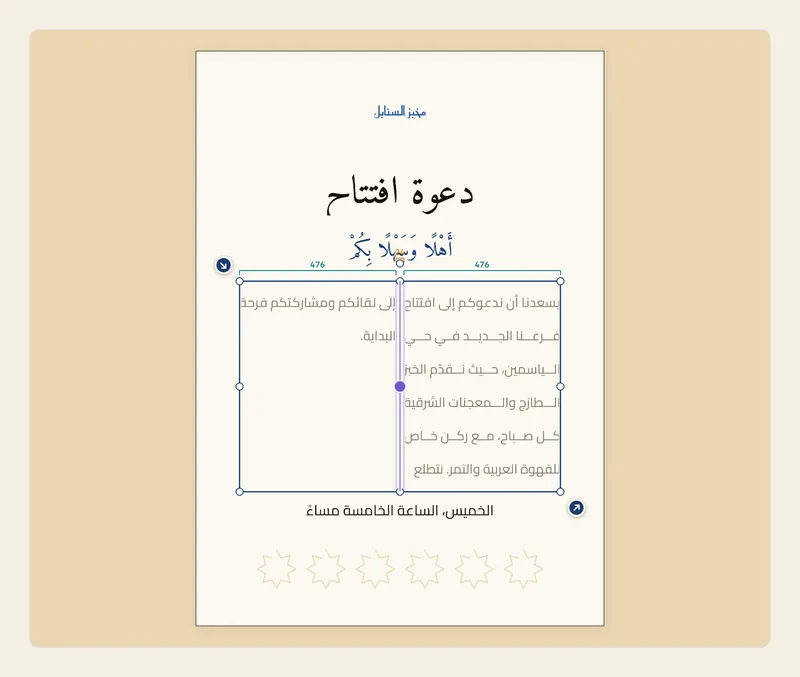
The picture shows the invitation's paragraph in two columns. The text begins in the right-hand column and continues in the left one. Small numbers above the box show the width of each column, 476 here, and of the gutter. The violet lines and the numbers appear only while the box is selected. They are not part of your design and do not appear when you export.
Tips
- Switch on Balance columns to share the text out evenly, so the columns end at about the same height instead of each one filling to the bottom before the next begins. It only works when all the text fits in the box; if it doesn't, the columns fill one after another as usual. The balanced text sits at the top, middle or bottom of the box, following Vertical alignment.
- A box with two or more columns keeps its height: Auto height has no effect on it. Text that does not fit in the last column is hidden, and a small red mark appears at the bottom corner of the box. Make the box taller, make the text smaller, or link the box to another one so the text continues there. Each linked box can have its own columns. See Frame Link.
- All the columns in a box have the same width. To make them wider or narrower, resize the box or change the gutter.
- Tapping − back down to 1 column makes the box an ordinary paragraph again. If Auto height is on, the box grows or shrinks to fit the text once more.
- A shape can hold columns too. Select a shape such as a rectangle or a circle, open the Shape tab, and under Content switch on Use as text container. Columns then appears in the same section, and Gutter below it once there are two or more columns. Shapes have no Balance columns. See Shapes.
- Every change here can be undone, and a whole drag of a gutter on the page counts as one step. See Undo and redo.
- In Split View or a narrow window on iPad, the panel is hidden to leave room for the page. Tap Item (Box) at the top of the tool rail to open it.