
Pages and print
Page Number
Add page numbers, a section name or the design's title that fill themselves in on each page and stay correct when you add or move pages.
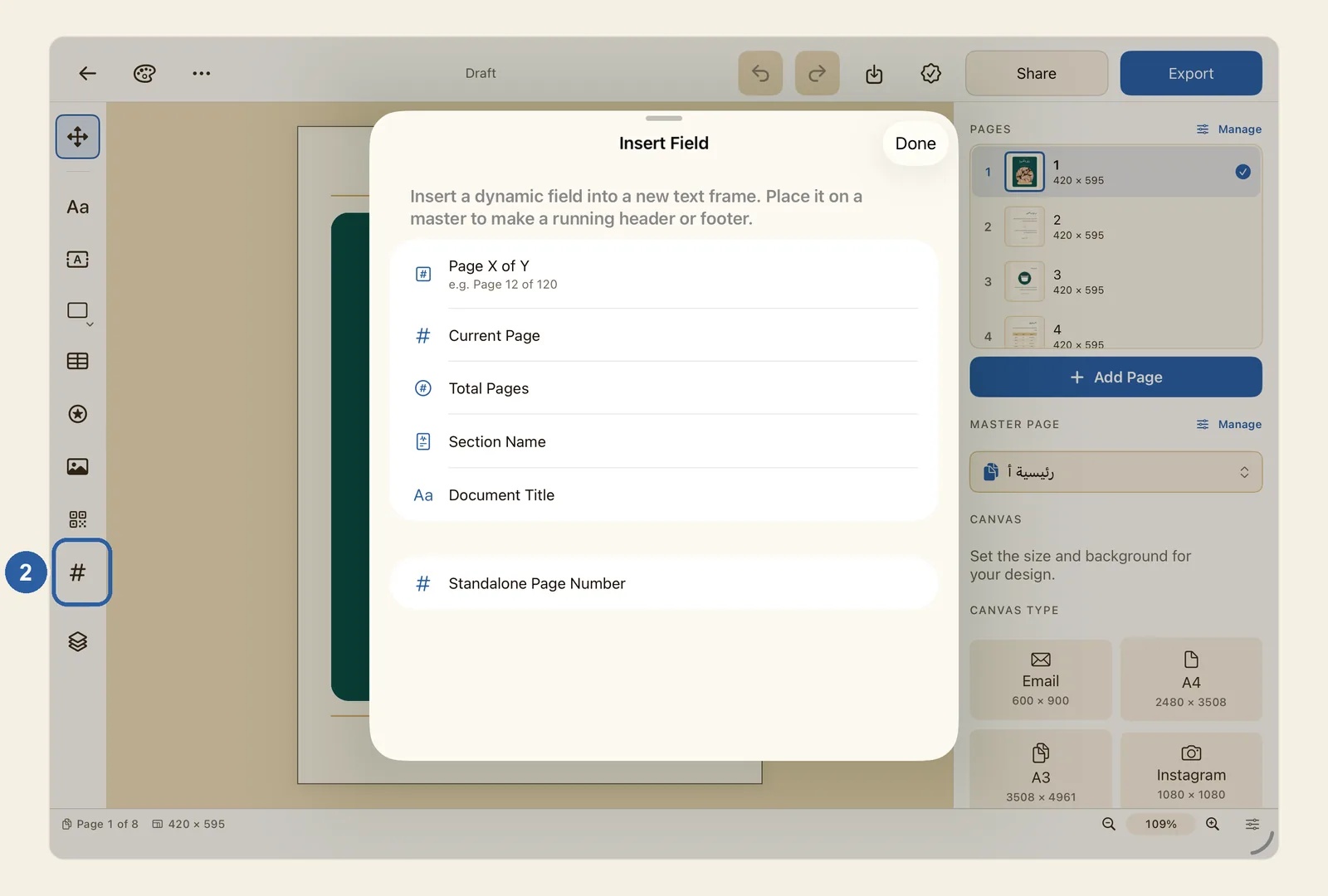
A page number in Liwan Studio is a field: a piece of text that Liwan Studio fills in by itself for each page. Put it once on a master page, the shared layout behind your pages, and every page that uses that master page shows its own number.
How to add page numbers
Open the master page your pages use. Tap an empty part of the page so that nothing is selected, then tap Manage next to Master page in the properties panel. In the Master Pages panel, tap the master page.
The master page takes the place of your page, and a bar at the top of the screen reads Editing master: followed by its name. If the design has no master page yet, make one first; see Master Pages. If you don't see the properties panel, tap Item (Box) at the top of the tool rail to open it.
Tap Page Number on the tool rail. It is the # button near the bottom of the rail, marked 2 in the picture at the top of this page. The Insert Field window opens.
Tap the field you want. Each one adds a new text box:
- Page X of Y writes the page number and the number of pages, such as "Page 12 of 120".
- Current Page is the number of the page on its own.
- Total Pages is the number of pages in the design.
- Section Name is the name of the section the page belongs to (see step 5).
- Document Title is the name of your design.
- Standalone Page Number, at the end of the list, adds a box that holds only the page number.
If the last two are out of sight, scroll the list. To close the window without adding anything, tap Done.
The window closes and the new text box appears in the middle of the screen, already selected. Drag it to where it belongs, such as a bottom corner of the page, and change its font, size and colour as you would for any text.
On the master page, the box shows # in place of each number. Tap Done in the bar at the top to go back to your pages: every page that uses this master page now shows its own number.
To number part of the design on its own, such as the drinks pages of a menu, make that part a section. Tap Manage next to Pages to open the Pages panel, press and hold the first page of that part, and choose Start Section Here…. On a Mac, right-click the page.
In the New Section window, type a name under Name, such as "Drinks". Open Numbering style and choose how its pages are numbered, such as Arabic-Indic (١, ٢, ٣) or Roman (i, ii, iii). Starts at shows the page where the section begins. Tap Create. The section's name now appears with that page in the list, and the pages of the section are numbered from 1 in the style you chose.
To change the section later, press and hold the same page and choose Section Options…. Make your changes and tap Apply, or tap Remove Section to take the section away.
Tips
- Put the fields on a master page. A field you add to an ordinary page shows that page's number, but it appears only on that one page.
- While you edit the master page, the fields show stand-ins: # for numbers, "Section" and "Title". They stay in English even when Liwan Studio is in Arabic. The pages themselves show the real values.
- The numbers follow the order of the pages, so they update by themselves when you add, delete or move pages. See Pages.
- The words "Page" and "of" in Page X of Y are written in the language Liwan Studio is set to when you insert the field: Arabic words in the Arabic interface, English words in the English one.
- On pages outside any section, and in a Decimal (1, 2, 3) section, the numbers use the digits 1, 2, 3, even next to Arabic words. In an Arabic-Indic (١, ٢, ٣) section, the total in Page X of Y uses the same digits as the page number, so the two never mix. With Roman numerals or letters, the total stays an ordinary number.
- Total Pages always counts every page of the design, not only the pages of the section.
- Pages before the first section are numbered 1, 2, 3 from the start of the design. Each section starts again at 1; you can't choose a different starting number.
- None leaves the pages of a section without a number, but the words and the total of Page X of Y still show. To keep the footer off a cover, hide it on that page with Master Overrides…; see Master Pages.
- Section Name is empty on pages that are not in a section. Document Title shows the name of your design, and it changes when you rename the design. See Rename, duplicate and delete designs.
- If you set Numerals in the box's Text tab to anything other than Contextual, its digits follow that setting instead of the section. See Numerals.
- Standalone Page Number turns the whole box into the number: anything else you type in that box is replaced by the page number.
- Exported files show each page's real number, never the # stand-in. A PDF includes every page, each with its own number. See Export.