
Canvas and layout
Add text, shapes, pictures and more
Use the tool rail to put a new text box, shape, table, picture, sticker or QR code on your page.

How to add an object
Open a design. On Home, tap one of your recent designs, or tap New design to start with a blank page — see New design.
Find the tool rail: the narrow column of buttons along the left edge of the editor. When Liwan Studio is in Arabic, the rail is on the right edge.
In the picture at the top of this page, the numbers mark the rail's buttons, from top to bottom:
- Artistic Text (Aa) — a text box for a short headline or a name.
- Paragraph Text — a text box for longer text that wraps onto several lines, such as menu items and their descriptions.
- The shape button — adds a rectangle at first. The small arrow in its corner means it holds a list of other shapes.
- Table — rows and columns, for price lists and timetables.
- Sticker — a ready-made graphic.
- Image — a photo or picture.
- QR Code — a code people scan with their phone camera.
- Page Number — the number of the page it sits on, or another field that fills itself in, such as the number of pages.
- Layers — sits under a line and adds nothing: it opens the list of everything on the page. See Layers.
The four-arrow button at the very top, Item (Box), does not add anything either. It shows the selected object's position and size in the properties panel.
Tap the tool for what you want to add.
- Artistic Text, Paragraph Text and the shape button put their object on the page straight away.
- For a different shape, press and hold the shape button and choose one from the list, such as Ellipse, Star, Arrow or Speech Bubble. Draw (Freehand), at the end of the list, lets you draw by hand — see Draw (Freehand). The button then shows the shape you chose, so the next tap adds the same one again.
- Table, Sticker, Image, QR Code and Page Number first open a window where you choose what to add: the number of rows and columns in Insert Table, a sticker, a picture, a saved code in QR Codes (or New QR Code), or a field in Insert Field. If you close the window without choosing, nothing is added.
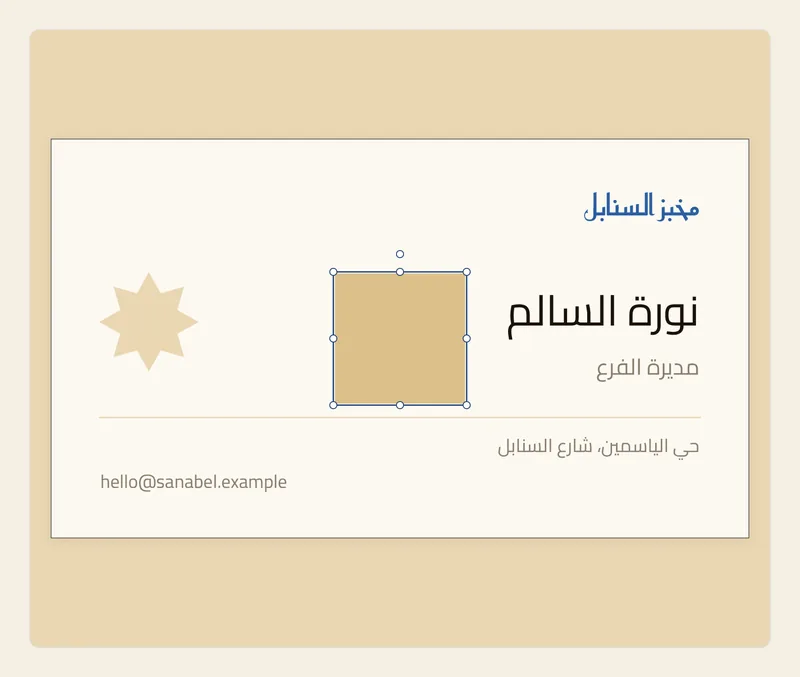
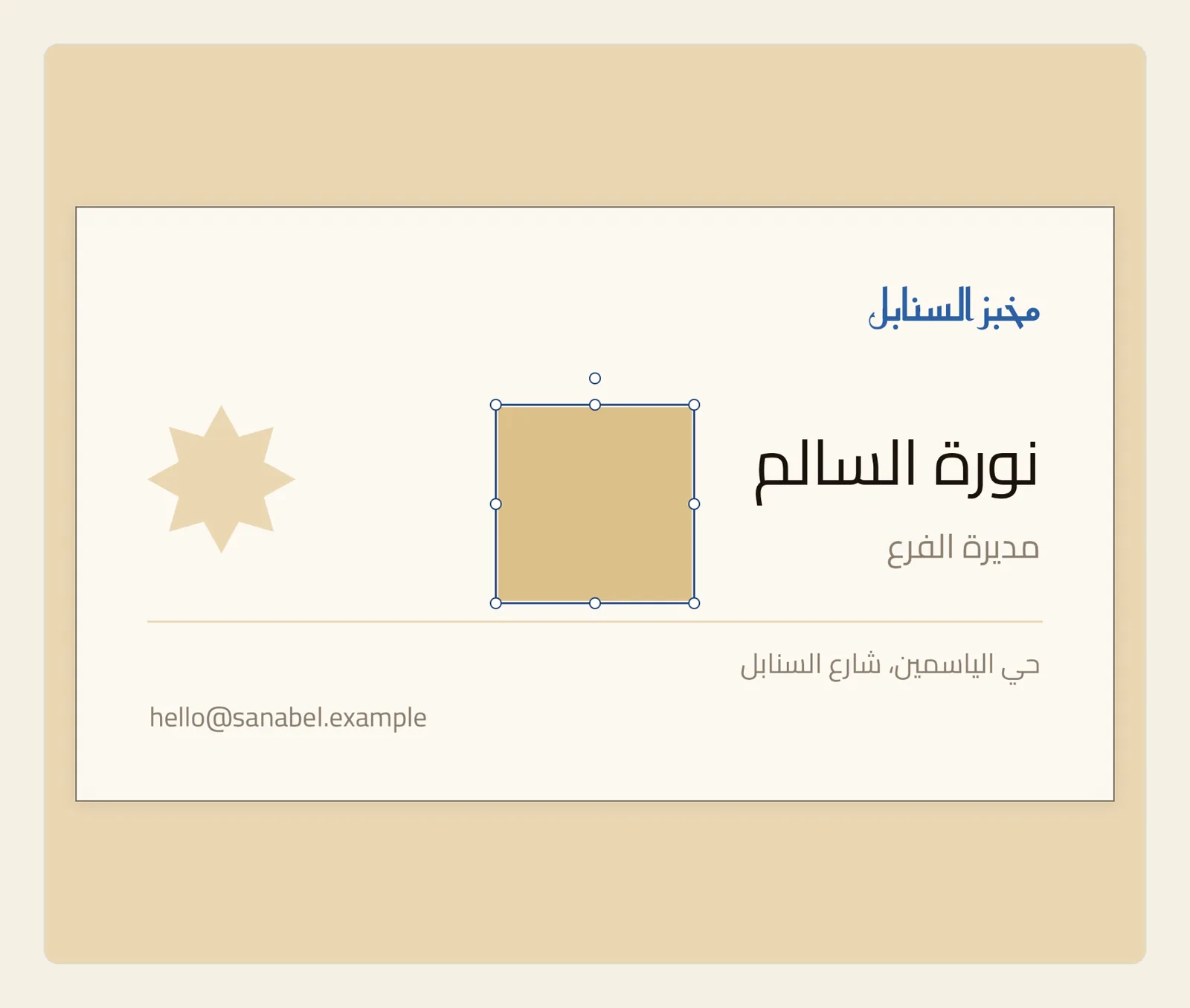
The new object appears in the middle of the part of the page you are looking at, in front of everything already there, and it is selected. Drag it where you want it, drag the handles around it to change its size, or drag the small circle above it to rotate it. Its settings appear in the properties panel on the other side of the page.
A new text box starts empty, with the cursor in it, ready for you to type.
Tips
- The object lands in the middle of what you can see, so scroll or zoom to the part of the page where you want it before you tap the tool.
- Added the wrong thing? Undo takes it away in one step.
- Not sure what a button does? On iPad, press and hold it to see its name; on a Mac, point at it. Pressing and holding the shape button opens its list of shapes instead.
- You can also drag a picture or some text from another app and drop it on the page: from Finder on a Mac, or from an app open beside Liwan Studio on iPad. It lands where you drop it. A picture dropped on a picture frame fills that frame.
- Each kind of object has its own page: Add and edit text, Shapes, Tables, Stickers, Add and adjust pictures, QR Codes and Page Number.