
Text and fonts
Add and edit text
Put a headline or a block of wrapping text on your page, type your words, and change them whenever you need to.
Liwan Studio has two kinds of text box. Artistic Text is for short text that stands on its own, such as a shop name, a headline or a price. Its box grows as you type, and a new line starts only where you press Return. Paragraph Text is for longer text, such as menu descriptions, an address or opening hours. Its box keeps the width you give it, and the lines wrap by themselves.
How to add text
Find the tool rail, the narrow column of buttons along the left edge of the editor. When Liwan Studio is in Arabic, it is on the right edge. Tap Artistic Text, the Aa button near the top, for a headline. For wrapping text, tap Paragraph Text, the button just under it, which shows a letter A in a box.

Place the box on the page.
- On iPad, Liwan Studio places it for you. The new box appears straight away in the middle of the part of the page you are looking at. It is selected, with the cursor in it. If no keyboard is attached, the on-screen keyboard opens as well.
- On a Mac, the box waits for you. A bar under the top bar says "Tap to place artistic text, or drag to size it", or "Tap to place paragraph text, or drag to size it". Click the page where you want the text, or drag to draw the box at the size you want. A paragraph box keeps the width you draw, and its lines wrap there. To cancel, click Done in the bar or press Esc.
Type your text, in Arabic or English. The box takes its direction from the letters you type, so Arabic reads from right to left and English from left to right. See Arabic and English in one design.
A headline box grows as you type. Its starting edge stays put: the right edge for Arabic, the left edge for English. Press Return to start a new line. In a paragraph box, the lines wrap at the edge of the box, and Return starts a new paragraph.
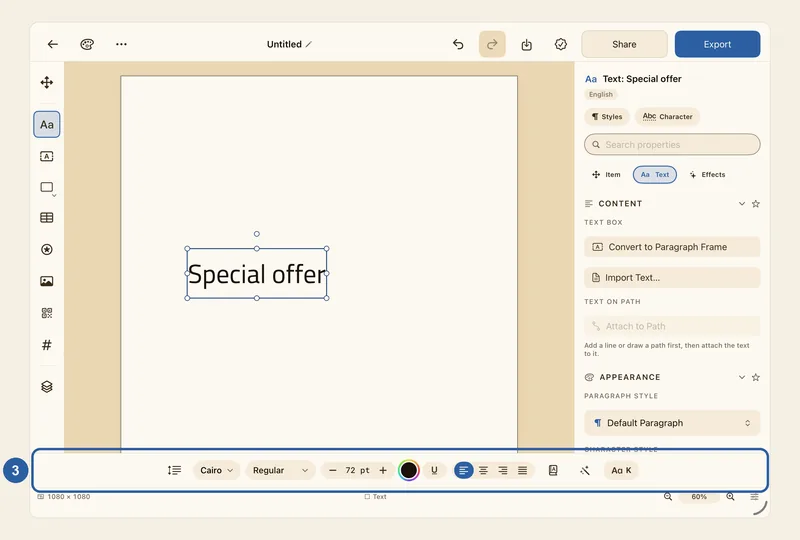
New text starts in the Cairo font: 72 pt for artistic text and 28 pt for paragraph text. To change the font, size, colour or alignment, use the text style bar along the bottom of the editor, marked 3 in the picture. On iPad it sits just above the on-screen keyboard. See Text style bar. The panel beside the page shows the box's settings under its name, here "Text: Special offer".
When you have finished, tap outside the text. The first tap only stops the typing, and the box stays selected.
To change the words later, tap the text. The cursor goes where you tapped, and the text style bar comes back.
- Double-tap a word to select it, or triple-tap to select a whole paragraph. You can also press and hold on a word, then drag to select more.
- Type to replace the words you selected. A change made with the text style bar now applies only to them.
- Tap the cursor for a menu with Select and Select All, and Paste when you have copied something. Tap a selection for Cut and Copy.

Tips
- Some tools work in only one kind of box. The K button for kashida and Text on Path are for artistic text. The Justification setting, Columns and linking to another box (Frame Link) are for paragraph text.
- Chose the wrong kind? Select the box, and in the Text panel, under Text Box, tap Convert to Paragraph Frame or Convert to Artistic Text. The words, font and colour stay as they are.
- A new paragraph box keeps its height. Text that doesn't fit is hidden, and a small red mark appears at the bottom corner. Make the box taller, or turn on Auto height under Text Box in the Text panel. See Troubleshooting.
- To make the letters bigger, change the size in the text style bar. Dragging the handles of a text box changes the box, not the letters. See Resize and rotate objects.
- To move a box while you are typing in it, tap Item (Box), the four-arrows button at the top of the tool rail, then drag the box.
- On iPad, the new box lands in the middle of what you can see. Scroll or zoom to the part of the page where you want the text before you tap the tool.
- Liwan Studio doesn't correct or capitalise what you type, so names and diacritics stay as you typed them.
- Pasted text takes the look of the box you paste it into. The exception is words you styled on their own in a Liwan Studio text box (selected, then changed with the text style bar): when you copy them into another box, they keep their font, size and colour.
- Added a box by mistake? Undo removes it in one step.