
Pictures and graphics
Drop Shadow
Lift text, shapes, photos and stickers off the page with a soft shadow that follows each object's own outline.
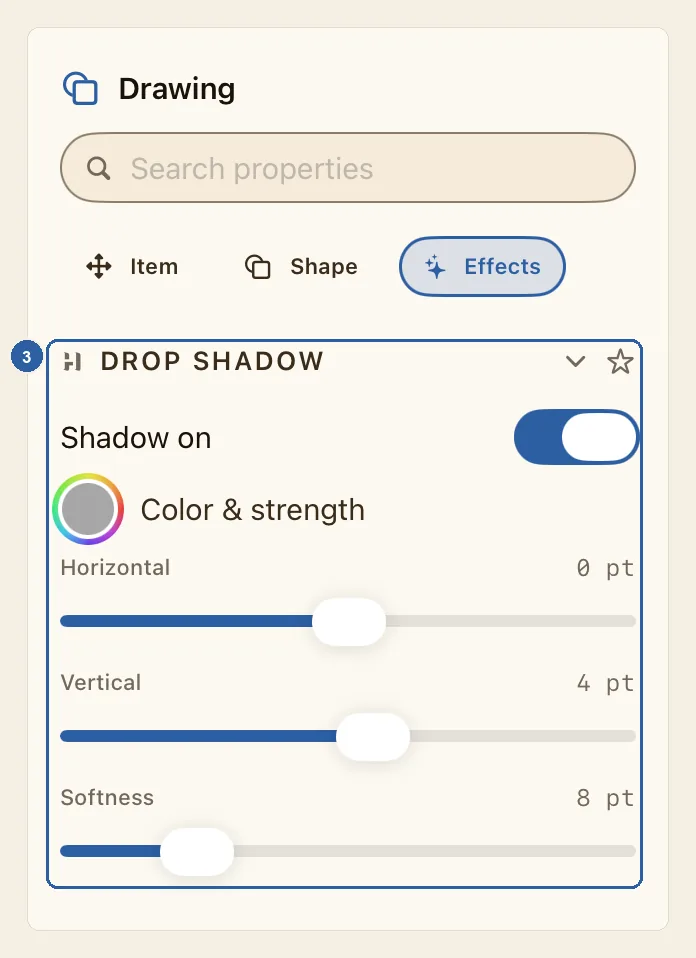
A drop shadow is a soft, darker copy of an object placed just behind it and a little to one side, so the object seems to stand off the page. It is also a simple way to help light text stand out on a busy photo.
How to add a drop shadow
Tap the object you want to give a shadow. It can be text, a shape or a drawing, a photo, a sticker, a table or a QR code. Its settings appear in the properties panel beside the page.
When you tap text, the cursor goes into it. That is fine: the shadow is for the whole text box.
Tap Effects in the row of tabs near the top of the properties panel, under Search properties. It is always the last tab, after Item and the tabs for that kind of object, such as Shape or Text. When Liwan Studio is in Arabic, the row is reversed and Effects is at its left end.
With a keyboard, you can press E instead, as long as the cursor isn't in a text box or a field.
Under Drop Shadow, turn on the switch. Its label changes from Shadow off to Shadow on, and a soft black shadow appears just below the object.
The shadow's settings open under the switch, as in the section marked 3 in the picture at the top of this page. They start at 0 pt for Horizontal, 4 pt for Vertical and 8 pt for Softness, in black at 35% strength.
To change the colour, tap the round swatch with a rainbow ring next to Color & strength. It shows the shadow's current colour. Choose a new colour in the picker that opens.
The colour's opacity sets how strong the shadow is: lower the opacity in the picker for a fainter shadow, or raise it for a darker one.
Drag the three sliders and watch the shadow move on the page as you drag. The number above the right end of each slider shows its setting.
- Horizontal moves the shadow sideways: above 0 to the right, below 0 to the left, by up to 40 pt.
- Vertical moves it down or up: above 0 downward, below 0 upward, by up to 40 pt.
- Softness blurs its edge, from 0 pt (a sharp edge) to 40 pt (very soft).
To remove the shadow, turn the switch off again.
Tips
- The shadow follows the object's own outline: the letters of text, the outline of a shape, a photo's box and any rounded corners it has, the edge of a sticker.
- A photo whose background you removed casts a shadow of the person or product alone. If you also give it a colour, gradient, blur or picture under Backdrop, the shadow follows the whole box again. See Remove Background.
- A shape with no fill casts a shadow of its outline only.
- The shadow is for the whole object. You can't give one word of a text box its own shadow. With several objects selected, the Effects tab isn't offered, so set the shadow on each object in turn.
- For an even halo instead of a shadow to one side, set Horizontal and Vertical to 0 and raise Softness. If all three are at 0, the shadow sits exactly behind the object and you see nothing.
- Turning the switch off forgets your settings. When you turn it on again, the shadow starts over from the soft black default. To get your own settings back, use Undo straight away. Each change is one undo step, and a whole slider drag counts as one — see Undo and redo.
- To jump to the shadow settings, type "shadow" in Search properties at the top of the panel and tap the result.
- Tap the star at the right end of the Drop Shadow title to add it to Favorites: a row of shortcuts under the tabs that appears for every object you select.
- Tapping the Drop Shadow title folds the section away, and it stays folded for every object until you tap the title again. If you can't see the switch, check this first.
- When the properties panel is narrow, the tabs show only their icons. Effects is the one with sparkles.
- A sticker's Effects tab also has Glow, under Drop Shadow — see Stickers.