
Brand Kit (Beta)
Brand Kit (Beta)
Keep your business's colours, fonts, logos and contact details together in one kit, ready to apply to your designs.
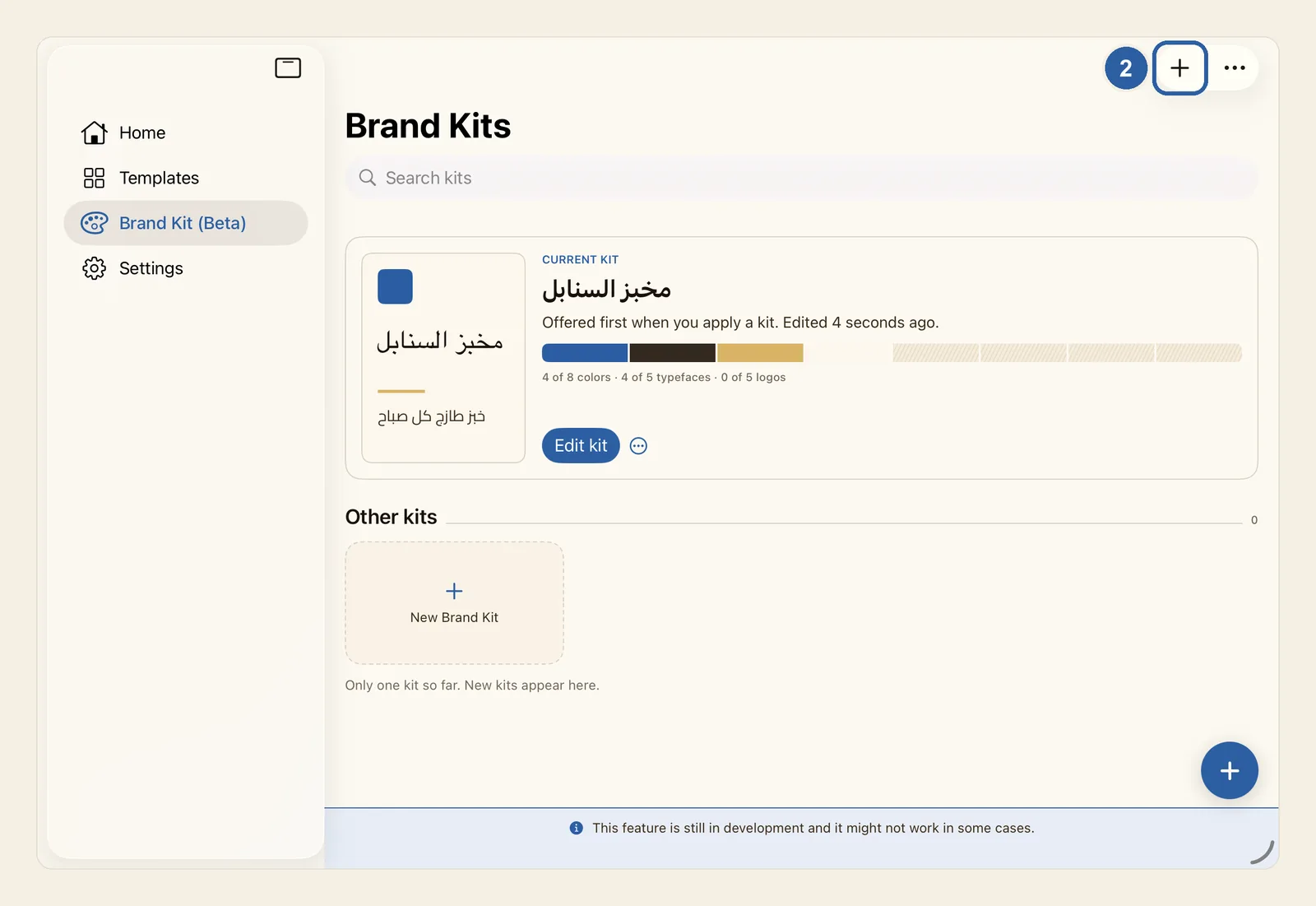
A Brand Kit holds the look of your business: its colours, its fonts for Arabic and for English text, its logos, its name and its contact details. You set it up once, then apply it to a design so that its text and shapes take on your fonts and colours. The feature is labelled Beta: Liwan Studio says it is still in development and might not work in some cases.
How to make a Brand Kit
If a design is open, leave it with Back, the arrow at the start of the top bar. Then tap Brand Kit (Beta) in the sidebar, or in the tab bar if your screen shows the tabs as a bar. The Brand Kits screen opens with your kits, and a note along the bottom says the feature is still in development.
Tap the + button at the top right of the screen, marked 2 in the picture at the top of this page. When Liwan Studio is in Arabic, it is at the top left. The dashed New Brand Kit card after your kits does the same. The kit editor opens, titled New Brand Kit.
If you have no kits yet, the screen says Keep a brand in one place and offers three starter palettes: Warm neutral, Deep contrast and Quiet sand. Tap one to open the editor with its colours and fonts already filled in, or tap Start with an empty kit.
The round + button in the bottom corner starts a new design, not a kit.
At the top of the editor, type a Kit name, the name you see in your list of kits, and your Business name, the name of your shop or company.
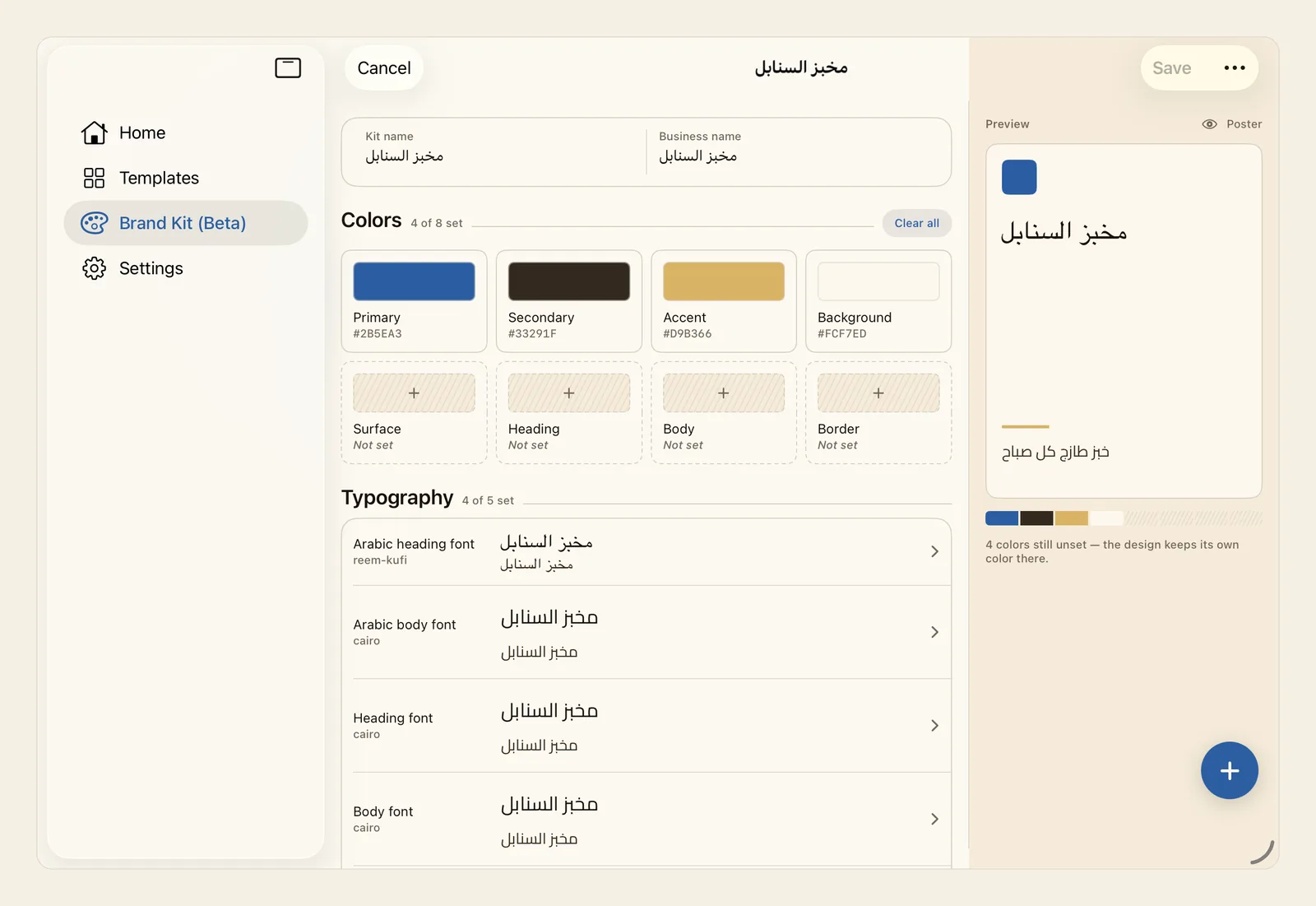
Then set your colours. Under Colors are eight tiles: Primary, Secondary, Accent, Background, Surface, Heading, Body and Border. Tap one, and in the small window that opens, do one of these:
- choose a colour with the colour picker;
- tap a colour under In this kit to use it again;
- type the colour's hex code, the six letters and numbers that name it (for example 8C2B2B), in the Set a color field and press Return.
Tap outside the window to close it. The tile now shows the colour and its code instead of Not set.
To start faster, tap Browse in the strip that says Starting from scratch? Use a starter palette and change what you like. and choose a starter palette. It fills four colours and two fonts, and you can change any of them afterwards.
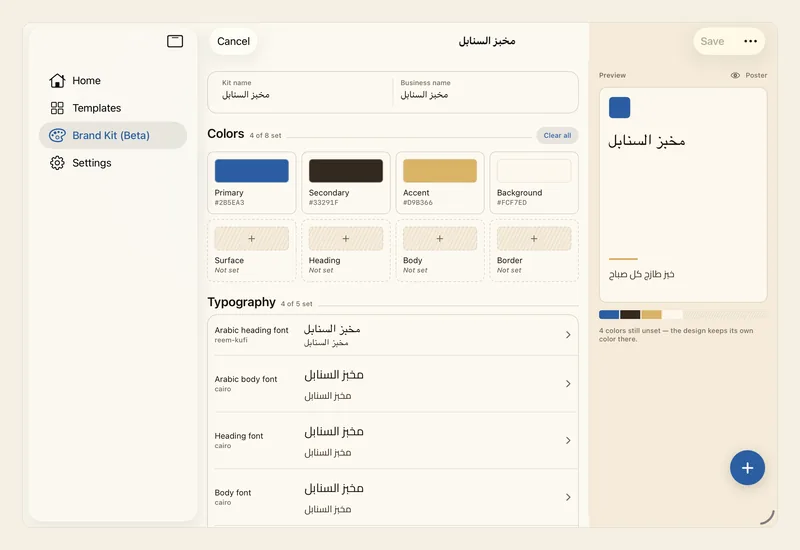
Scroll down to Typography. It has five rows: Arabic heading font, Arabic body font, Heading font, Body font and Caption font. Heading font and Body font are for text with no Arabic letters, such as English. Tap a row, or its Choose a font button, then tap a font in the list. To find a font quickly, type part of its English or Arabic name in Search typefaces.
Below that, under Logos, are five cards: Primary logo, Secondary logo, Icon, Watermark and White logo. Tap a card, choose Choose from Photos or Choose from Files, and pick your logo as a PNG or JPEG file. On a Mac, clicking a card opens the file picker straight away.
Further down, you can add a Tagline, a Short description and a Long description under Identity, and your Phone, Email and Website under Contact.
Check the banner under the names:
- Ready to save: every colour and font is set.
- A line such as 2 things need a look: it lists details worth checking, such as a missing kit name, and adds You can still save.
- Fix 2 things before saving: Save stays greyed out until you fix what it lists.
Tap Save at the top right of the editor (top left in Arabic). You are back on Brand Kits, and your kit has its own card. Your first kit becomes your Current kit: it is shown at the top of the screen on a sample poster, and it is offered first whenever you apply a kit to a design.
Tips
- While you fill in the kit, the Preview panel beside the form draws a sample poster with your colours, fonts, business name and tagline. On a narrow screen it is a small card at the top of the form instead. The poster is only a sample, not one of your designs.
- Type the Business name before you choose fonts: the font samples then show your business name, so you see your own words. The Arabic sample shows it only when the name is written in Arabic.
- You don't have to fill every slot. Wherever a colour or font is Not set, a design you apply the kit to keeps its own colour or font.
- To empty a colour, tap Clear color in its window, or touch and hold the tile (right-click on Mac) and choose Clear color. Clear all, next to Colors, empties all eight. To empty a font, tap its row and choose No typeface.
- To remove a logo on iPad, tap its card and choose Remove logo. On a Mac, click the card and pick another file to replace it. A card that shows Unreadable holds a file Liwan Studio cannot read; choose a PNG or JPEG instead.
- The font list offers the fonts on this device, including the ones you added yourself in the Fonts library. A kit keeps only the font, not its size or weight.
- Cancel closes the editor. If you changed anything, Liwan Studio asks Discard your changes?; tap Discard to throw the changes away. A kit saved without a name shows as Untitled kit.
- To change a kit later, tap its card, or Edit kit on the Current kit card. Tap the ⋯ button on a card, or touch and hold the card (right-click on Mac), for Make current kit, Duplicate, Rename… and Delete kit. Deleting asks first, and designs you already made keep their colours and fonts.
- Your kits stay on this iPad or Mac. To use a kit on another device or send it to someone, open it and tap Export at the top of the editor. This saves one .liwanbrand file with the logos inside. On the other device, open the file from Files, AirDrop or Mail, or tap Import at the top of Brand Kits, and the kit is added there. If you don't see Export or Import, tap the ⋯ button at the top of the screen.
- Applying a kit never places your logo in a design. On a Mac, open the design, choose Insert ▸ Media… (⇧⌘K), click Brand Kit in the window's sidebar, then double-click a logo to place it. On iPad, add your logo file as a picture instead — see Add and adjust pictures.
- When you start from a built-in template, its details window has a switch under Brand Kit that opens the new design with your kit already applied. See Start from a template.