
Text and fonts
Line and letter spacing
Fit more lines into a box or give them more room, space out the letters of English text, and raise or lower a few characters.
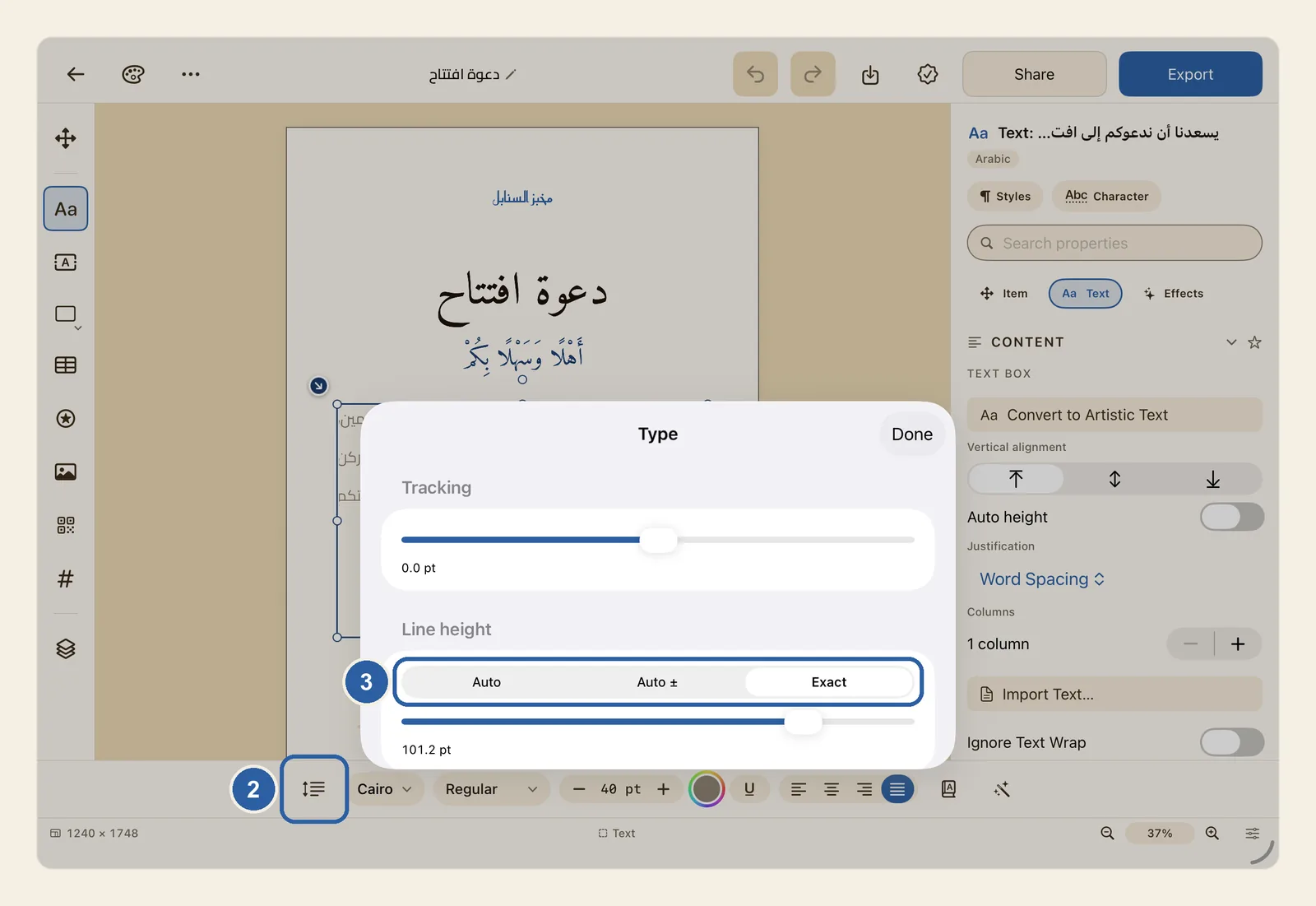
Three settings sit together in the Type panel. Line height is the space from one line to the next. Tracking is the space between letters. Baseline shift moves characters up or down from the baseline, the invisible line that letters sit on.
How to change line and letter spacing
Tap the text you want to change. A cursor appears in it, and the text style bar appears under the page.
If you only want to raise or lower some of the characters, select them now: double-tap a word to select it, or triple-tap to select a whole paragraph.
Tap the first button in the text style bar. It is marked 2 in the picture at the top of this page, and its icon shows lines of text beside an up-and-down arrow. Press and hold it to see its name, Tracking, line height and baseline shift. When Liwan Studio is in Arabic, the bar is reversed and this button is at its right end.
The Type panel opens with Tracking at the top, Line height below it and Baseline shift further down. The number under each slider shows its current setting.
Under Line height, choose how far apart the lines are with the three buttons marked 3:
- Auto spaces the lines to suit the size of the text, and keeps them that way when you change the size. Text starts on Auto.
- Auto ± starts from Auto and adds space or takes some away. Drag the slider to the right to move the lines further apart, or to the left to bring them closer together. The number under it shows how much, such as +4.0 pt.
- Exact sets the whole distance from one line to the next, in points, whatever the size of the text. Drag the slider to choose it; it starts at 1.4 times the text size.
The text on the page follows the slider as you drag.
In a paragraph box, the change applies to the paragraph the cursor is in. To change several paragraphs, select text that runs across them first; to change the whole box, select all of its text. In a headline made with Artistic Text, the change applies to the whole box.
Use the other two sliders if you need them:
- Tracking spreads the letters apart (drag right) or pulls them closer (drag left), by up to 20 pt either way. It works on English and other Latin text; Arabic letters stay as they are. It always changes the whole box, even when only part of the text is selected.
- Baseline shift raises the characters (drag right) or lowers them (drag left), by up to 12 pt either way. It moves the characters you selected in step 1, or all the text in the box if you selected nothing. On iPad, you may need to scroll down the panel to reach it.
When you have finished, tap Done at the top of the panel.
Tips
- Lowering Line height is a quick way to fit a few more lines into a box. Arabic text with diacritics (the small vowel marks above and below the letters) or tall letters needs more room, so raise it again if the marks of one line come close to the line above.
- Raising Line height makes the text taller. In a paragraph box, lines that no longer fit are hidden, and a small red mark appears at the bottom corner of the box. Make the box taller, or open the Text panel and turn on Auto height under Text Box. See Troubleshooting.
- Baseline shift does not change the space between lines. Use it for small touches, such as a ® after a brand name, a footnote number, or a currency sign beside a price.
- To space out only some English words, give them a character style that sets Tracking — see Character Styles.
- To give every paragraph of one kind the same line height, set Line height in a paragraph style — see Paragraph Styles. The space before and after a paragraph is set there too. A line height you set in the Type panel takes priority over the style for that paragraph.
- For text on a path, Tracking is measured in em, a share of the font size, from −0.050 to 0.200 em. See Text on Path.
- The panel also works for text inside a shape and in a table cell.
- On iPad, the panel covers the lower part of the screen. If it hides the text you are changing, tap Done to look at it, then open the panel again: the sliders show the settings you made.
- You can reverse each change with Undo — see Undo and redo.